


Welcome! This month we’re introducing one of the world’s most popular generative AI toolsets, runway.ml, and using it to generate a set of short video clips to create a promotional video for a conference. The series continues below.
Project overview
As generative AI develops at speed, we’re delving into the apps and tools currently available to help with ‘real’ creative projects. In this case, we’re using the video generation tools available at runway.ml to create short video clips to edit together to create a short promotional video for an upcoming conference. We’ll use chatGPT to suggest a script, then use runway’s text-to-speech tool to create a realistic-sounding voiceover.
Note that this is not an explainer series, though we do detail the main steps to follow at runway.ml.
Using runway’s AI video clip generator: Basic workflow
We’ll start by using runway to generate short clips for the start of the promotional video (I.e. Establishing shots). We’re going to use runway’s ‘text to video’ tool without any additional adjustments (E.g. Camera movement). Here are the main steps:
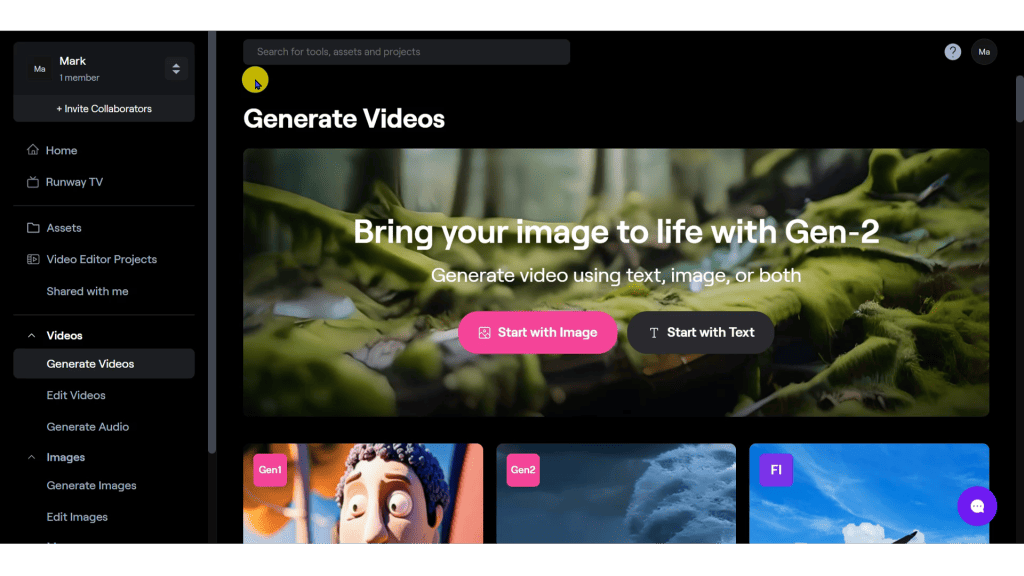
1: Log into runway.ml. From the home screen select ‘Generate videos’ on the menu bar on the left:
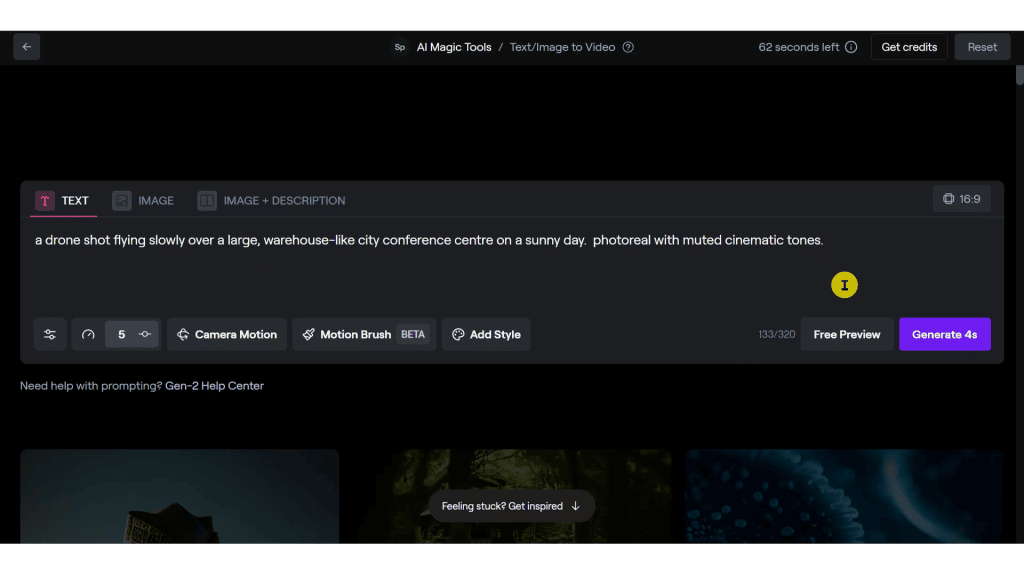
2: Select the ‘Text’ tab and enter the text prompt to be used:
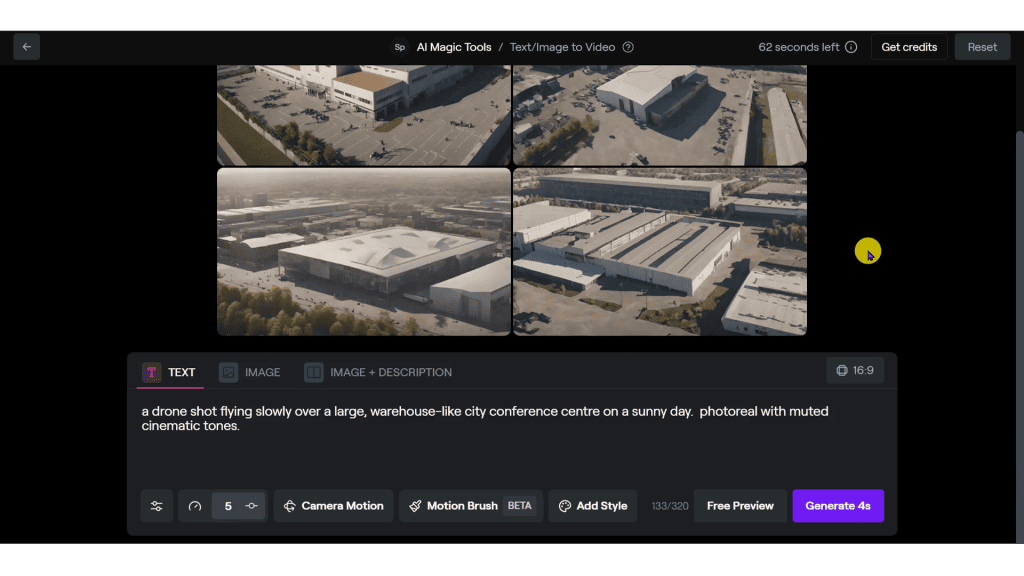
3: Click on the ‘Free Preview’ button to generate examples of potential starting frames for the video clip. (It’s always recommended to use the free preview option rather than committing immediately to a generation, which will use your credits).
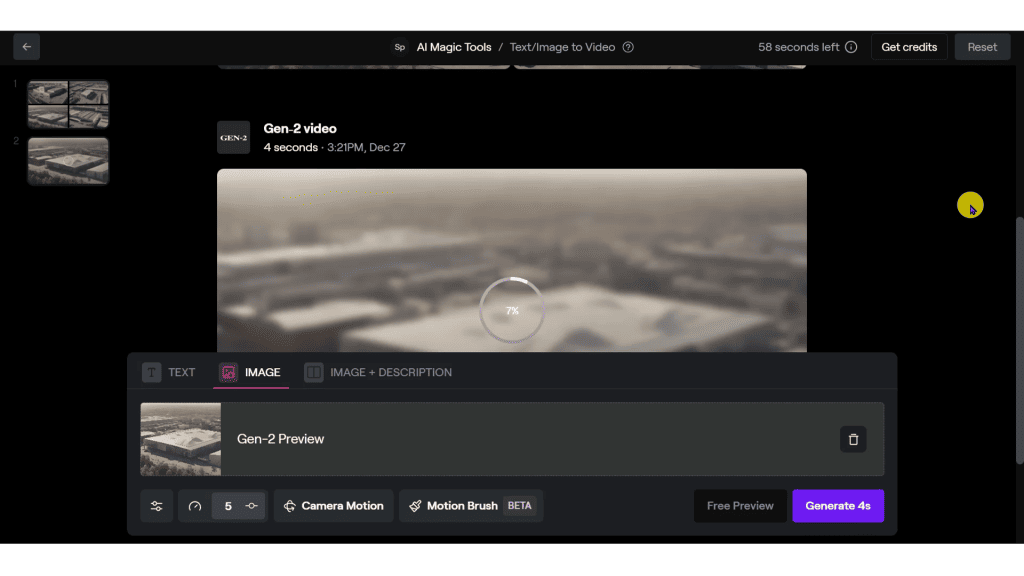
4: Select one of the four images to use it as the starting point for the video clip, then click ‘Generate 4s’. (The 4s means ‘4 seconds long’. This is the maximum clip length at time of writing though it will likely increase in future). The video is generated – This process takes around 15 seconds at the time of writing:
5: Play the generated video back. The clip will automatically be saved in ‘my assets’ in your runway account, but you can download it to your computer by clicking the download icon at the top right of the clip preview:
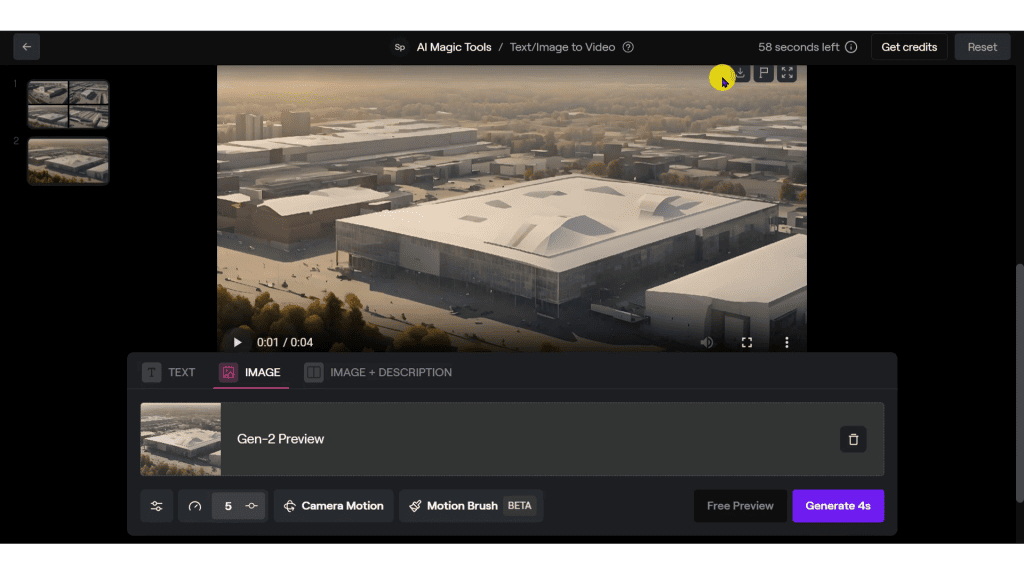
You can find the video clip we generated in the section below. You’re welcome to download it and use it as you wish!
We repeated this process for the next video clip in our shotlist, using the prompt as shown:
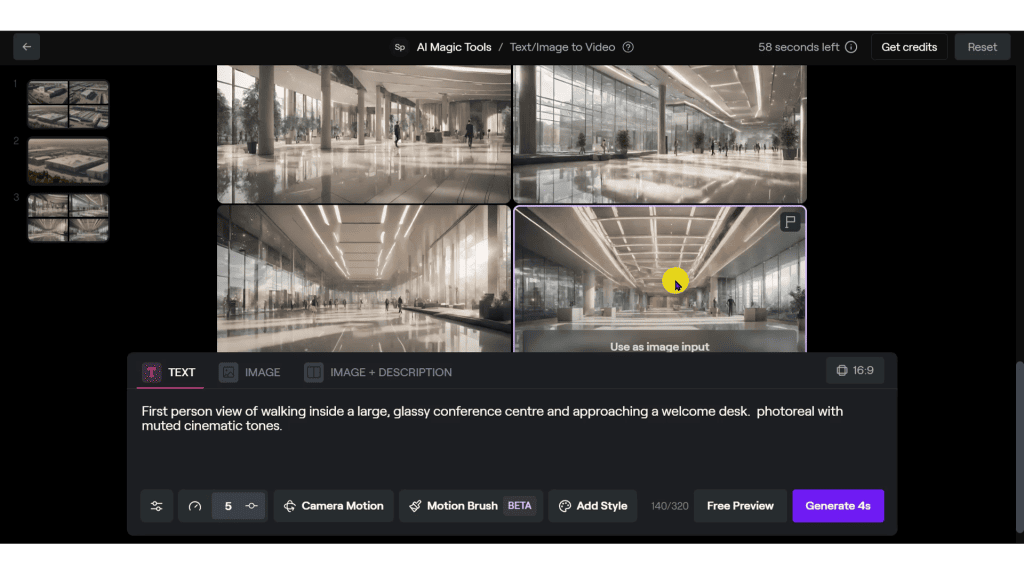
The generated video clips (clips 1 and 2)
You’re welcome to download the clips for use with your own video / generative AI projects.
Issues / errors observed
We expect visible issues with the generated clips, though who knows how many of these ‘glitches’ will be eradicated as the models develop. Think of it as part of the fun!
- The (very small) people and vehicles outside the building in the first clip morph and fade
- The people in the second clip are humanoid – Just! Our favourite is the character who appears near the desk on the right – They’re super-elongated and walk through the glass partition!
Join us in part four of this series when we’ll use runway’s camera controls to help generate the next video clips for our video.
