


We continue our series introducing one of the world’s most popular online generative AI video production toolkits, as we create a short video for a brand new immersive experience.
The AI tools and models used in this series
We’ll use runway.ml to generate video clips and assemble them into a sequence, and we’ll use additional AI tools to help with initial ideation and to create text prompts to use at runway to help generate high quality video clips.
The main steps in the project:
- Generate an overview for an ‘immersive experience’ promotional video using perplexity.ai
- Generate still images using the flux-1.1-pro model at replicate.com to use as ‘first frame’ prompts at runway
- Generate short video clips using runway’s latest Gen-4 model
- Use runway’s online video editor to sequence the promotional video
- Use the speech-02-hd AI model at replicate.com to generate a realistic-sounding voiceover
- Use udio.com to generate a background music track
- Add text titles and export the video file
Part 4: More video clips for the short promo generated at Runway
Below are the six ‘prompt image’ stills generated using flux pro 1.1 at replicate.com, and the six video clips generated using Runway Gen-4 (using each still image as a starting frame). These videos are as-downloaded direct from Runway – They have not been edited.
Clip 1: Still Image prompt

Clip 1: Runway Gen-4 5 second video clip
Clip 2: Still Image prompt
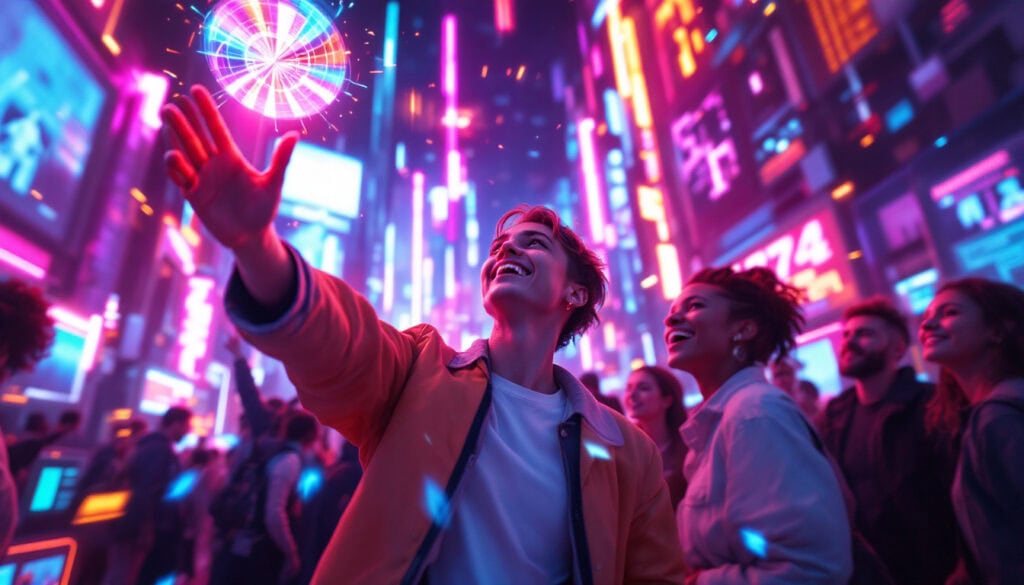
Clip 2: Runway Gen-4 5 second video clip
Clip 3: Still Image prompt

Clip 3: Runway Gen-4 5 second video clip
Clip 4: Still Image prompt

Clip 4: Runway Gen-4 5 second video clip
Clip 5: Still Image prompt

Clip 5: Runway Gen-4 5 second video clip
Clip 6: Still Image prompt

Clip 6: Runway Gen-4 5 second video clip
Trying Runway’s upscaling option
As mentioned earlier in this series, a short clip can be upscaled from its native 720p resolution to 4k for an additional 10 credits. We won’t upscale every clip, but to see if this option is worthwhile we upscaled the ‘faces’ clip.
‘Faces’ clip upscaled to 4k and downloaded from Runway:
Here’s a close-up crop of part of the central female’s face. A grab from a 720p video frame is on the left and from the upscaled 4k video on the right:
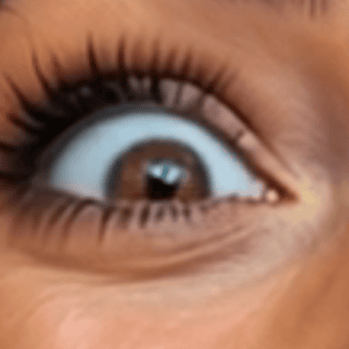
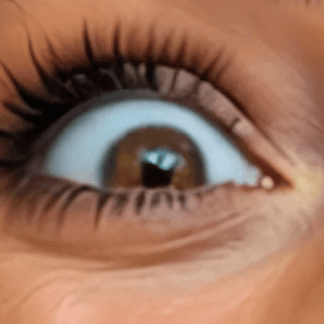
The ‘4k’ version shows more definition, though this can be achieved with a small amount of sharpening in a regular video editing application.
In part five of this series we’ll use Runway’s online video editor to sequence the generated video clips.
