

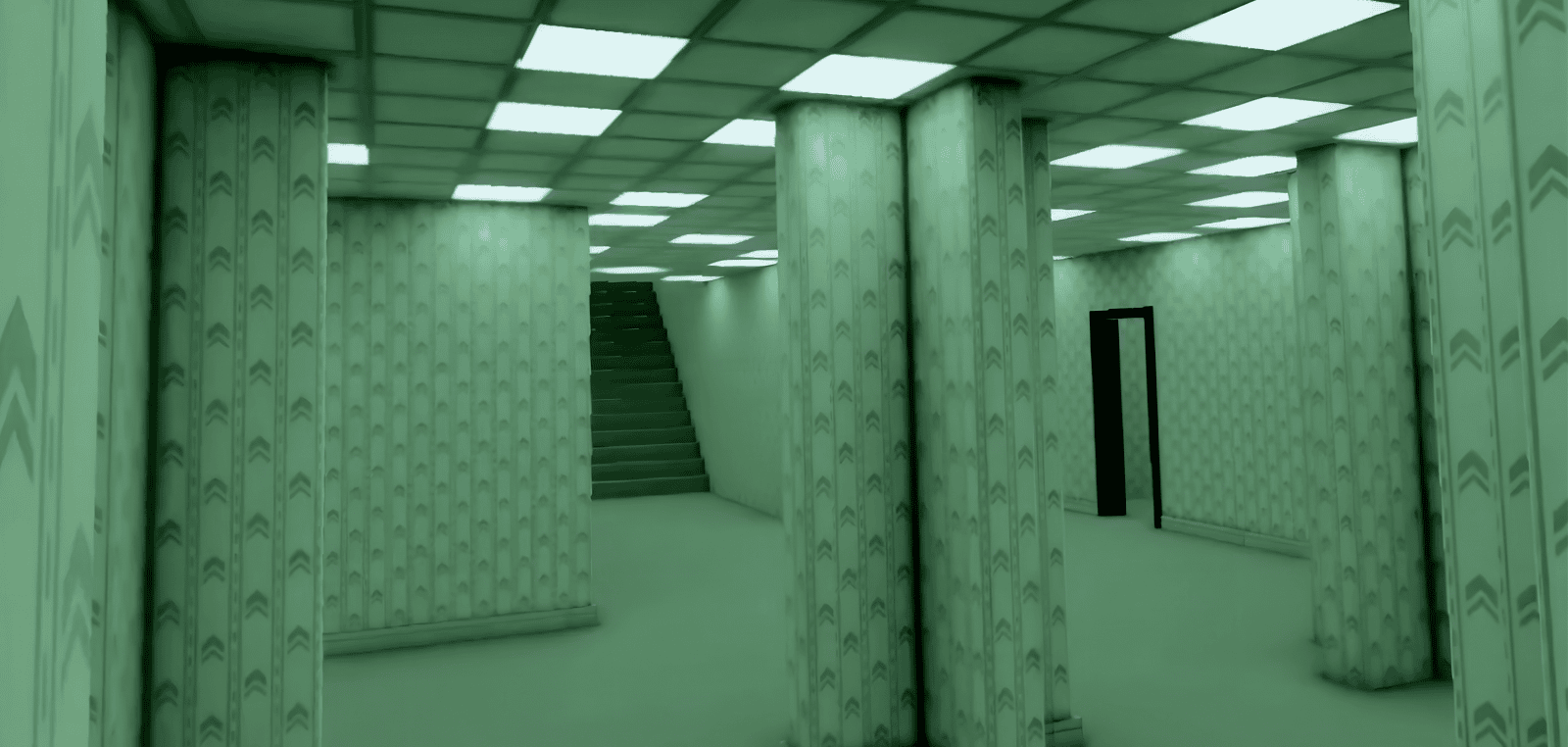
You can watch the movie or play the game, but why not explore your own liminal environment in a VR headset?
Backrooms Movie Trailer (2026)
Escape the Backrooms game on Steam:
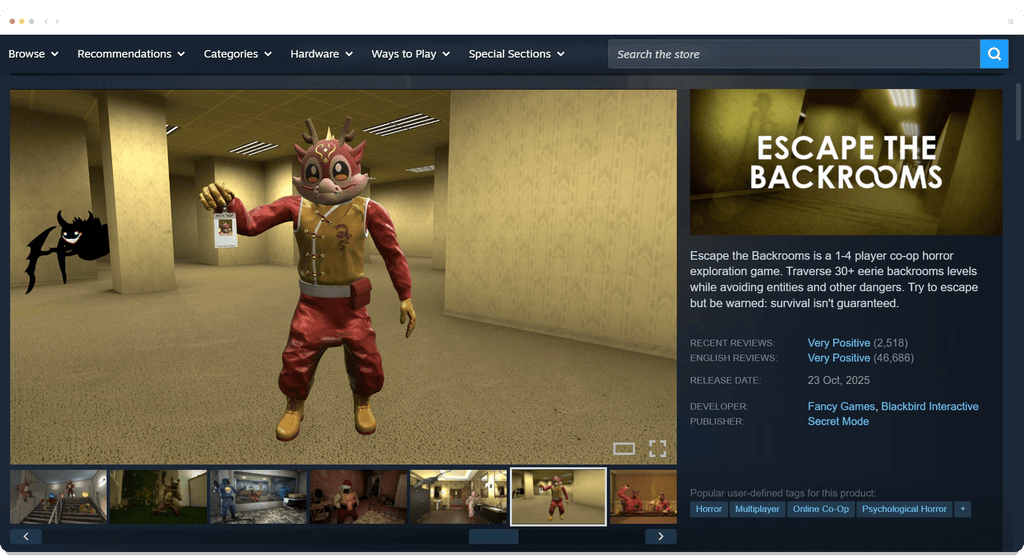
With Halloween nearly upon us, now is the perfect time to bring you a special step-by-step creative workflow. Get your VR headset ready for a journey into the backrooms!
Part one of two: Overview
Name of workflow:
Use Unity to build a 3D Backrooms environment and explore it in a Quest 3 VR headset
Creative themes: Unity and VR
Software used: Unity
User level: INTERMEDIATE
This two-part workflow includes:
Part One (This post)
- Install the Unity Hub and Unity LTS
- Change the build platform to Meta Quest and enable the XR plugin
- Install VRIF and open the included demo scene
- Build the VRIF demo scene and send it to a Quest 3 headset
Part Two (In a few days time)
- Part 5: Import a free backrooms environment into Unity
- Part 6: Generate ambient sound and add it to the scene
- Part 7: Import a piano object and add 3D sound to it
- Part 8: Explore the backrooms environment in a VR headset
Download the step by step guide!
If you’d prefer to download all the steps below in a single, convenient PDF file, you can! A separate file for part two will be available in a few days’ time.
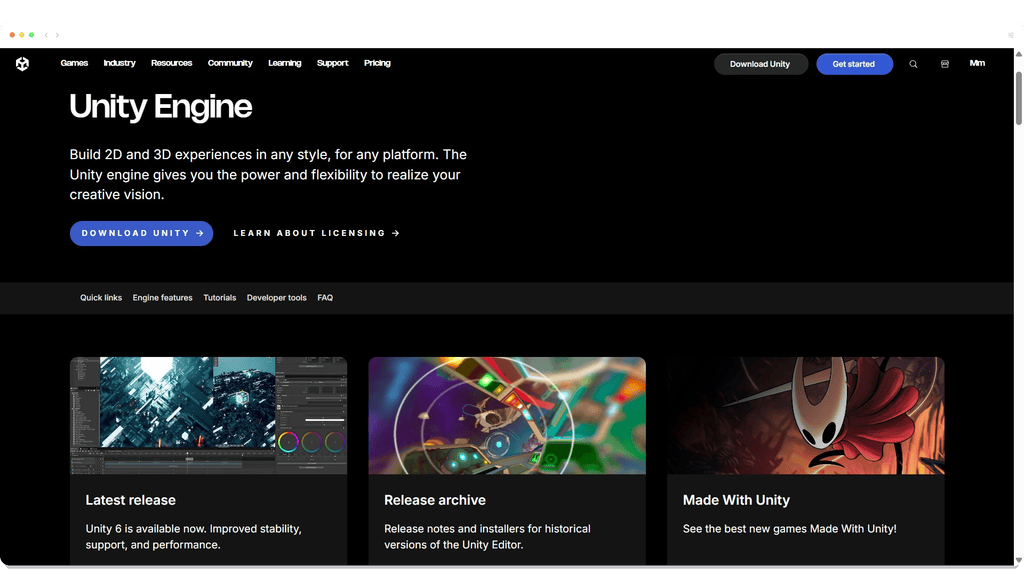
What is Unity?
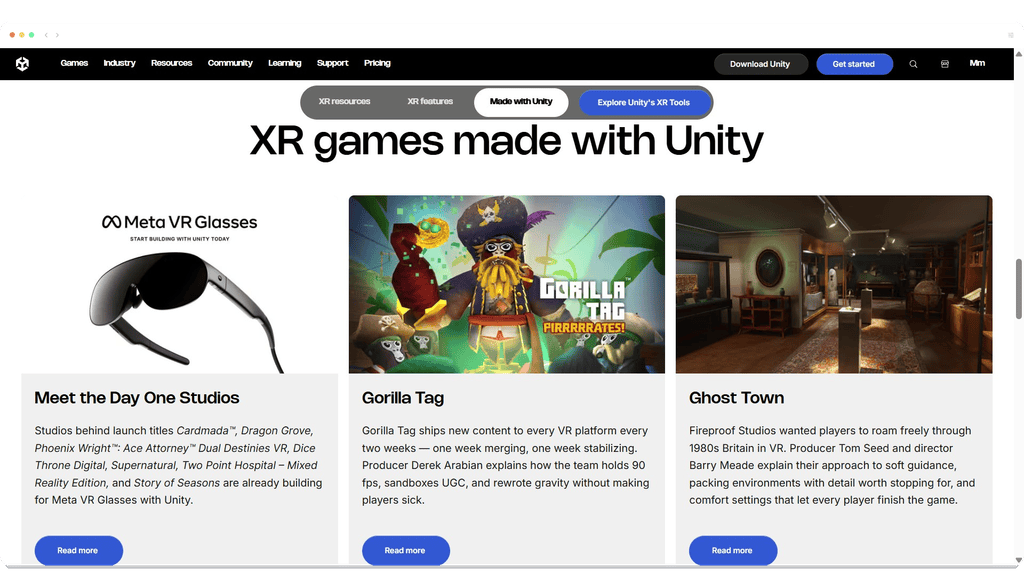
This step by step creative workflow uses Unity, one of the most popular real-time 3D development environments. It’s used by millions of creators to develop games, animations and visualisations and even to produce short movies. Unity’s personal edition is completely free. If you decide to make money commercially from your Unity creations you’ll need to upgrade to a paid professional license.
The Backrooms environment at the end of this workflow
This is the VR scene at the end of this two-part series, complete with flickering TV and off-key piano. This video was streamed from a Meta Quest 3 headset:
PART 1: Install the Unity Hub and Unity LTS
A: Start by going to the Unity website and downloading the current version of the Unity Hub.
B: Create a FREE Unity account. You will need one to use the Unity Hub and the Unity asset store.
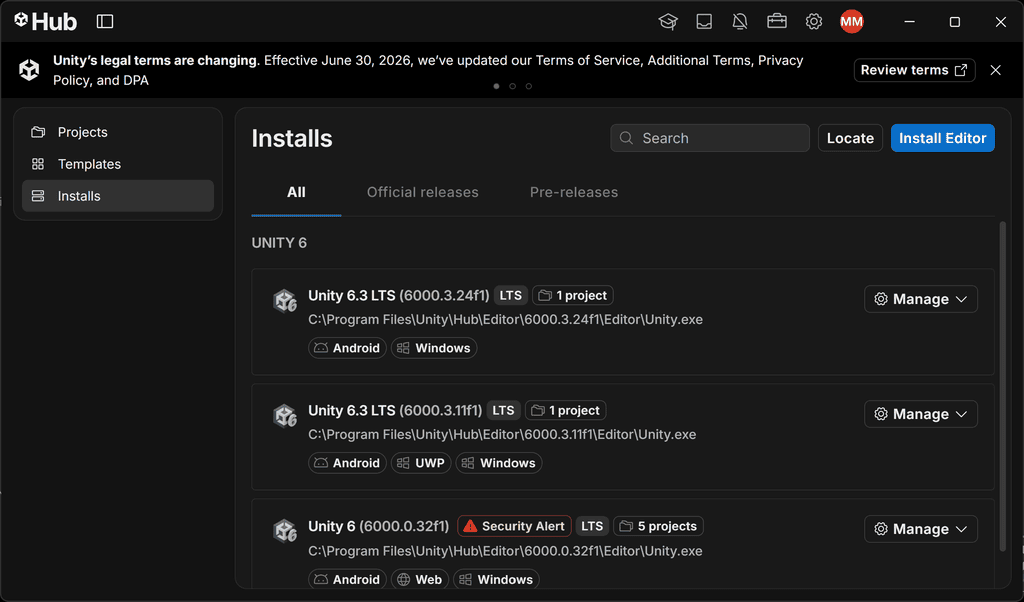
C: Open the Unity Hub, then install the current ‘LTS’ build. LTS is short for ‘long term support’ and ensures you’re using a stable, supported version of the application.
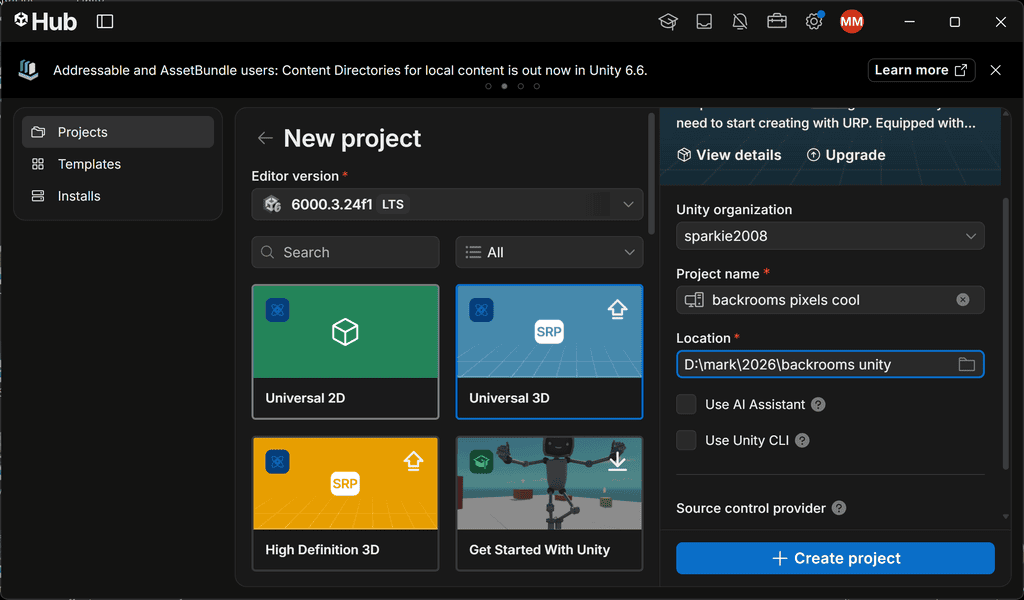
In the Unity Hub, click the ‘New Project’ button. Select the ‘Universal 3D’ template. Set a project name and the location on your drive to store it. Click ‘Create project’:
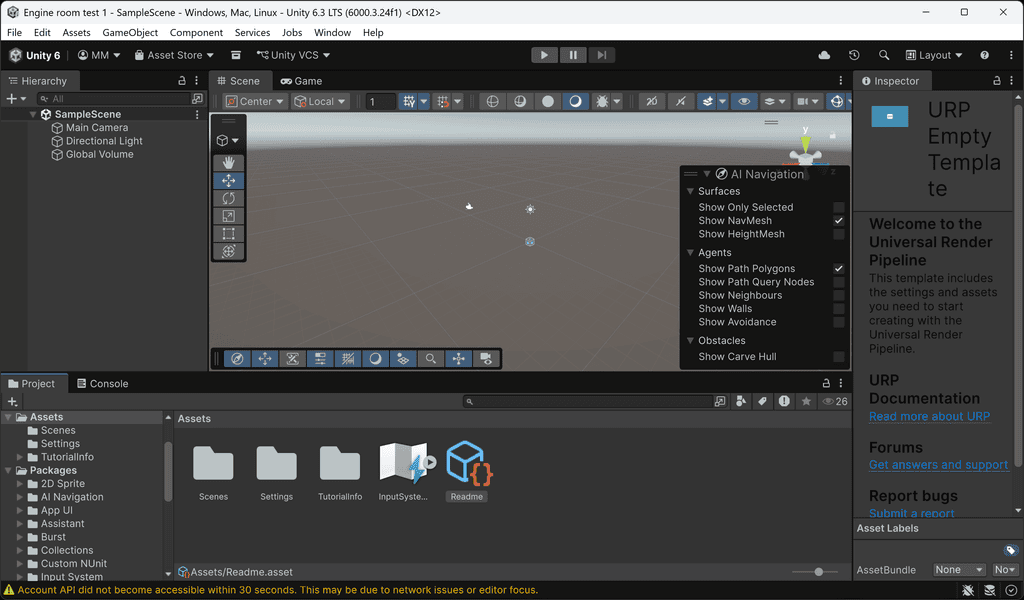
It will take a few minutes to create the project and open it in the Unity editor:
Part 2: Change the build platform to Meta Quest and enable the XR plugin
A: In Unity, go to File > Build Profiles
The default ‘build platform’ is likely to be Windows when you first open Unity:
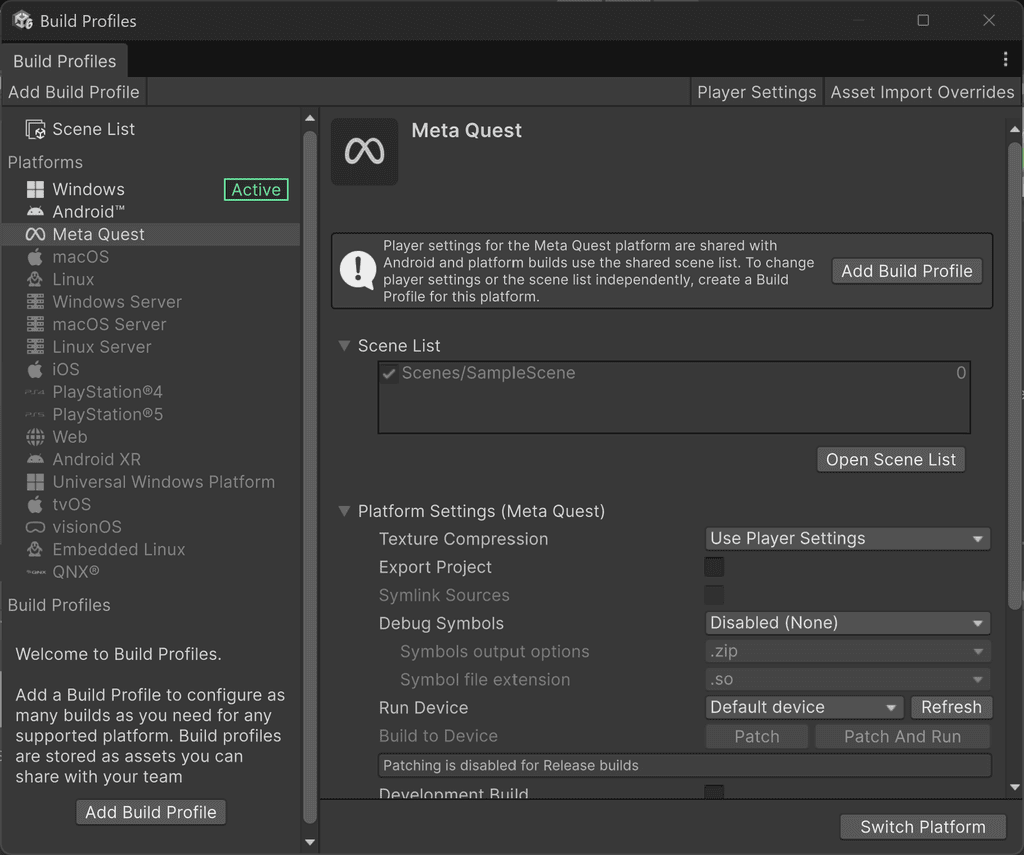
B: Select ‘Meta Quest’ then click the ‘Switch Platform’ button.
This process may take a few minutes. You may be prompted to install ‘XR plug-in management’ – Say yes to this!
Note: If you’re not prompted to install XR plugin management as part of the build platform switch, once it’s complete go to Edit > Project settings > XR plugin management > Install.
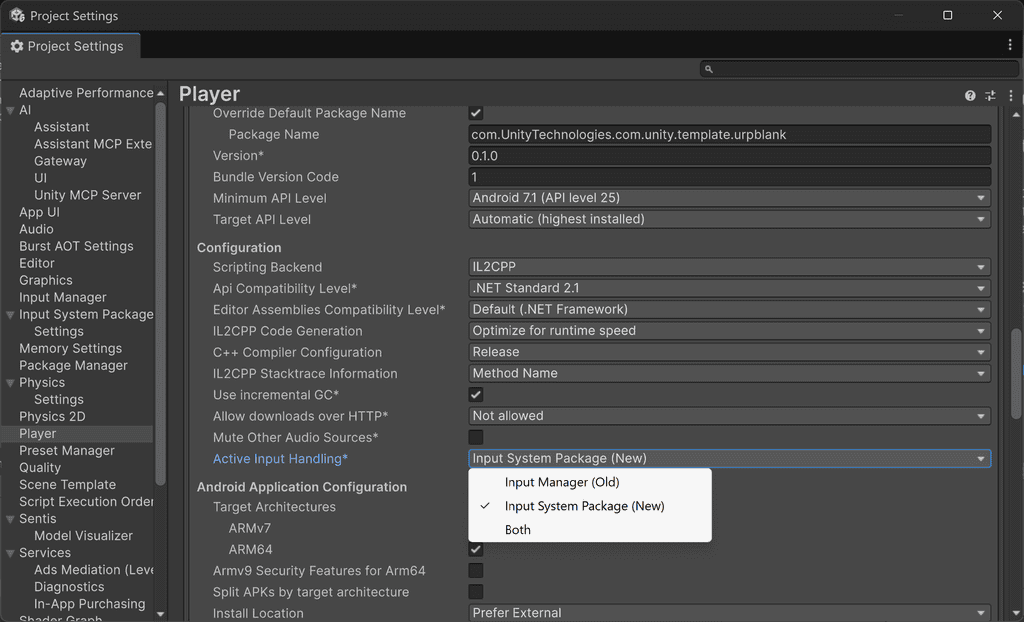
C: Go to Edit > Project settings > Player > Other settings
Scroll down and check that ‘active input handling’ is set to ‘Input System Package (New)’. If not, select it now:
Part 3: Install VRIF and open the included demo scene
VRIF, short for VR Interaction Framework, is a Unity asset that helps creators build virtual worlds and explore them in VR. Instead of building every interaction from scratch, you can use ready-made scripts and prefabs as starting points for objects you can pick up, switches you can flip, and levers you can pull.
VRIF is a paid asset, available from the Unity asset store. Its regular price is around £60 / $69, though it can often be picked up for around half that in Unity sales. This is the only paid asset required to complete this workflow – All the 3D assets are FREE and we supply the spooky sound files!
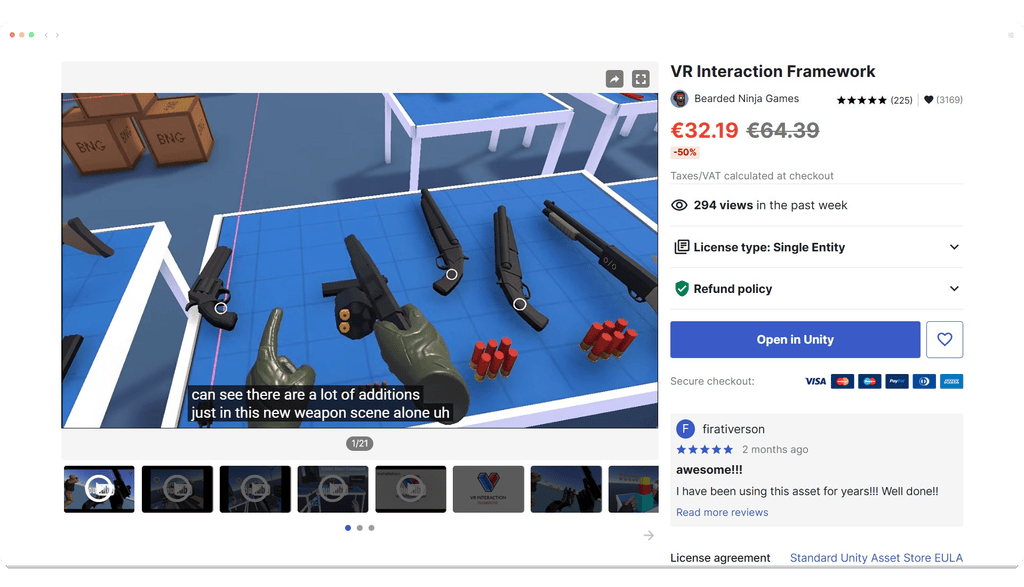
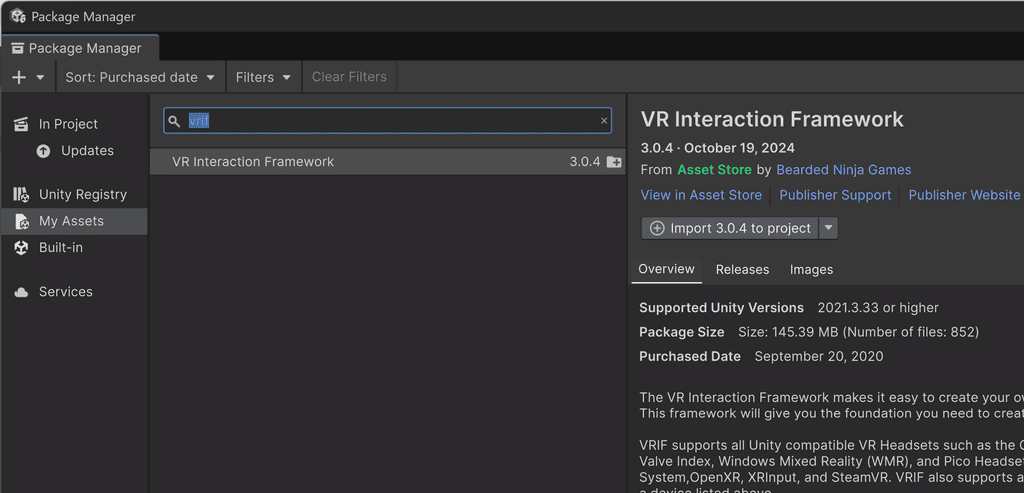
A: To install VRIF, in Unity go to Window > Package management > My Assets
B: Search for ‘VRIF’, then select it and click the ‘Import 3.xx to project’ button. (The version shown in the screenshot below is 3.0.4 – This version number may have increased).
Note: You need to have purchased VRIF for it to show in the assets list. There is no free/trial version available.
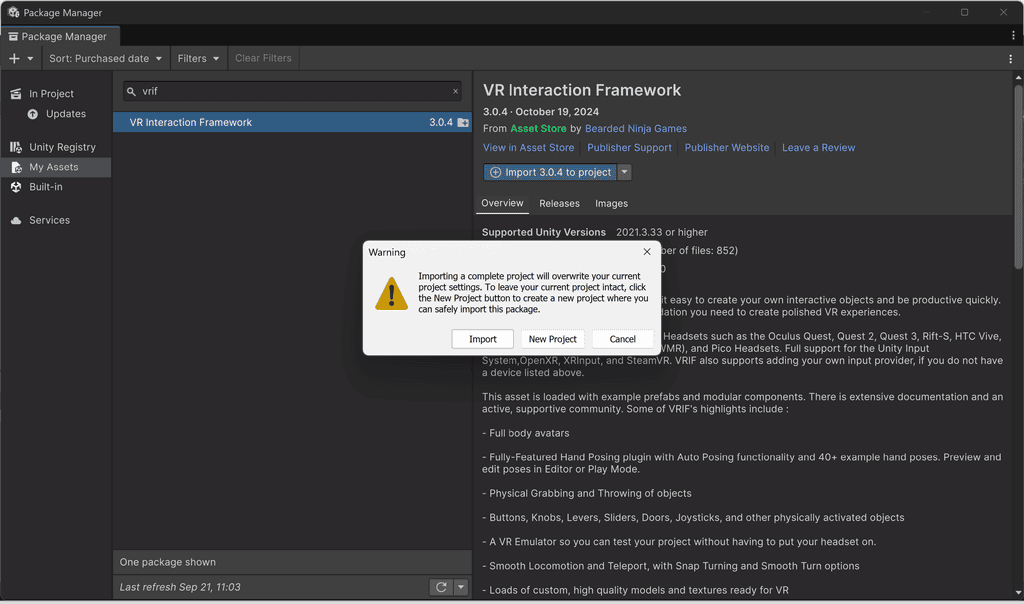
Additional packages (dependencies) will be installed alongside VRIF, and you will be warned that VRIF is going to overwrite the current project settings.
We suggest starting every VR project with a brand new project. If you’ve used Unity before and have existing non-VR projects, do not import VRIF into them as unexpected results may occur and you cannot ‘undo’ the process.
C: Once VRIF is installed, it’s time to take a look at the included VR demo scene, which includes lots of objects to interact with including weapons, bouncy balls and a vehicle to drive!
In the project panel, locate and open the scene ‘Quest Demo’. This is found in the Scenes folder within the BNG Framework folder in the project:
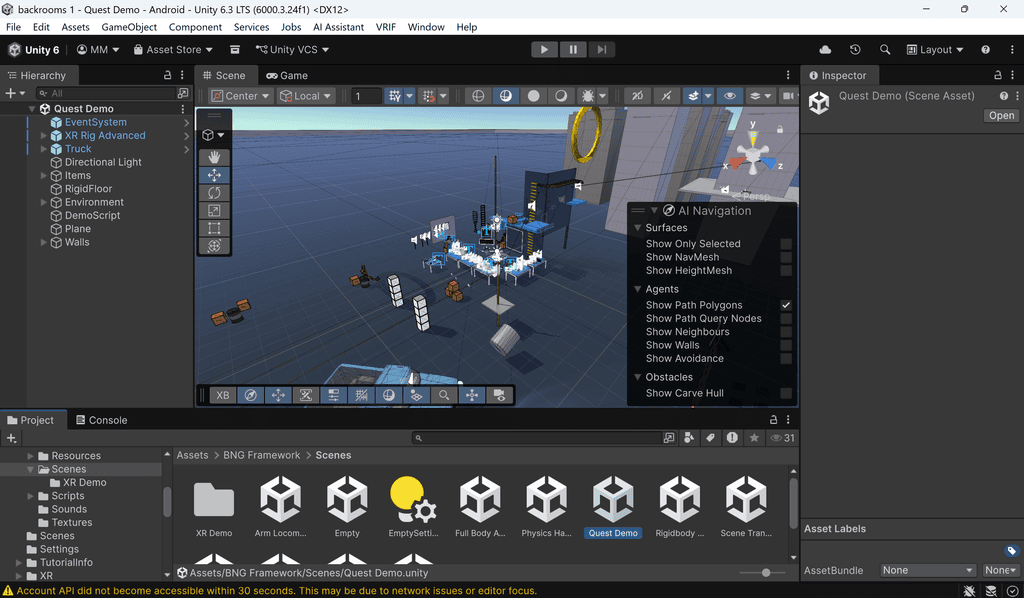
D: Press the PLAY button above the scene preview window. The scene will play inside the Unity editor, so you can try it without needing to attach a VR headset. You can move your virtual character around using the WASD keys and your mouse:
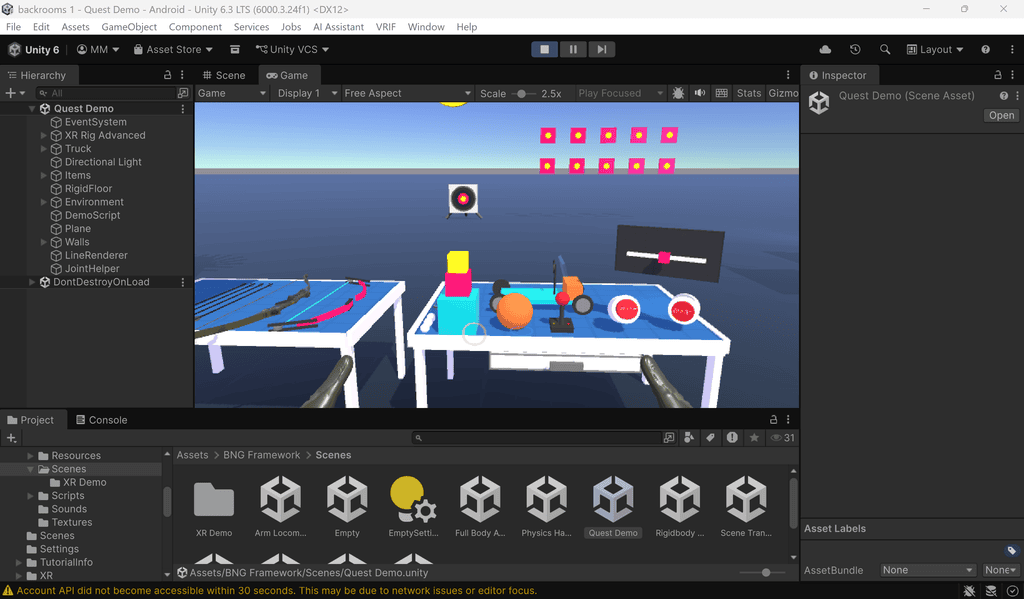
Remember to STOP the scene playback before continuing. It’s nearly time to connect the Quest 3 headset and send the scene to it!
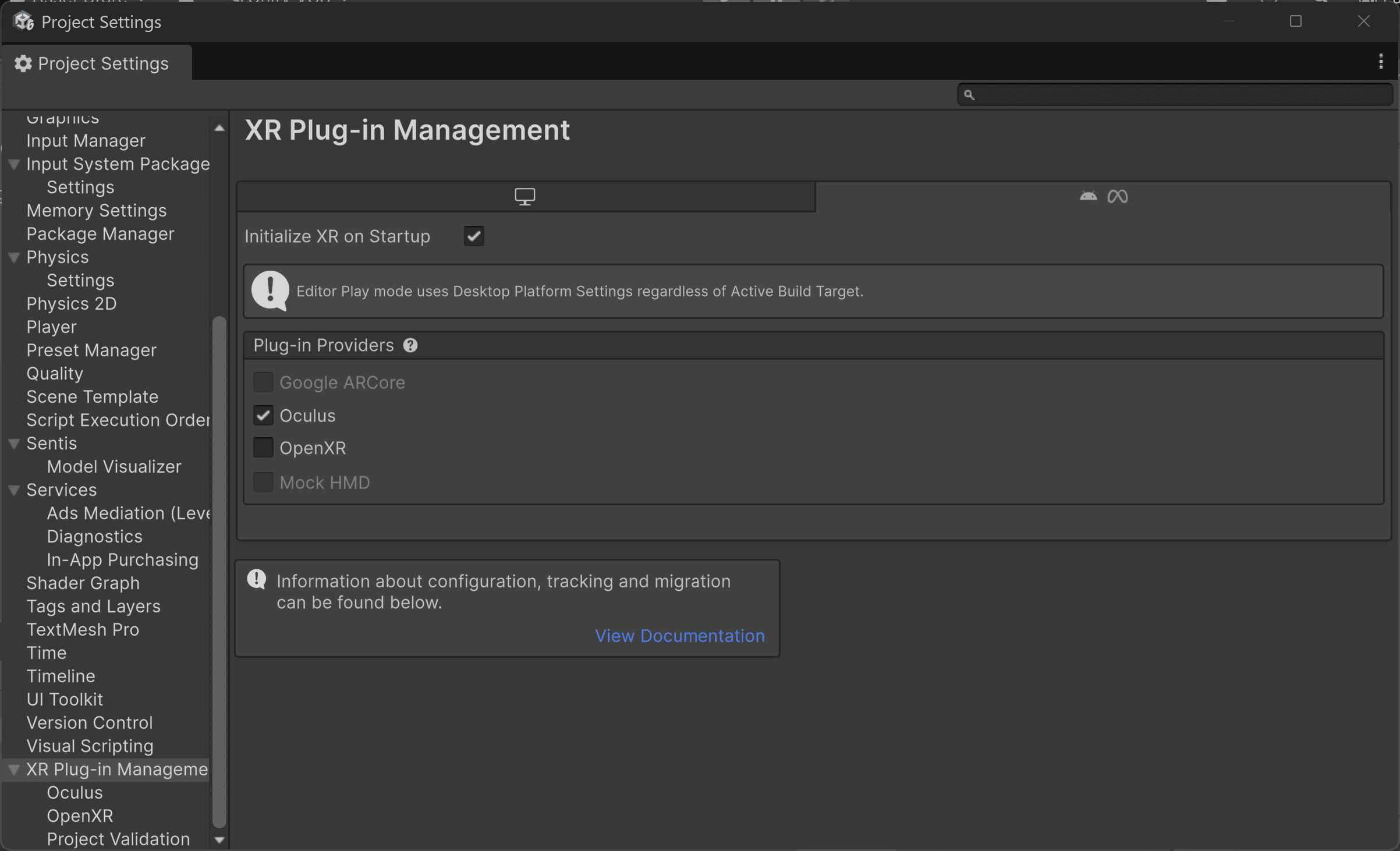
E: Go to Edit > Project settings > XR plug-in management
Switch from Open XR to OCULUS as below:
Part 4: Build the demo scene and send it to a Quest 3 headset
Before we go on to work with a Backrooms scene, it’s important to check that the example scene included with VRIF can be ‘built’ and sent to the VR headset.
IMPORTANT NOTE
The steps below will only work if the Meta account has DEVELOPER SETTINGS ENABLED, and the headset has been connected to the laptop with a USB cable and DEBUGGING accepted in the headset. View the full instructions by expanding the section below:
How to set up and enable Meta Quest developer mode
Meta Developer Mode lets your Quest 3 install and test a Unity app that you made yourself, rather than one downloaded from the Meta store. You switch it on in the phone app, then give your computer permission to send builds to the headset.developers.meta
- Sign in to the Meta Horizon Developer Dashboard with the Meta account used on your Quest. Join or create a developer team and verify your account if prompted.developers.meta
- On your phone, open the Meta Horizon app. Tap the headset icon → your Quest 3 → Headset Settings → Developer Mode, then turn it on.developers.meta
- Connect the Quest to your computer with a USB-C data cable. Put on the headset and accept the USB debugging prompt; choose “Always allow from this computer” if it’s your own computer.developers.meta
- In Unity, open File → Build Profiles, select Meta Quest (or Android in older Unity versions), choose your headset under Run Device, then click Build And Run. This installs and launches your scene as an app on the Quest.
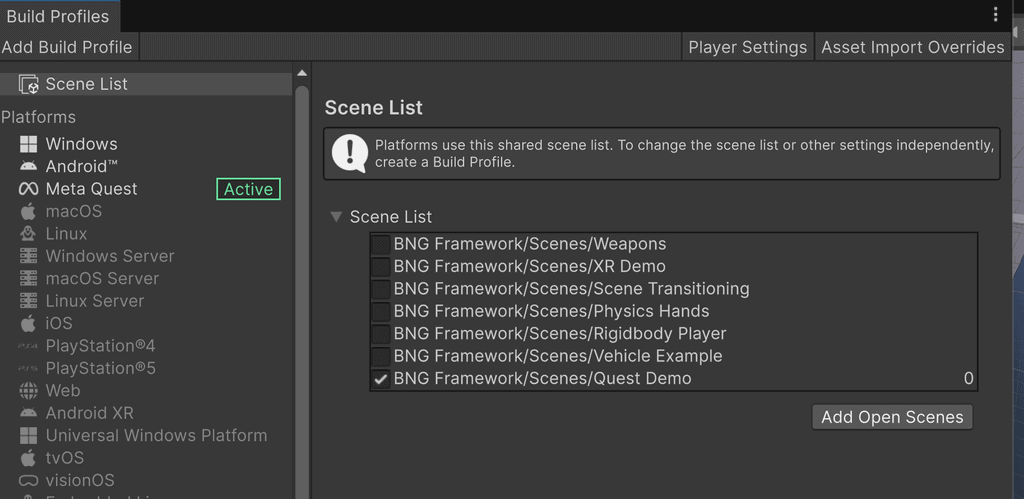
A: Go to File > Build profiles > Scene list
Click ‘Open scene list’ and untick / uncheck every scene apart from ‘Quest Demo’. This is the only scene designed to be viewed in a VR headset, so there’s no need to build the others:
B: Connect your QUEST 3 headset to your laptop using a USB cable. It should show as an option in the ‘Run Device’ field shown below. Select it now:
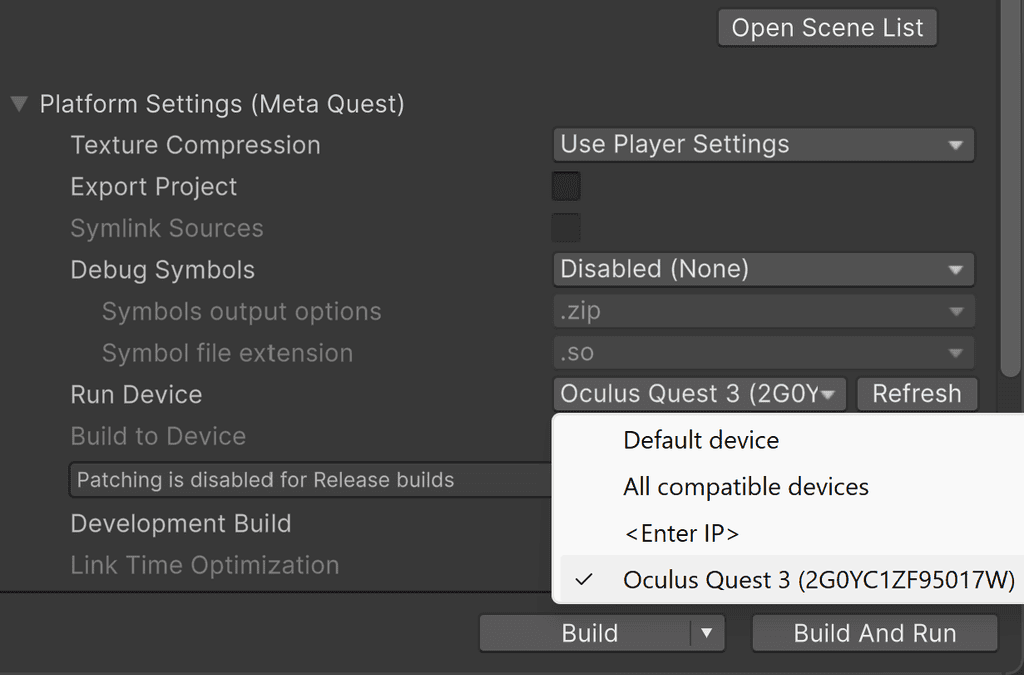
C: Click the ‘Build and Run’ button. Enter a file name for the scene being sent to the headset. This is the file that will be transfered to the headset once it has been built:
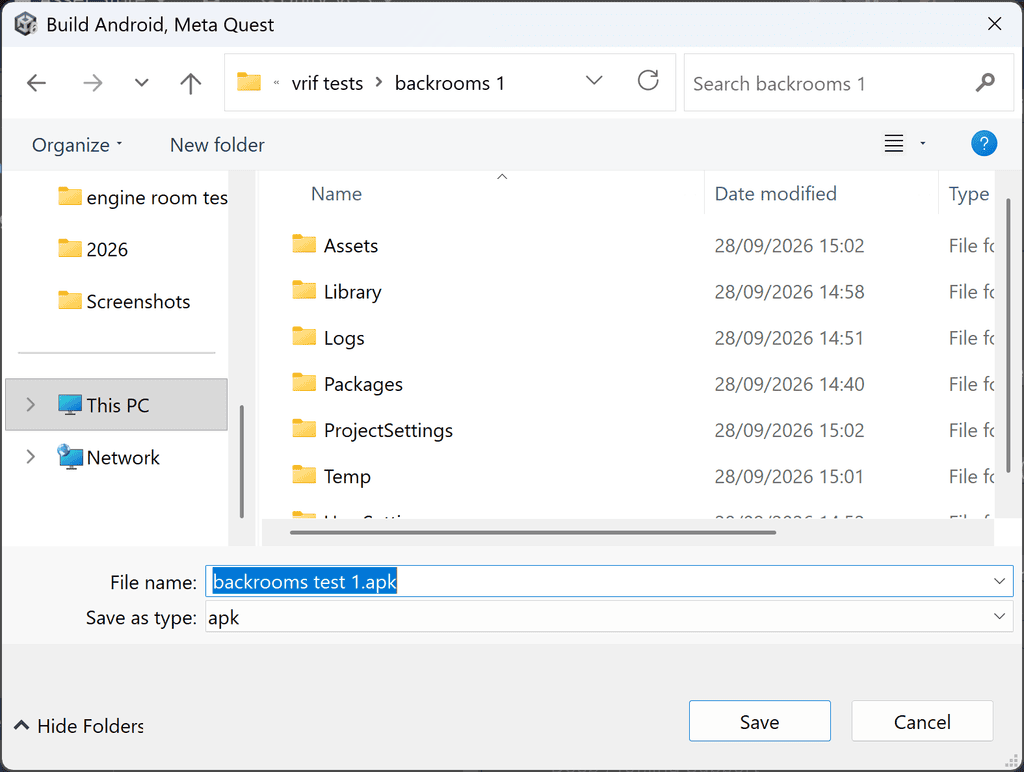
Note: In case of warnings during the build process, cancel the build and amend the settings before trying again. In the event of a critical error, the build process will stop and you will be able to see the error(s) in the CONSOLE tab.
The scene will compile then transfer to the headset. This process may take a few minutes, particularly on the first run. The file is not ‘stored’ on the VR headset and will need to be ‘sent’ again every time you update the scene.
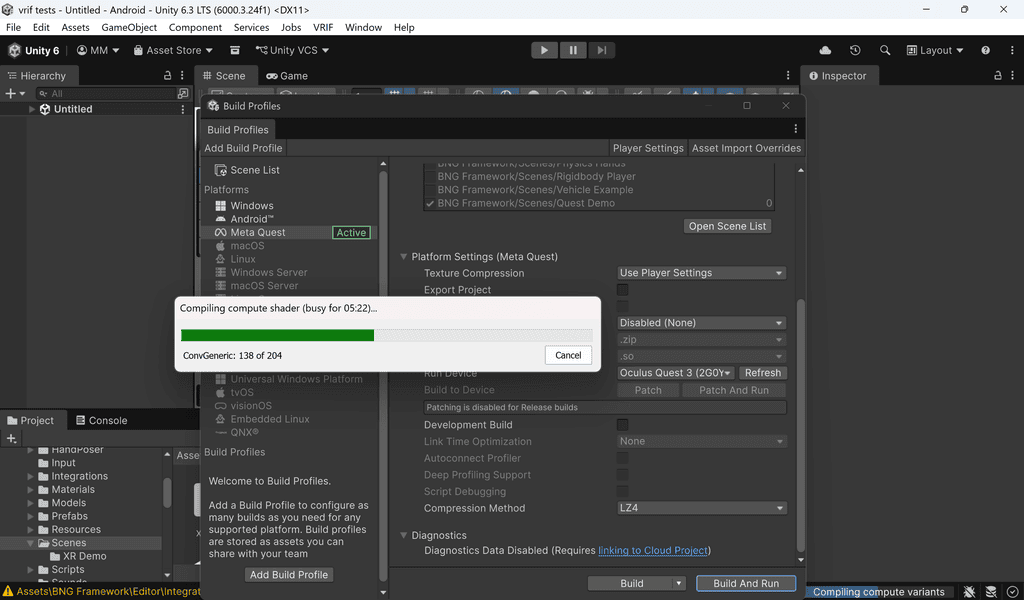
Put on the VR headset and enjoy exploring the VRIF demo scene! Here’s a developer’s screencast of the VRIF demo scene, showing a 2025 update to weapons interactions and the ability to drive a vehicle!
We hope you enjoyed part one of this two-part series. See you in a few days when we’ll import a FREE Backrooms asset, add ambient sound and a 3D piano to the scene, and explore it in a VR headset!

There are no notes or advisories at this time. This post was created in October 2026 and was last updated in October 2026.
pixels.cool is not responsible for the content of any external webpages or software downloaded from third party sites. Links are included in good faith at the time of writing. All explainer content is compiled in good faith using processes and methods used by the team. Modern software offers users many ways to accomplish a single task, and for reasons of clarity we choose not to refer to multiple options. All computer users should run up to date virus / security software at all times to minimise risks of data loss.
