

This is part two of a two-part series. See part one.

Part two of two overview
Name of workflow:
Use Unity to build a 3D backrooms environment and explore it in a Quest 3 VR headset
Creative themes: Unity and VR
Software used: Unity
User level: INTERMEDIATE
This two-part workflow includes:
Part One (Previous post)
- Install the Unity Hub and Unity LTS
- Change the build platform to Meta Quest and enable the XR plugin
- Install VRIF and open the included demo scene
- Build the demo scene and send it to a Quest 3 headset
Part Two (This post)
Part 5: Import a free backrooms environment into the Unity project
Part 6: Generate ambient sound and add it to the scene
Part 7: Add a piano object to the environment and add sound to it
Part 8: Explore the backrooms scene in a VR headset
Download the step by step guidance!
If you’d prefer to download all the steps below in a single, convenient PDF file, you can! Don’t forget download the guide for part one as well 🙂
What is Unity?
This step by step workflow uses Unity, one of the most popular real-time 3D development environments. It’s used by millions of creators to develop games, animations and visualisations and even to produce short movies. Unity’s personal edition is completely free. If you decide to make money commercially from your Unity creations you’ll need to upgrade to a paid professional license.
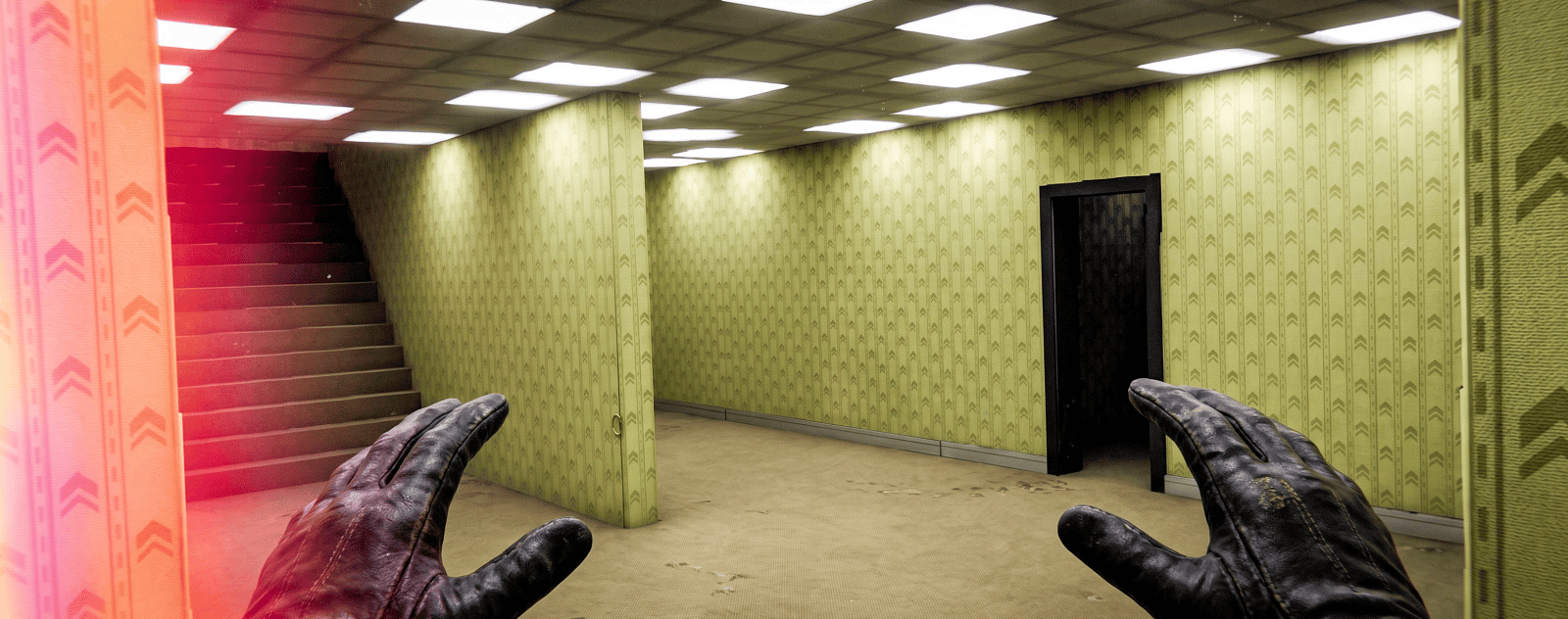
The Backrooms environment at the end of this workflow
Here’s the backrooms scene at the end of this series, complete with flickering TV and mysterious piano:
Part 5: Download a free Backrooms environment and import it into the Unity project
NOTE: We set up a workflow from Unity to a Quest 3 VR headset in part one. Check it out before continuing below!
The Unity asset store offers various ‘Backrooms’ assets, including free and paid items:
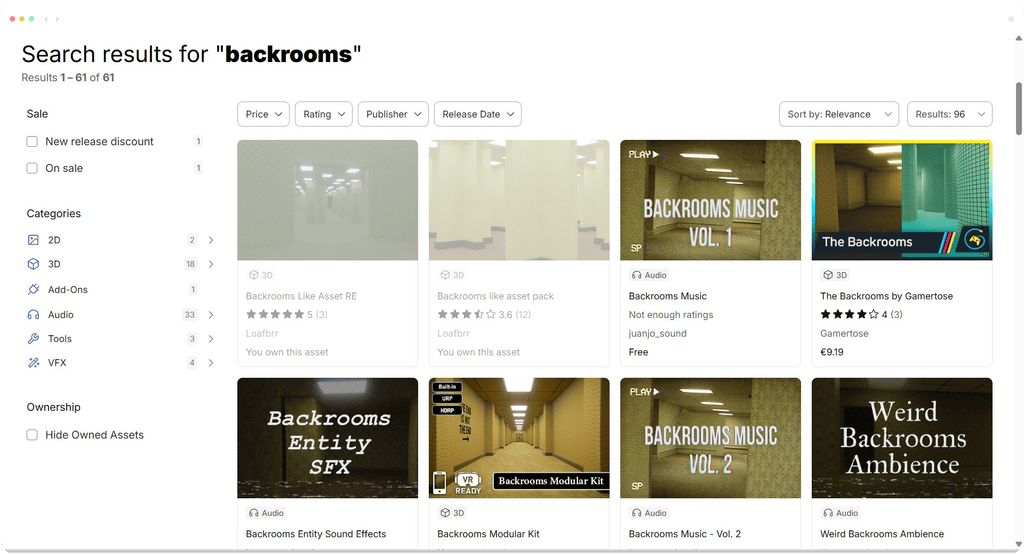
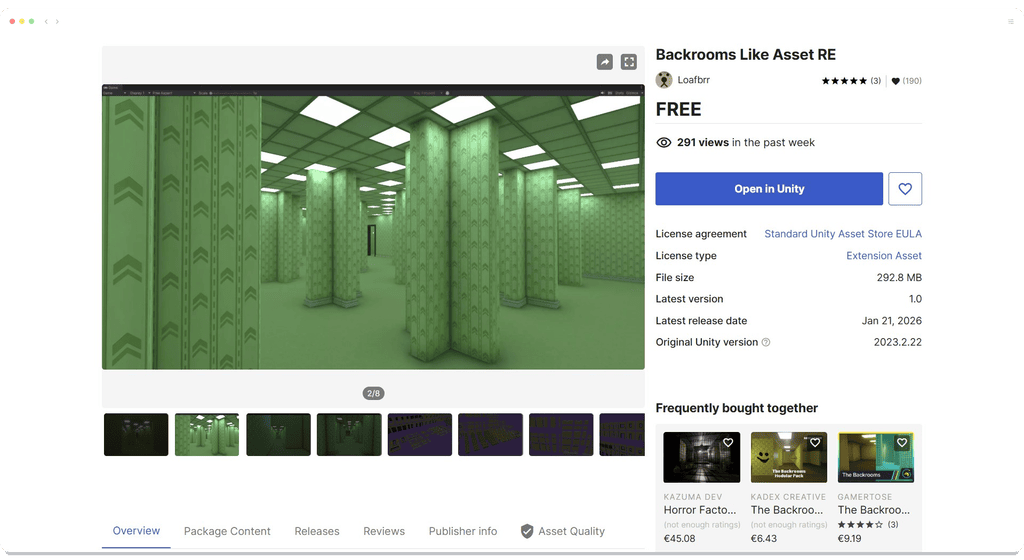
A: In the Unity asset store, select to add the FREE asset ‘Backrooms like asset pack RE’ to your account. (The ‘RE’ indicates the asset pack is an updated version of a previous asset with a similar name). If you have not yet created a free Unity account, you will need to do so before continuing.
B: Go to Window > Package Manager > My Assets
Search for ‘backrooms’:
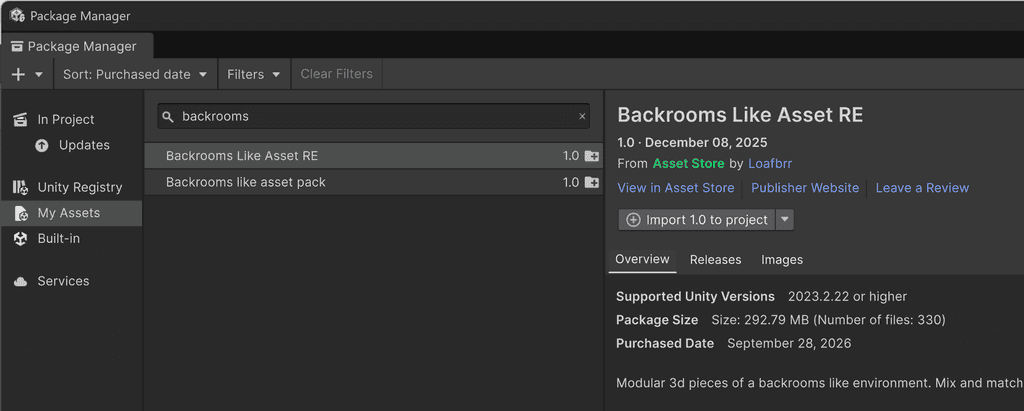
C: Click ‘Import to project’. The asset is added to the current project.
The Backrooms asset includes demo scenes. Open the ‘LevelTst’ scene as shown below. It may be bright pink!
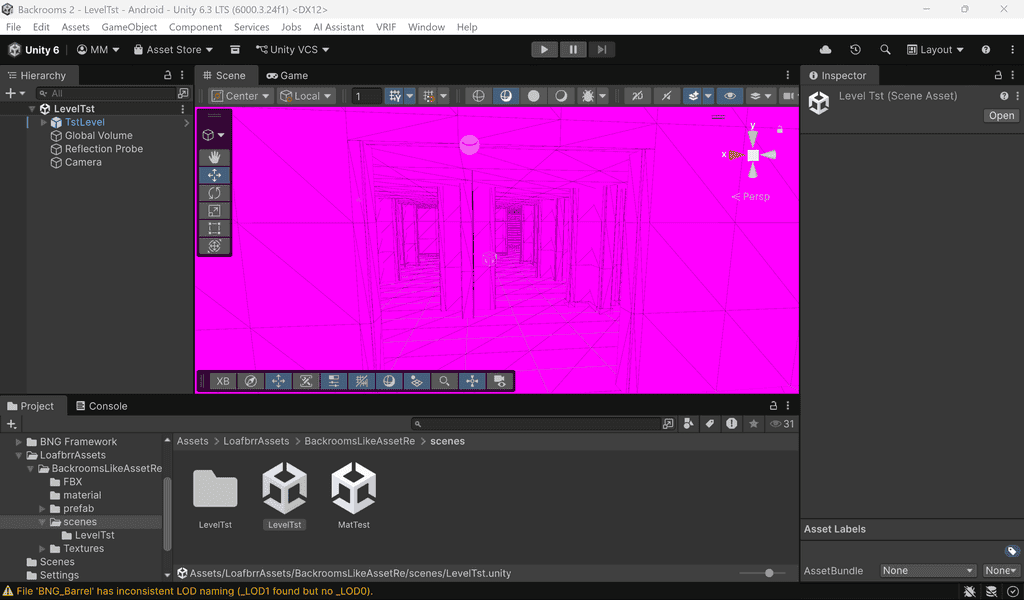
This is a common ‘issue’ in Unity, and usually means that an imported asset was designed for a render pipeline which differs from the one currently in use. Let’s rectify this now.
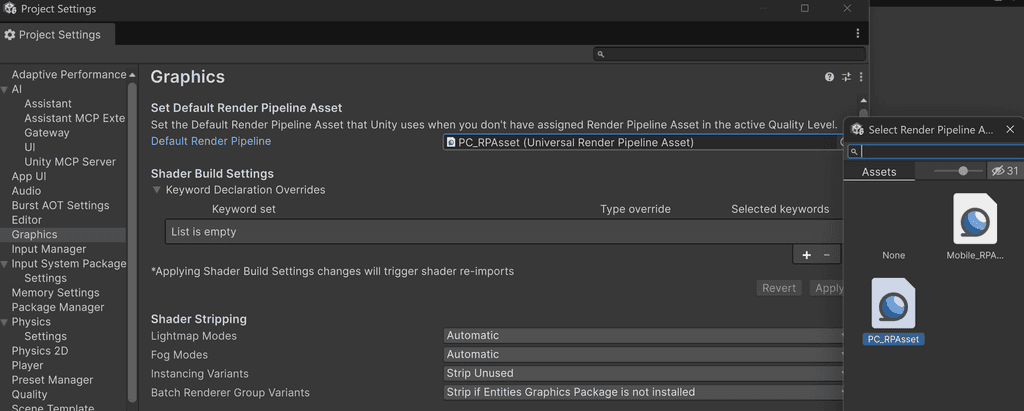
D: Go to Edit > Project Settings > Graphics.
In ‘Set default render pipeline asset’, select the PC_RPAasset URP resource as shown in the screenshot. This will update the imported scene materials from pink to the correct (green) colours:
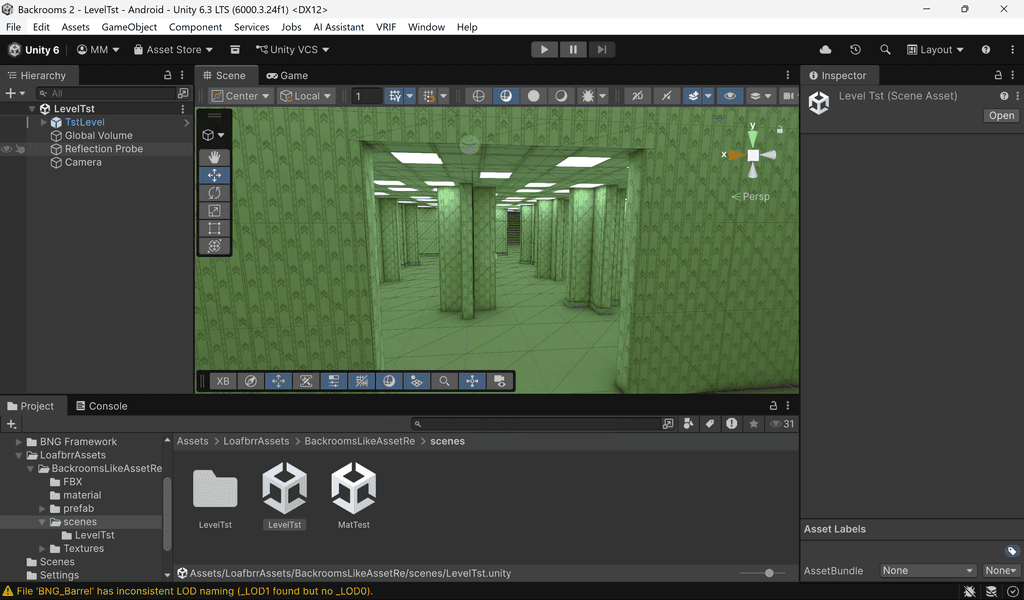
Currently, when you press PLAY you can’t move within or interact with the scene. We need to add a ‘player’ to the environment.
Select the demo Quest VRIF scene tested in the previous post. In the scene Hierarchy you can see the ‘XR Rig advanced’ object. This is the ‘VR player’. We’re going to copy the XR rig object and paste it into the backrooms scene.
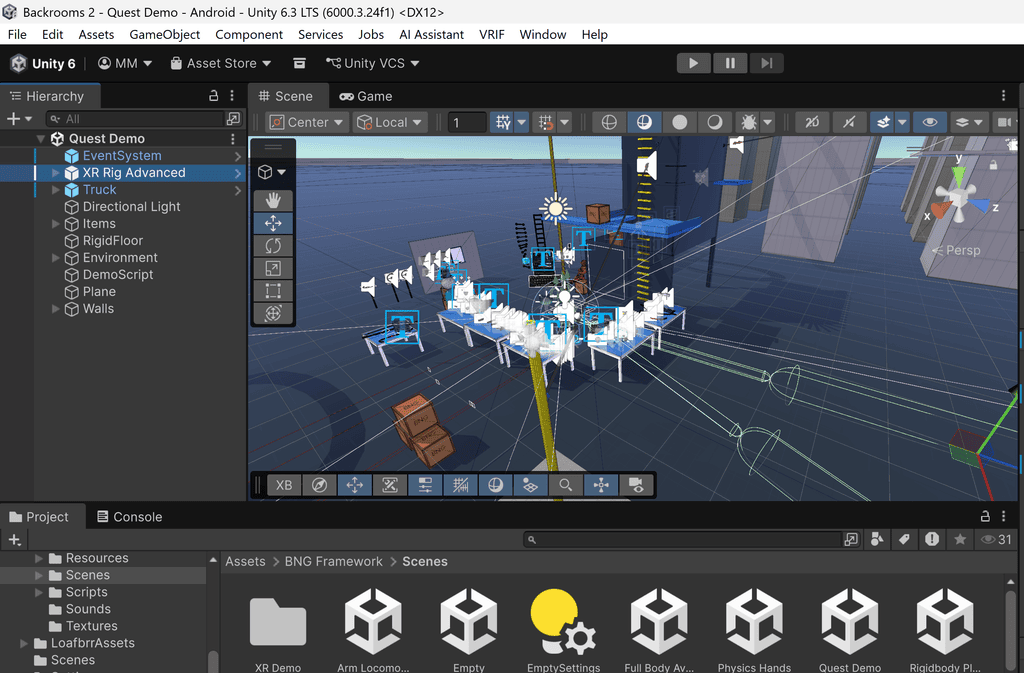
E: Right Click on ‘XR Rig advanced’ in the Hierarchy panel and select ‘Copy’.
F: Re-open the ‘LevelTst’ backrooms scene
G: Right click in the hierarchy panel and Paste:
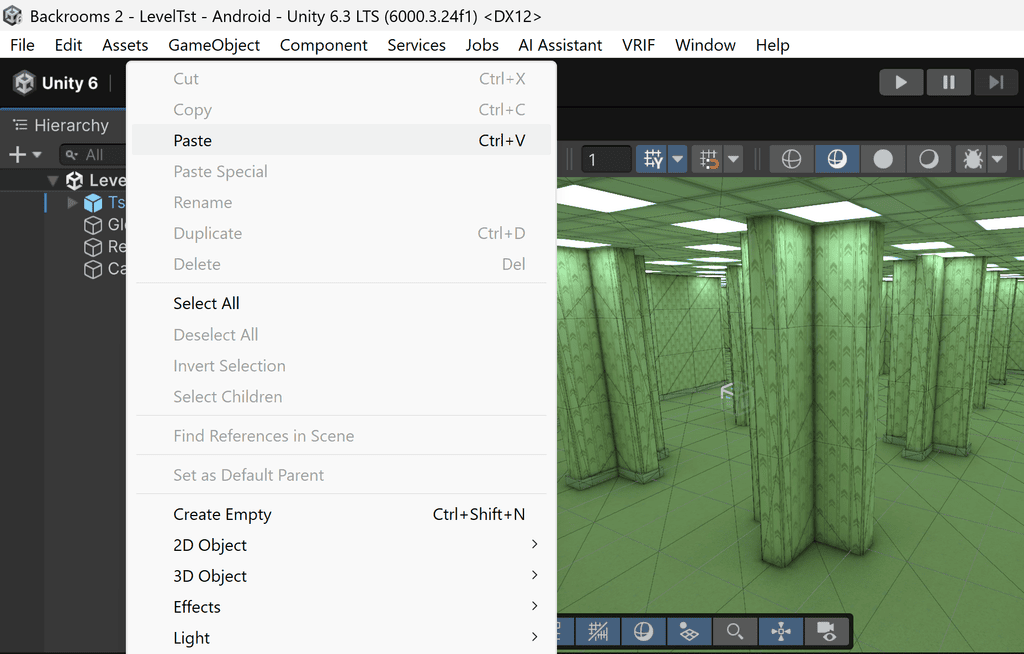
H: Move the pasted VR rig to a ‘sensible’ location inside the backrooms scene. It won’t make sense for the player to start on the roof or falling through space outside the scene! If you’re new to Unity, get help with moving, rotating and scaling objects before continuing, as these are essential basic skills.
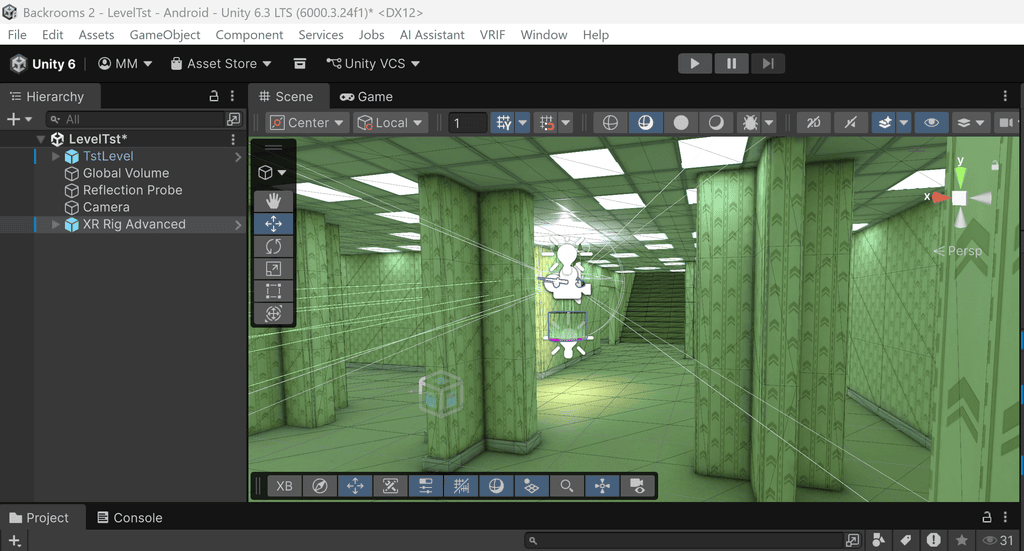
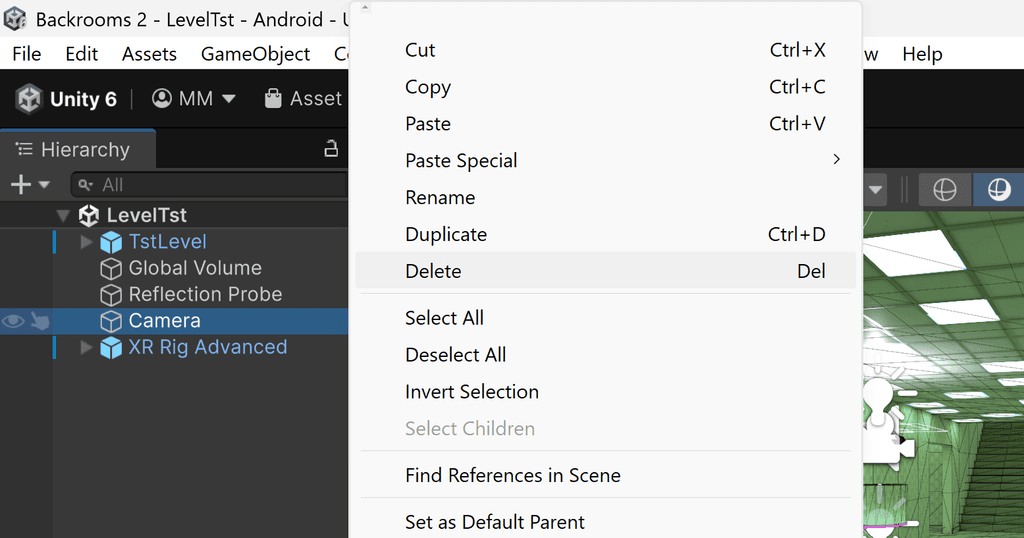
The Backrooms scene already includes a camera object. Without this, the preview would be empty! By default, this camera is used when you switch to PLAY mode. This camera will be deleted so the player’s viewpoint (Part of the XR Rig) can be used instead.
I: Right click on the ‘Camera’ and click DELETE:
J: PLAY the scene. As long as the XR rig is inside the backrooms scene (and not outside it), you can now explore it, in the same way we explored the VRIF demo scene tested in part one. You will also collide with the walls and pillars as this is a fully realised 3D environment set up with ‘colliders‘.
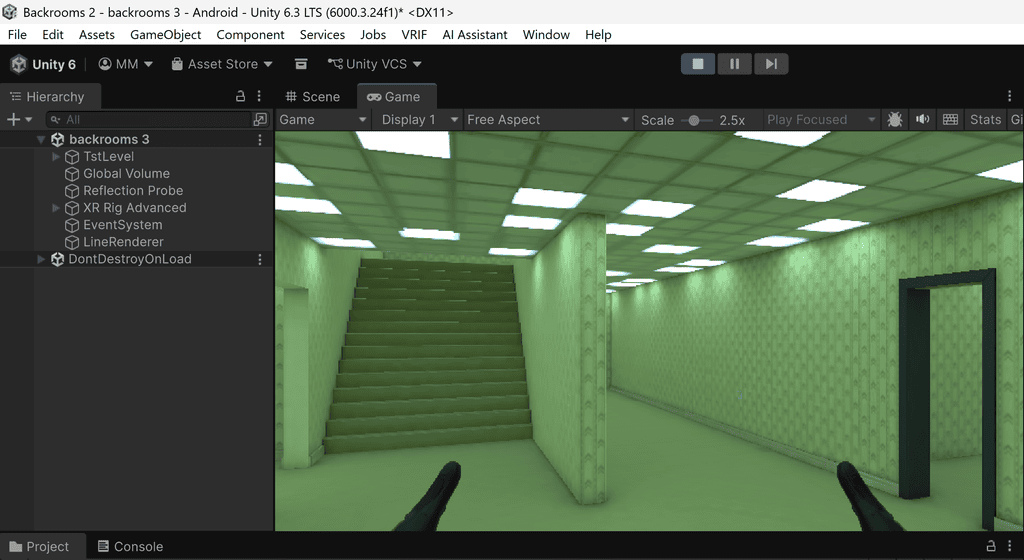
K: You can now build the scene and test it in VR in the same way as before. Check it works before continuing below.
PINK HANDS? If everything in the scene looks ok, but the VR hands / gloves are bright pink, it’s due to the same issue we witnessed earlier. To resolve it, follow the steps in the expandable section below.
What to do if the VR HANDS / GLOVES are bright pink
Keep the current backrooms scene open and in the project folder navigate to BNG Framework > Materials.
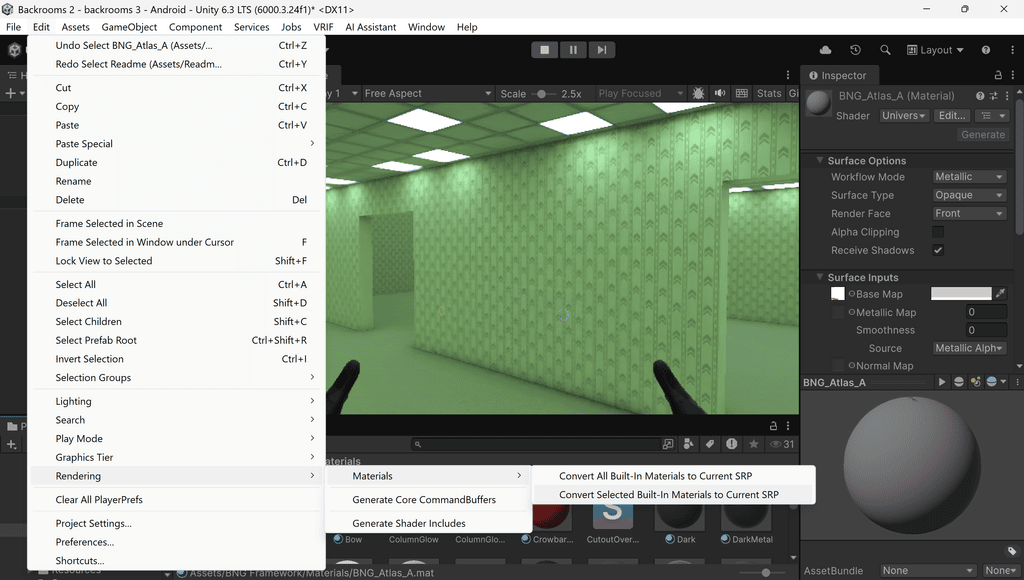
Click one of the ‘pink’ materials and go to Edit > Rendering > Materials and click ‘Convert selected built-in materials to current SRP’. The ‘pink hands’ textures will update to show correctly in the backrooms scene:
Part 6: Generate ambient sound and add it to the scene
The scene is fun to explore, but there’s no sound to help build the atmosphere. Backrooms environments often use a hum / fluorescent buzz tone to help create a sense of unease.
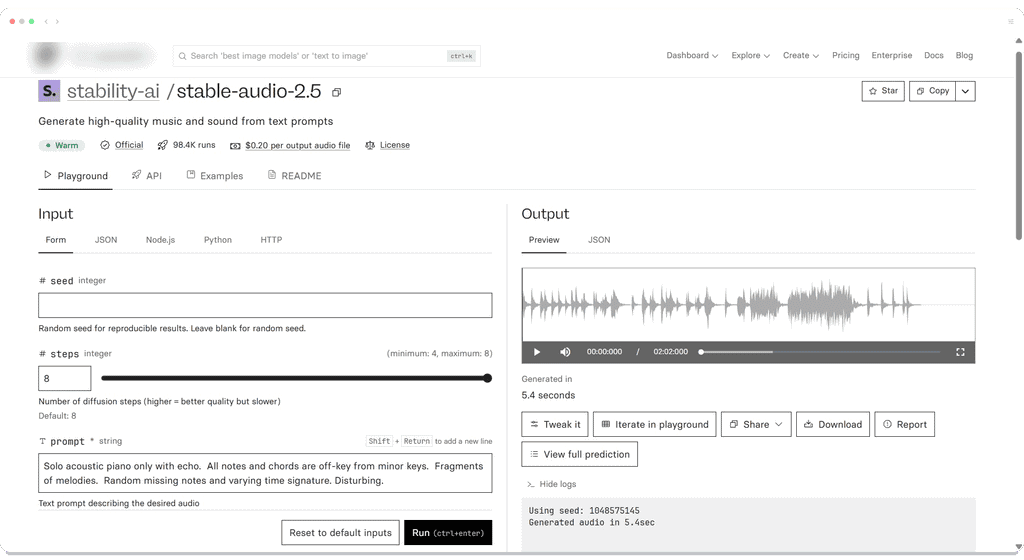
We used the GenAI model Stable Audio 2.5 at replicate.com to generate a 60 second piece of audio using this text prompt:
‘Unsettling room tone for a liminal office space. fluorescent light hum and distant ventilation. thin electrical buzz with slight pitch wobble, very low air-conditioning rumble, faint transformer drone, occasional tiny clicks and flickers.‘
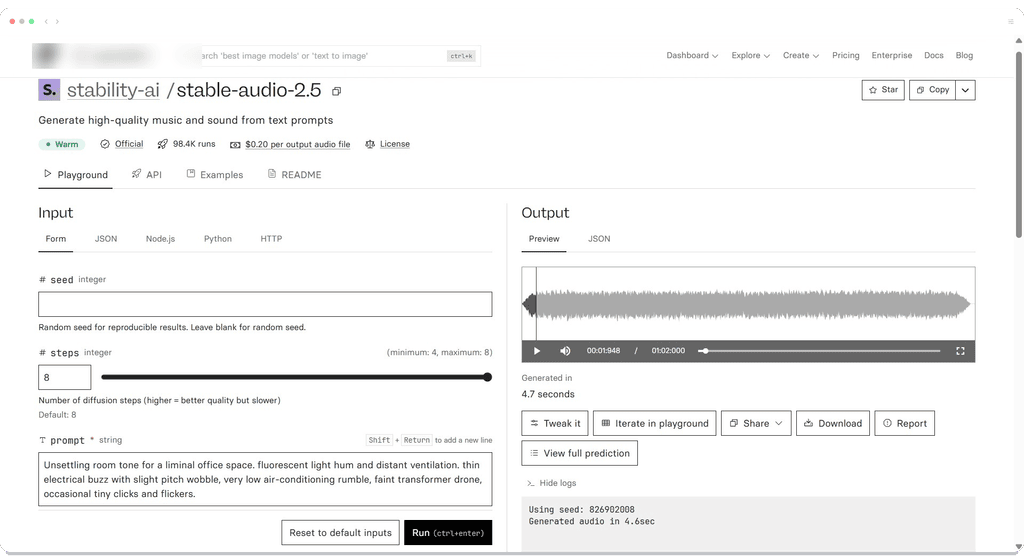
You can download the generated clip below and are welcome to use it in your scene:
If you’re looking for additional audio to use, here’s another generated clip. We asked for TV static mixed with female voice sounds:
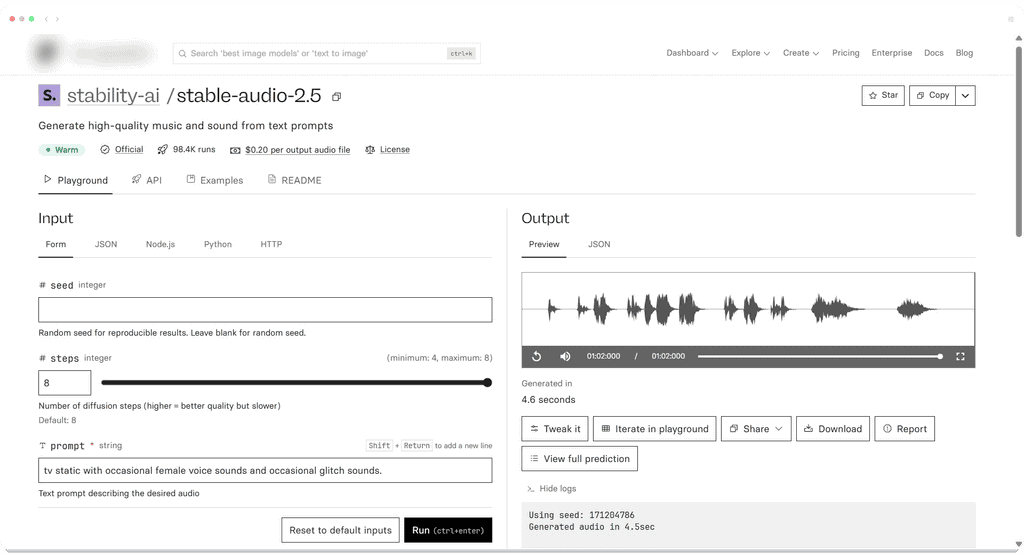
Finally, we prompted the AI to create 2 minutes of audio with this prompt: ‘Solo acoustic piano only with echo. All notes and chords are off-key from minor keys. Fragments of melodies. Random missing notes and varying time signature. Disturbing.’
The generated ‘music’ will be attached to a piano we’re going to add in the next section.
Add the ambient ‘hum’ sound clip to the scene:
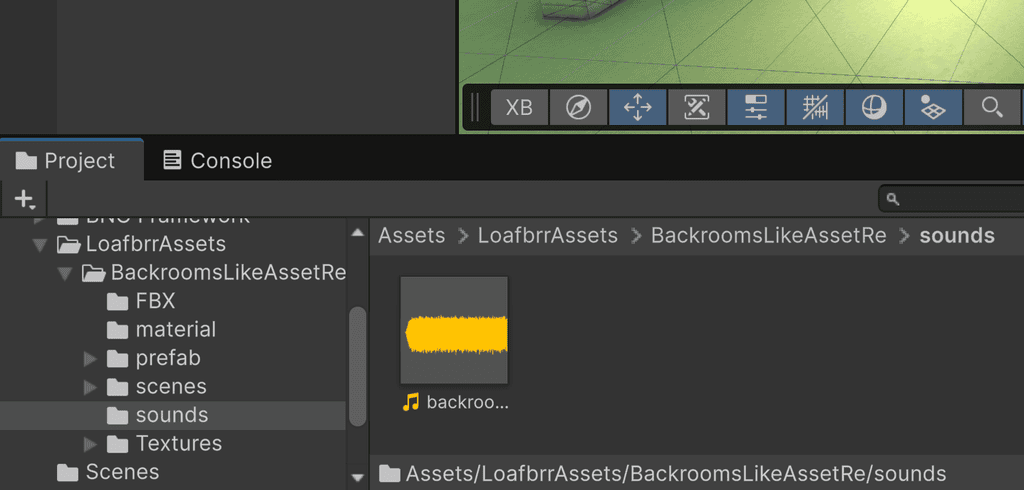
A: Import the ambience / room tone clip into the project (You can use the mp3 file above).
In the Project window, create a folder called ‘sounds’. Drag the ambience audio clip into it:
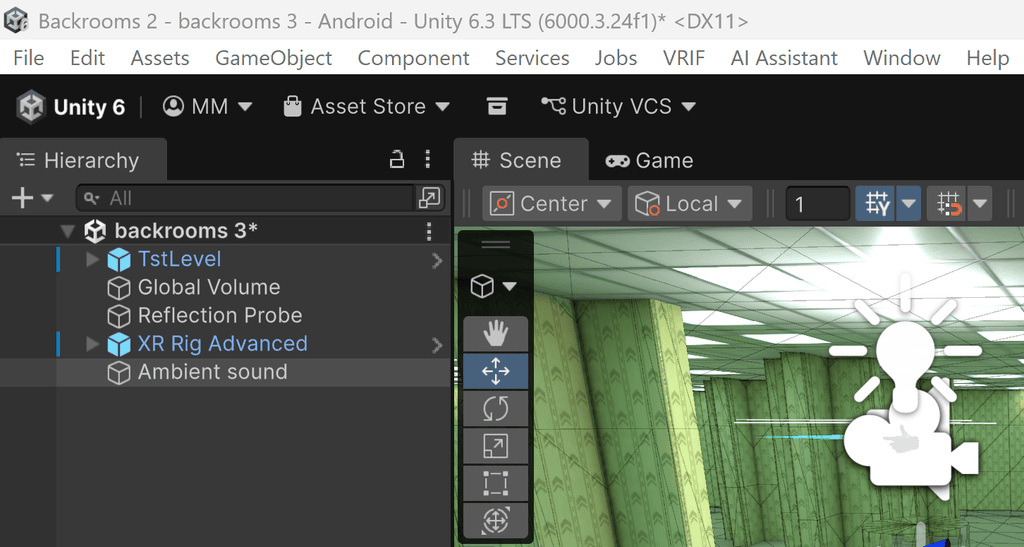
B: In the Hierarchy panel, create an empty GameObject:
Right-click > Create Empty. Rename the object ‘Ambient sound’:
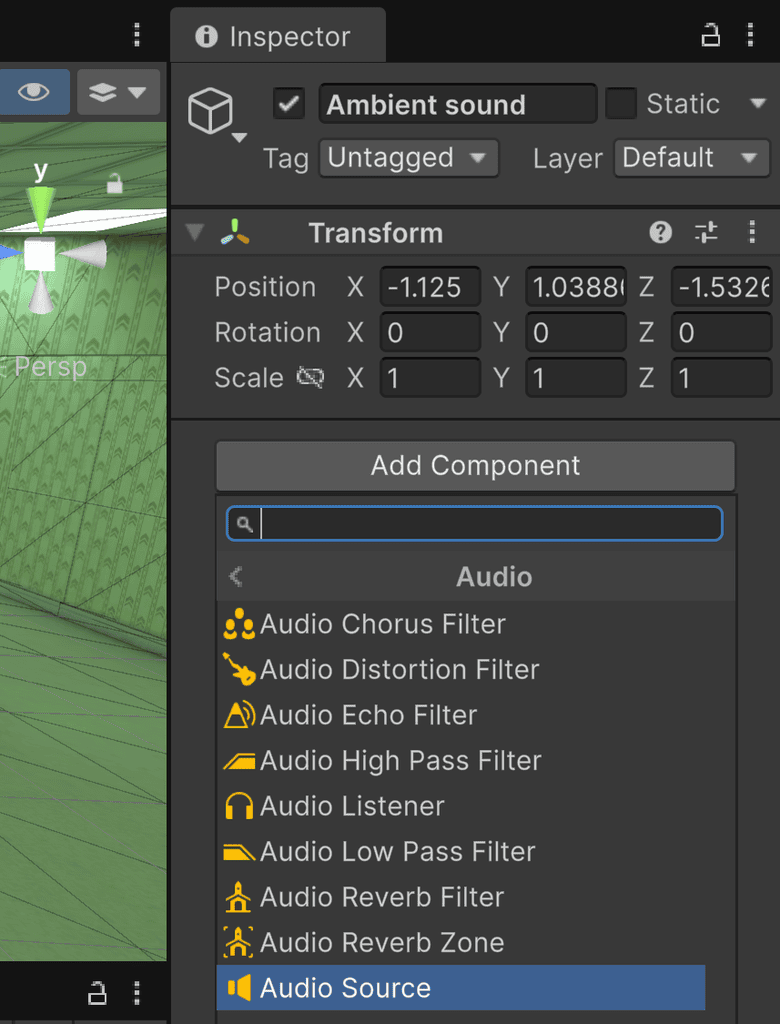
C: With the ‘Ambient Sound’ object selected, in the Inspector panel on the right of the screen select Add Component > Audio > Audio Source.
D: Configure the Audio Source component as shown below:
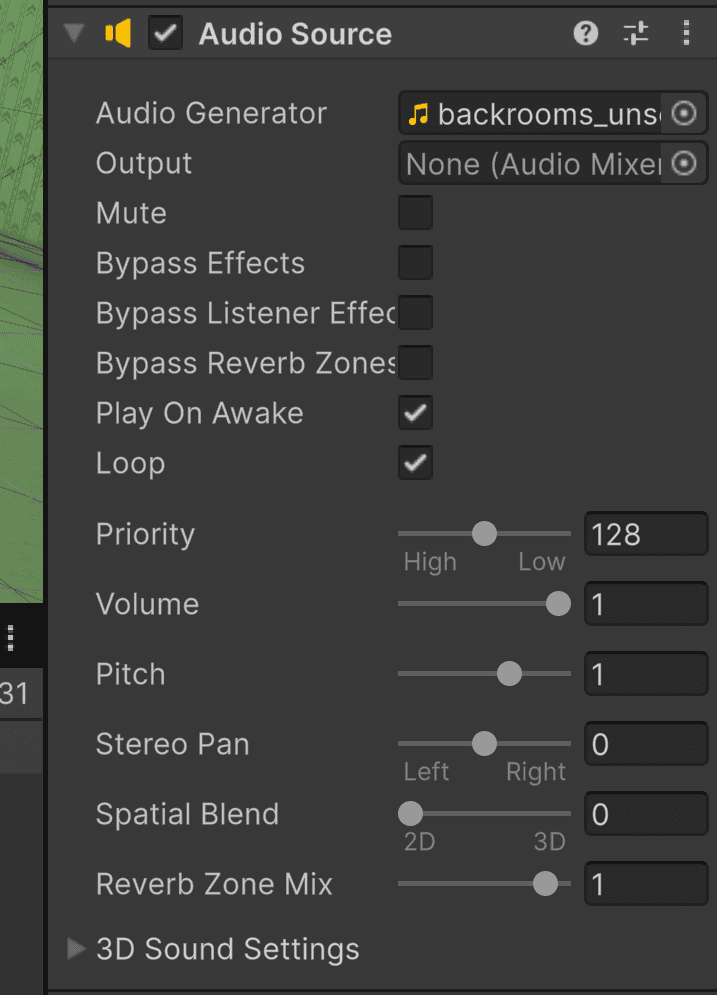
Audio Generator: Drag the MP3 file from the sounds folder and drop it in this field.
Play On Awake: enabled.
Loop: enabled.
Volume: Leave at 1 for now. The clip is already at approximately the correct volume for ambience.
Spatial Blend: Leave as zero. This sound is non-directional and will play wherever the player is inside the backroom scene.
E: Play the scene. The sound should start when the scene opens, and loop when it reaches the end.
NOTE: The ambient audio sound clip is already at a ‘low volume’. If you can’t hear it through your speakers you may need to use headphones!
We’ll use the piano sound in the next section when we import a piano into the scene.
Part 7: Add a piano object to the scene and add ‘3D’ sound to it
Backrooms are often mostly empty, but we need something for a player to ‘discover’ as they move within the scene. We’ll import a FREE 3D piano asset then attach the piano sound clip to it.
We searched for free piano 3D assets, and found this ‘Old Piano’ asset on Sketchfab:
Old Piano by Wacky on Sketchfab
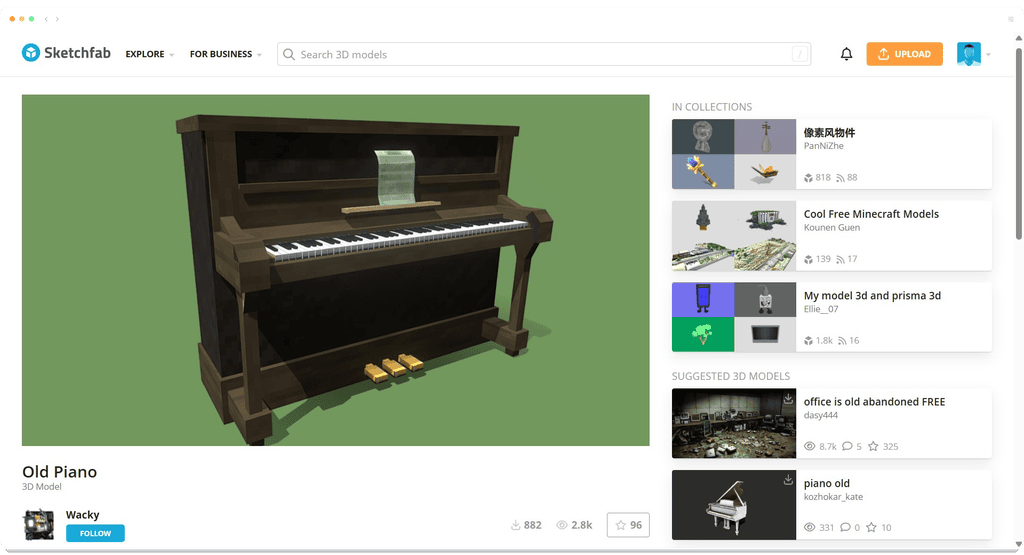
It’s free to download and use, as long as you credit the author. So thank you, Wacky!
NOTE: We downloaded the .obj version of the file. Other versions may also work in Unity, but we have not tested them. Extract the downloaded file before continuing below. If it downloaded as a compressed .zip file, you will need to import all the extracted files into Unity, including the textures!
In Unity:
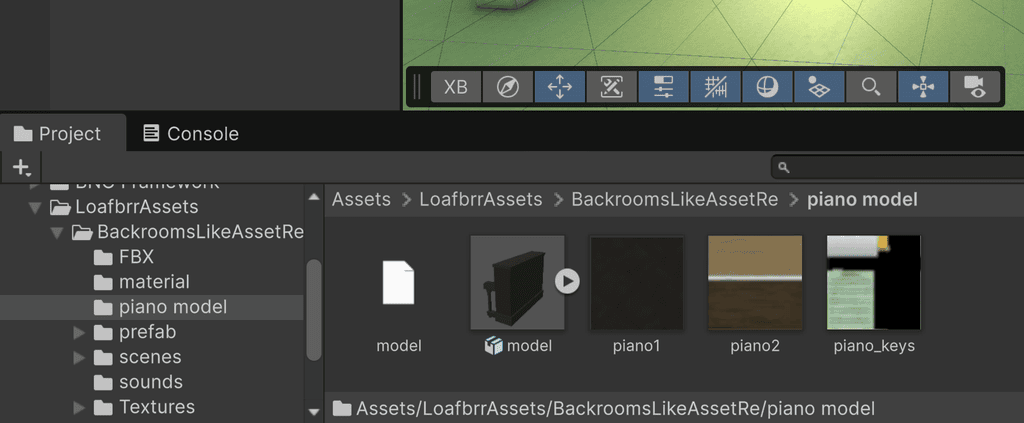
A: Create a new folder in the ‘BackroomsLikeAssetRe’ folder called ‘piano model’.
Drag and drop the extracted model files into it, including the texture files called piano1, piano2 and piano_keys. If you don’t import the textures, you’ll just see a neutral grey piano!:
B: Navigate to a part of the backrooms scene not far from where the VR player starts. We’re going to place it up the stairs behind a small wall.
Drag and drop the piano model directly into the scene window. Initially it may be MASSIVE (as seen below) and bigger than the entire backrooms scene – Zoom out and resize it as needed!
NOTE: There is no universal ‘scale’ measurement between different 3D programs and models, so be ready to resize 3D objects when you move them between applications. For more information about ‘Unity units’ and grid sizes, see the section below.
Unity grid size, units and metres
In Unity, the grid helps you judge the size of objects in your scene.
- The space between one grid line and the next is usually 1 Unity unit.
- Unity treats 1 Unity unit as 1 metre.
- So, one square of the grid is about 1 metre by 1 metre in ‘real life’
For example:
- A cube scaled to 1, 1, 1 is about the size of a 1 metre cube.
- If you move an object from position 0 to position 3 on the X axis, it moves about 3 metres.
- A human character might be around 1.8 units tall, representing someone about 1.8 metres tall.
This is useful because it helps you make objects feel realistic in size. For example, a standard door could be about 2 units high. This is particularly important when working with environments destined for use in VR, to ensure your player inhabits a realistically-sized world.
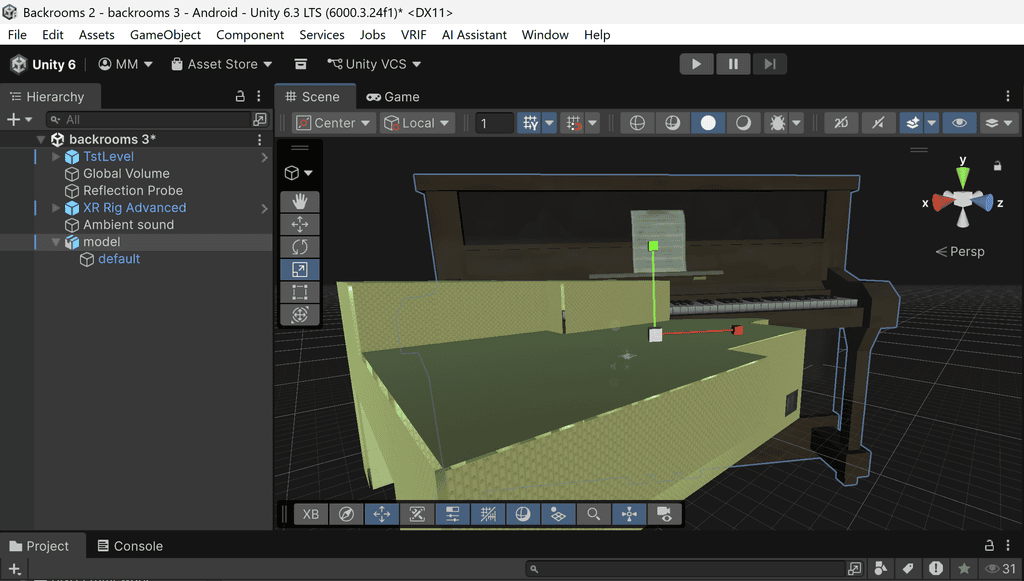
C: Use the move, resize and scale tools to place the piano where you’d like it:
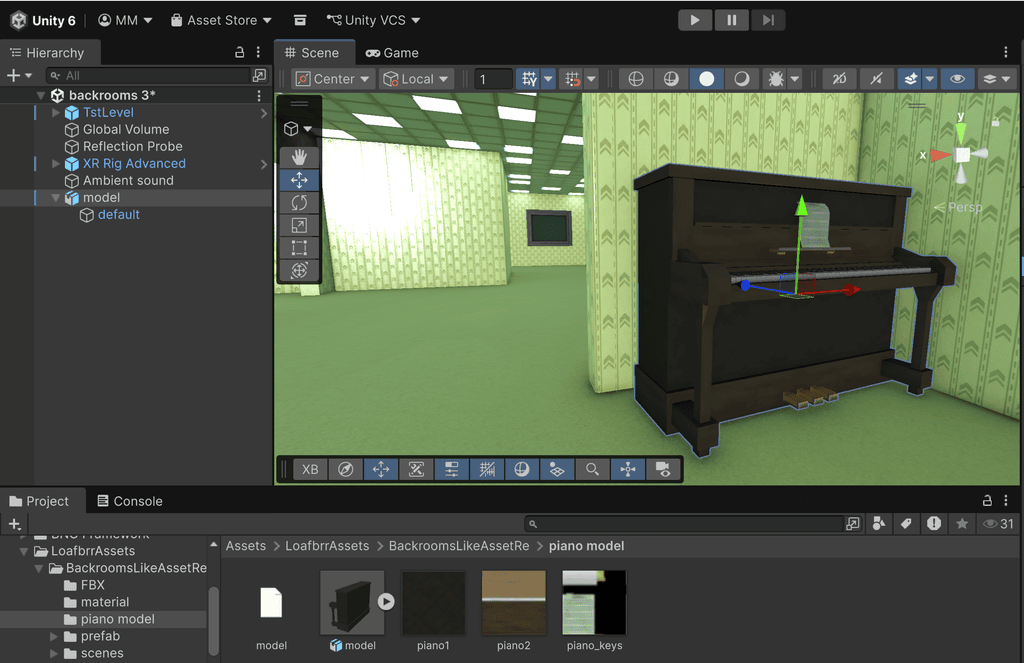
D: Press PLAY and go and find the piano! If it appears too large or too small in the gaming environment, exit play mode and resize it as needed.
NOTE: The player will be able to ‘walk through’ the piano object. The object will need a collider component added to it so the player cannot ‘clip’ through (no backrooms pun intended!). Open the section below for step by step instructions. This is not essential for the scene to work, but it is good practice!
Add a collider to the piano object
In the Hierarchy panel, make sure the ‘default’ child object of the piano asset is selected.
Look at the Inspector window on the right.
Click Add Component.
Search for the collider that best matches the piano’s shape. In this case, the box collider will be the most appropriate.
Unity attaches it directly to the GameObject as a component:
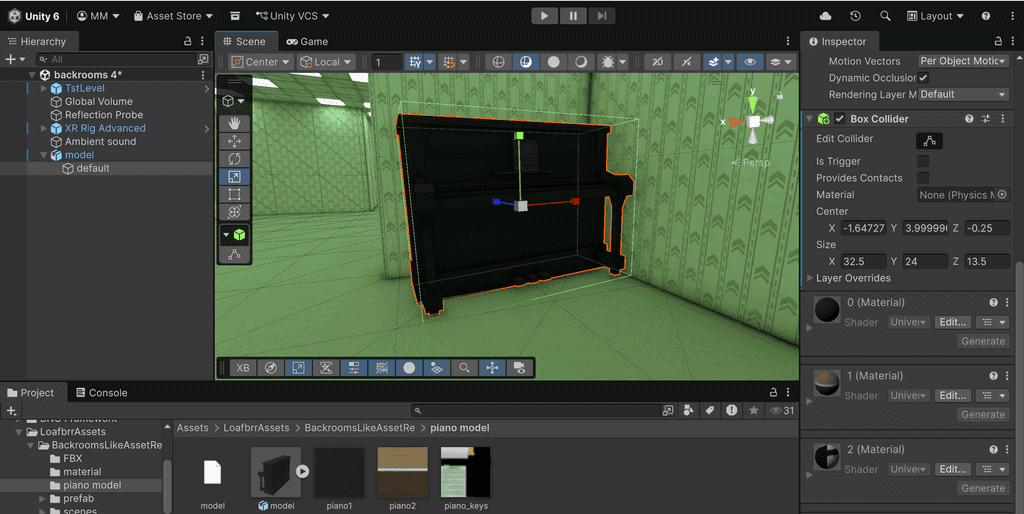
As the piano is a simple, blocky shape, the collider box (shown above in green highlight) should automatically closely match it. You can move and scale the box collider just like you would any other object.
As always, play the scene and check you no longer clip through the piano.
Next, we’ll add the off-key piano music clip to the piano.
A: If you haven’t already imported the supplied piano clip into the project, do so now. (You can import any other audio clip of your choosing if you have your own sound assets). The file is titled backrooms_piano_melancholy_3 and can be downloaded from the link further up. We imported it into the sounds folder alongside the ambience clip:
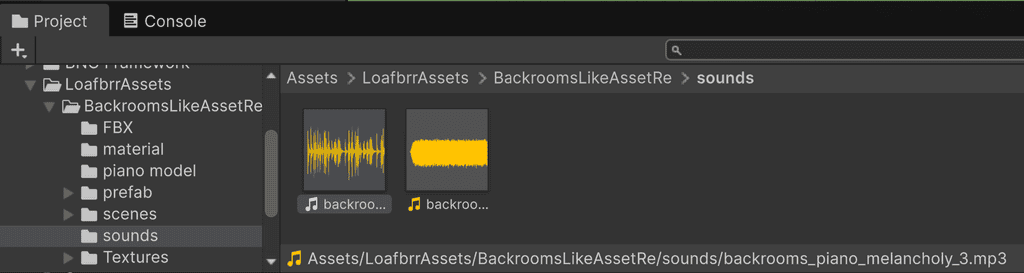
B: Select the piano object in the hierarchy panel. In the Inspector panel on the right, click on Add Component and select Audio Source.
C: Drag and drop the piano audio file into the Audio Generator field.
Configure the settings as in the screenshot below, noting that the options for 3D sound settings have been used. This ‘localises’ the sound to the piano object, so the sound will get louder as the player gets closer to it. We’ve started by setting the sound to be at full volume when the player is up to 1 meter from it, then gradually decreasing until they are 5 metres away. These example values are just a starting point – Adjust them to taste to get the sound balance you prefer:
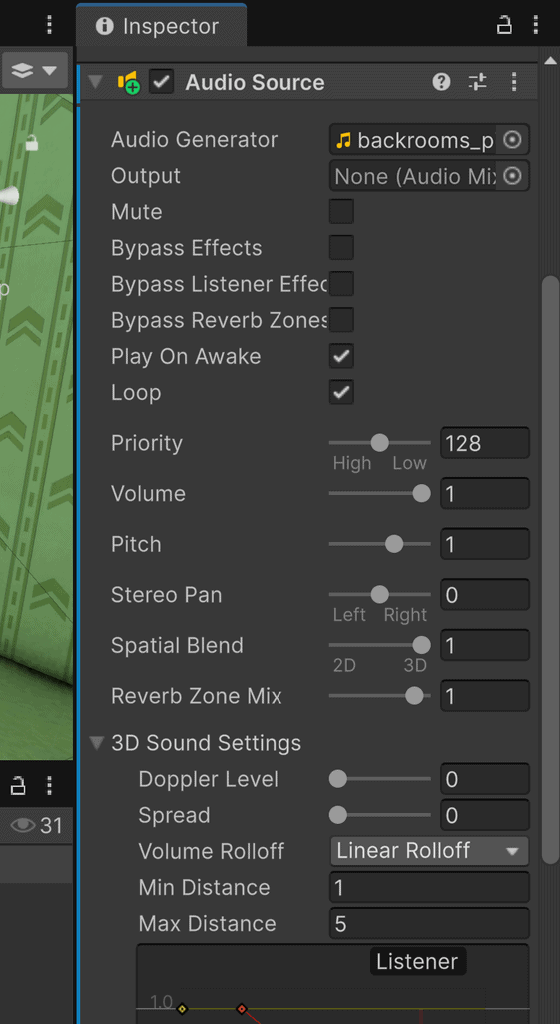
D: When you have made significant changes, always PLAY the scene and test it!
Part 8: Apply final updates and test the scene in VR
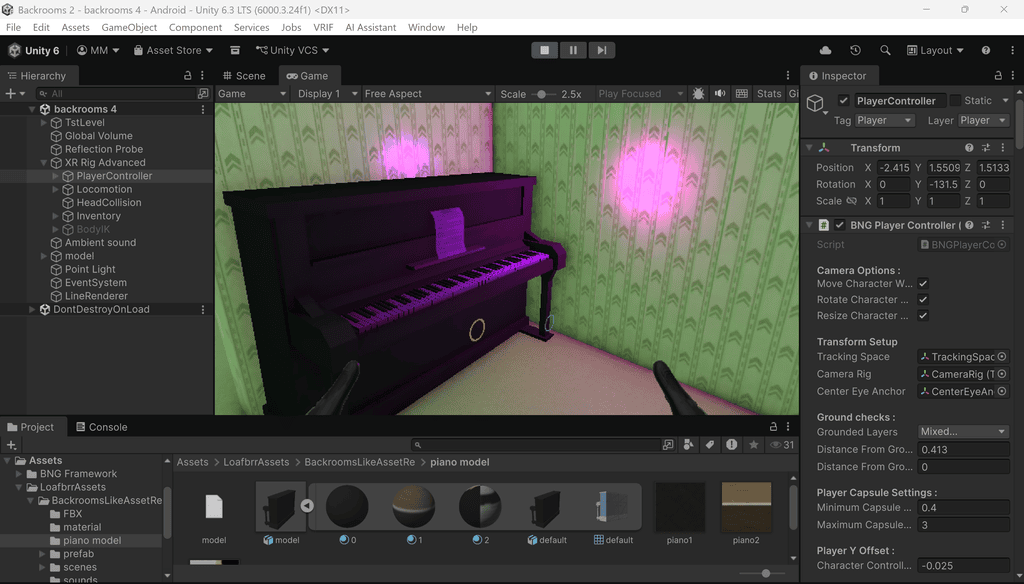
The backrooms scene is almost ready to explore in VR! One change we’re going to make is to ‘light’ the piano, which is almost black when viewed in the scene.
A: Go to GameObject > Light and select ‘Point Light’
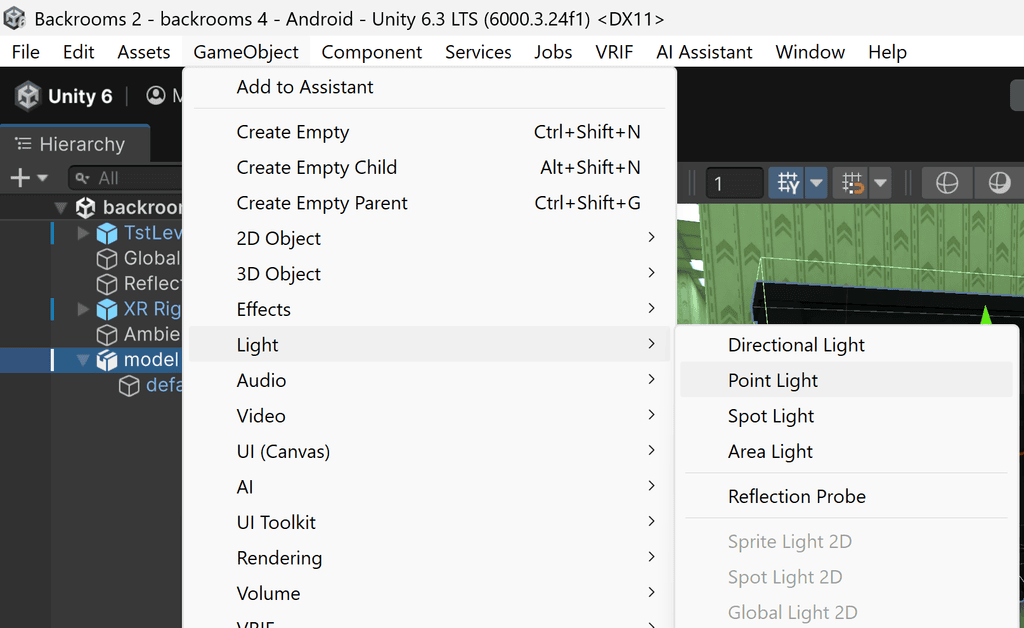
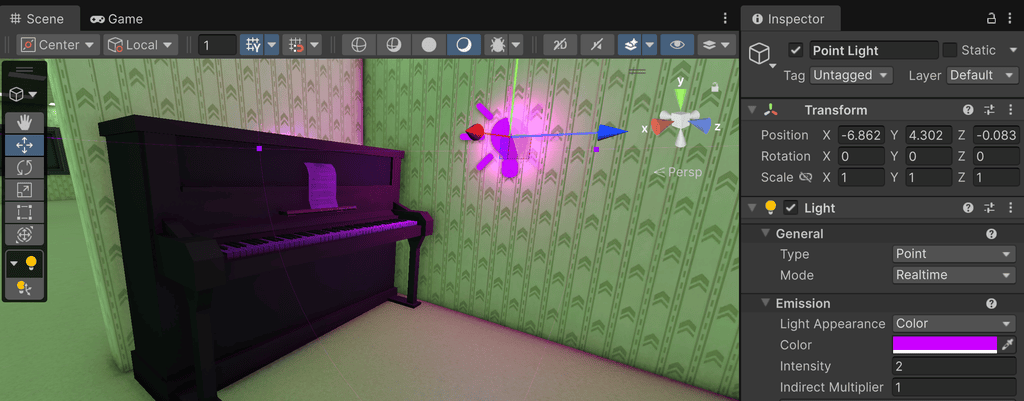
B: A point light is added to the project hierarchy. Select it now. Move the light in the scene to locate it exactly where you want it. We’ve settled on a point on the wall to the side of the piano – You may prefer to put it on the ceiling or even on the floor.
C: In the inspector, adjust the colour and intensity of the point light. We’ve settled on a shade of purple and an intensity of 2. Did you notice we’ve also rotated the piano slightly so it dips into the flooring? – Very backrooms 🙂
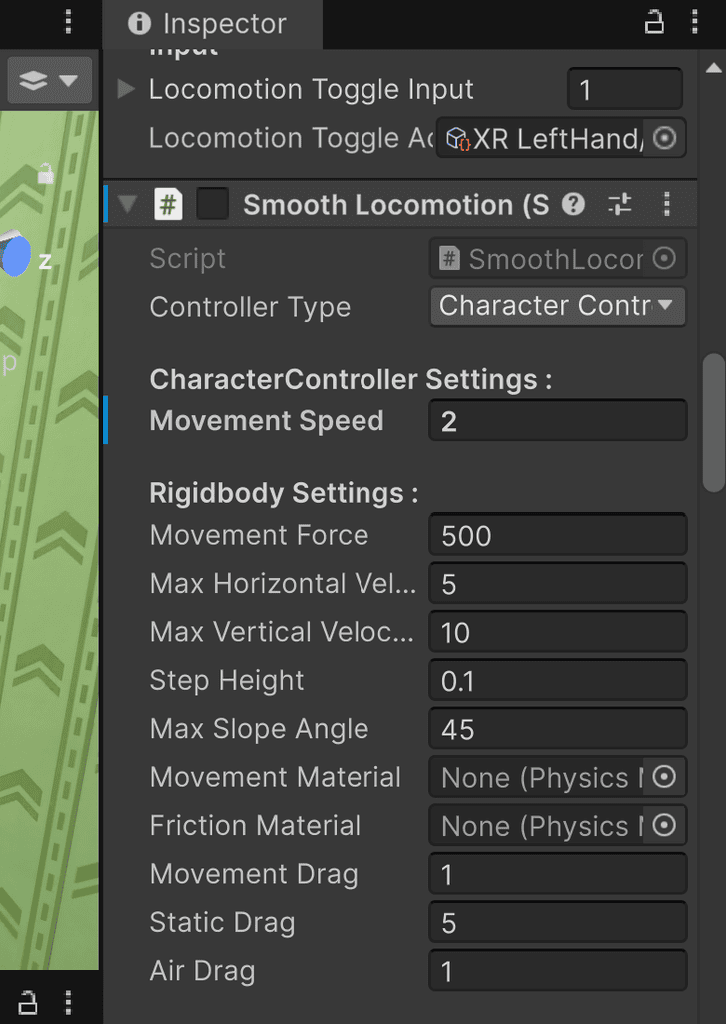
One final update. You may have noticed that, by default, the ‘player’ moves quite slowly in the scene. We’ve decided to speed up their movement.
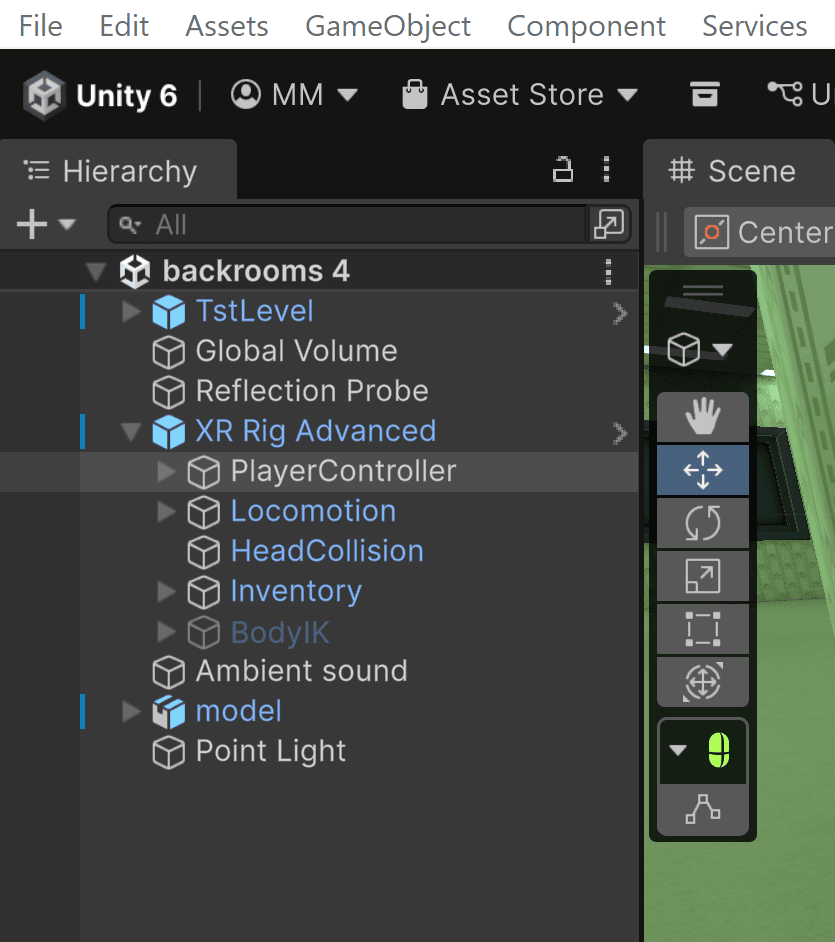
D: In the project hierarchy, select the PlayerController:
E: In the inspector, scroll down and locate the Movement Speed field. We updated it from 1.25 to 2:
F: Play the scene, and you should find you can move around the environment more quickly!
Here’s the scene at the end of this process:
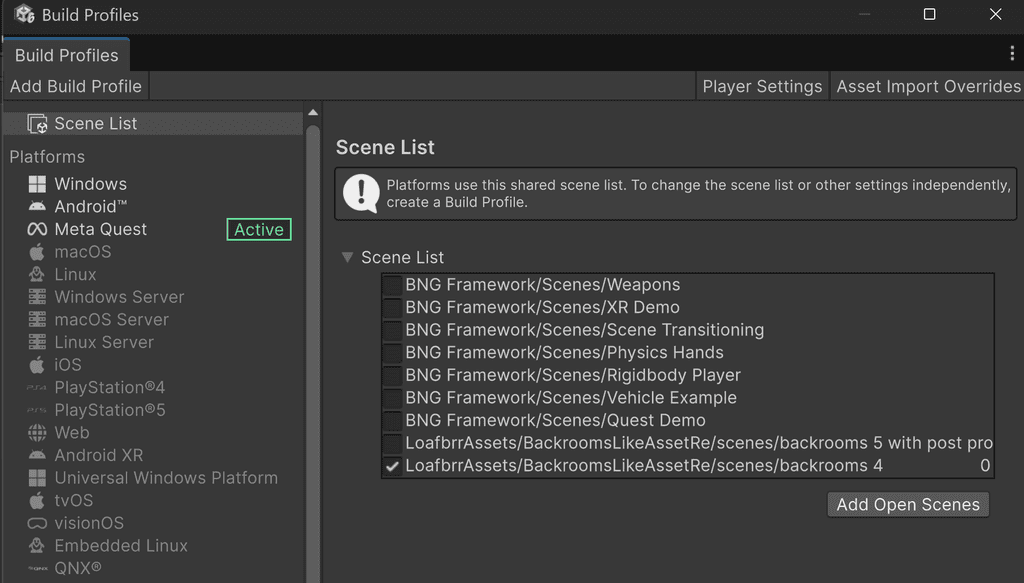
Here’s a reminder of the steps required to build the current scene and run it in the VR headset:
A: Go to ‘Build profiles’ and make sure only the current scene is selected:
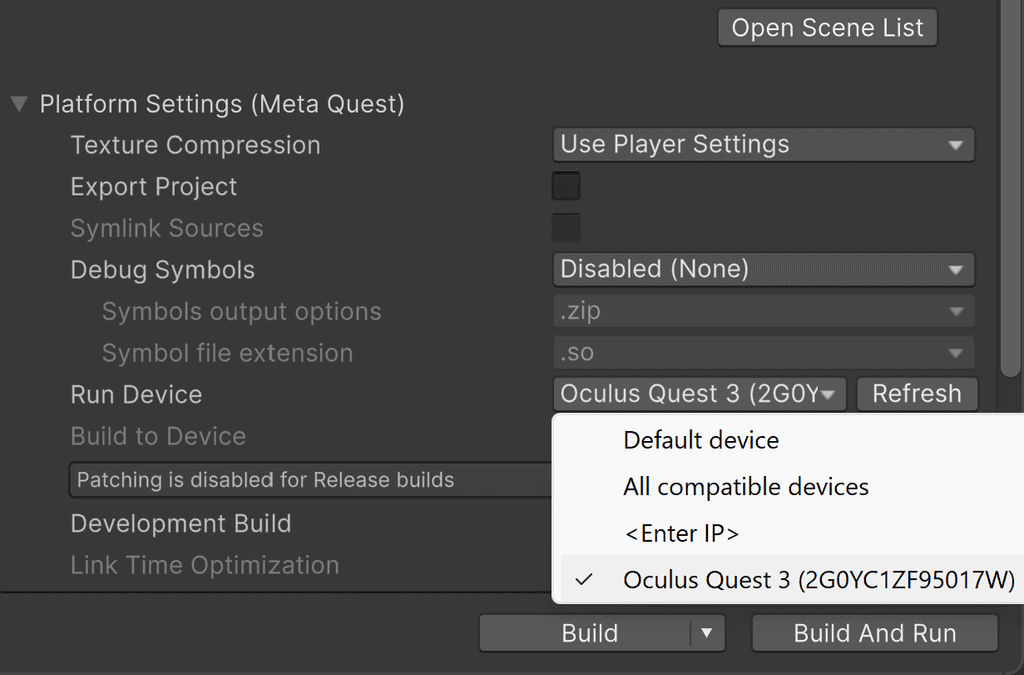
B: Make sure the ‘Run Device’ is set to the connected ‘Oculus Quest 3’, then click on Build and Run:
Here we are, exploring the completed scene in a Quest 3 headset.
What next?
Add a TV screen displaying static
Notice in the recording above that the TV at the top of the stairs is displaying static, and there’s a spooky female voice emanating from it. If you’d like to replicate this, you can download the video clip below (It comes without our site branding), then expand the accordion for step by step instructions. We created the 30 second video clip in Vegas Pro:
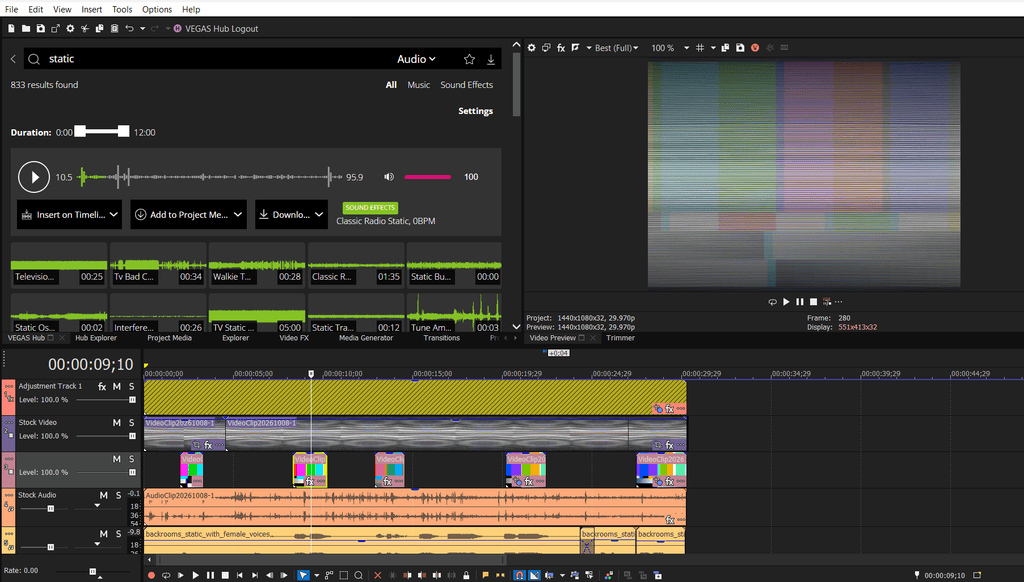
Create a quad and add a video player to it
1: Create a folder in the project and give it a descriptive name. Drag the video file from your computer into it.
2: Select GameObject > 3D Object > Quad
A new object titled Quad is added to the Hierarchy. A Quad is a single flat rectangular surface, which will form the basis for the TV screen.
3: Rename the quad object to something descriptive E.g. TV1
4: Use the Move, Rotate and Scale tools as needed to move the quad into place ‘over’ the empty TV screen already included.
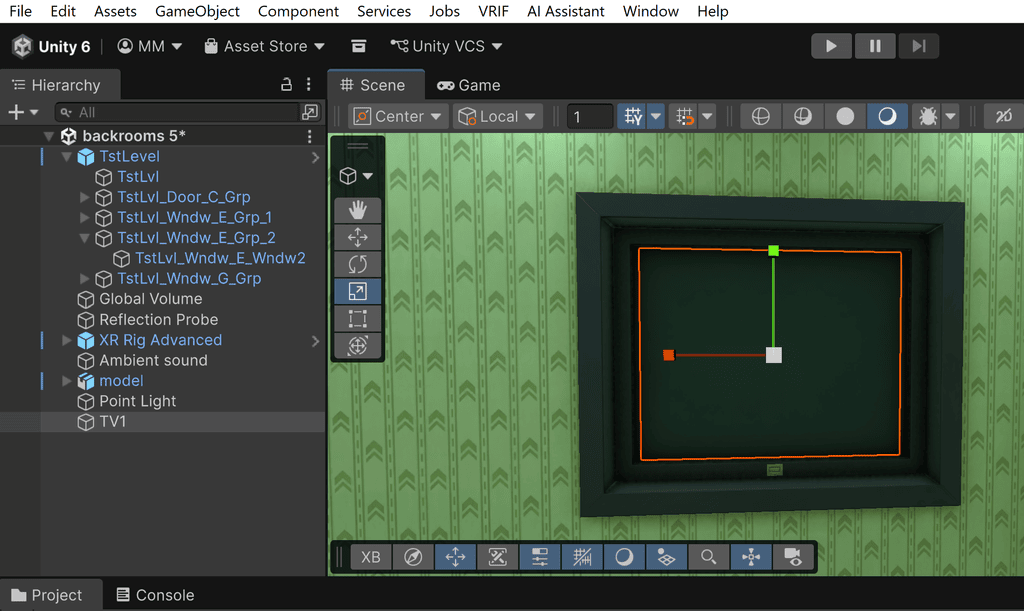
NOTE: A Quad is only visible on its front face. If it ‘disappears’ when viewed from your chosen position, select it and rotate it 180 degrees on the Y axis.
5: With the TV object selected, view the Inspector panel on the right. Click ‘Add Component’.
6: Search for ‘Video Player’ and click on it.
7: Drag your imported video from the project folder into the Video Clip field.
8: Select ‘Play On Awake’ so it starts when you press Play.
9: Select ‘Loop’ so it restarts at the end.
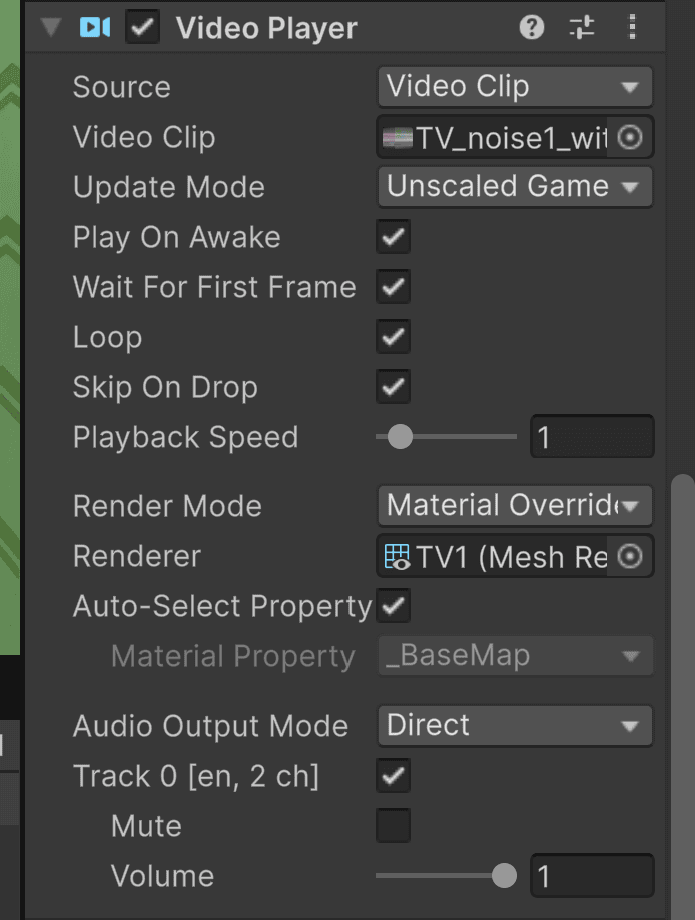
10: Enter PLAY mode and see how it looks! You may need to resize the quad to ensure the ‘screen’ is perfectly placed.
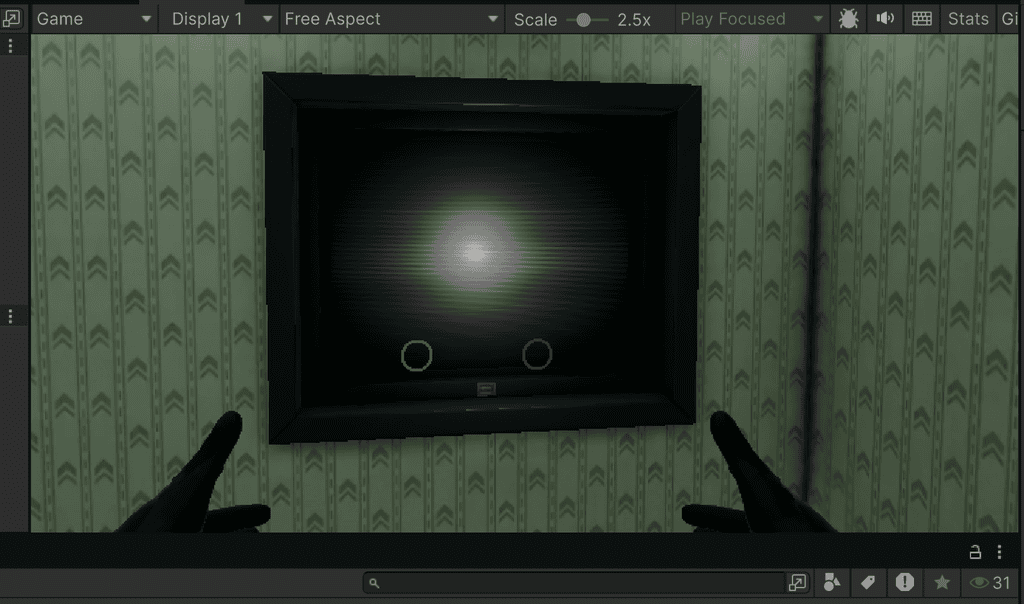
Import additional objects into the scene and make them ‘grabbable’
We added a piano object but there’s no way to interact with it. You might like to import additional objects which you CAN pick up, examine and even throw.
Start by looking for FREE low poly office objects at SketchFab and Poly Pizza. Download a couple you like (FBX or OBJ files are usually compatible with Unity without needing conversion steps).
Import them into your backrooms scene.
To make one of them ‘grabbable’, follow the instructions below:
Make an object grabbable and interact with it in VR
For a normal object that a player can pick up, you will need to add 3 components: A Collider so the VR ‘hand’ can detect it, a Rigidbody so it can behave physically in the virtual world, and the VRIF ‘Grabbable’ component.
1: In the Hierarchy, select the imported object.
2: Look at the Inspector panel on the right. Click ‘Add Component’.
3: Enter ‘Box Collider’ in the search box and select it.
4: Adjust the green collider outline so that it covers the whole object. (If the object is round, use a Sphere Collider instead. If it is a character-shaped upright object, use ‘Capsule’ Collider).
5: Click ‘Add Component’ again.
6: Search for ‘Rigidbody‘ and select it.
7: Leave ‘Use Gravity’ ticked if you want the object to fall when released.
8: Click ‘Add Component’ again.
9: Search for ‘Grabbable‘ and select it. Leave its default settings for now.
10: Although you can test the grabbable object in Unity’s play mode, it is suggested to build and run the current scene and test it in a VR headset. pick it up, examine it and throw it or let it drop to the ground!
TOP TIP: VRIF includes prefabs and scripts for grabbable objects, buttons, switches and levers. Return to the VRIF demo scene and try them out – You can copy and paste them into the backrooms scene as needed!
Notes and updates
There are no notes or advisories at this time. This post was create in October 2026 and was last updated in October 2026.
pixels.cool is not responsible for the content of any external webpages or software downloaded from third party sites. Links are included in good faith at the time of writing. All explainer content is compiled in good faith using processes and methods used by the team. Modern software offers users many ways to accomplish a single task, and for reasons of clarity we choose not to refer to multiple options. All computer users should run up to date virus / security software at all times to minimise risks of data loss.
We hope you enjoyed this two-part Backrooms step by step Unity workflow! Happy Halloween 🙂
