


We continue our series introducing one of the world’s most popular online generative AI video production toolkits, as we create a short video for a brand new immersive experience.
The AI tools and models used in this series
We’ll using runway to generate video clips and assemble them into a sequence, and use additional AI tools to help with initial ideation and to create text prompts to use at runway to help generate high quality video clips.
The main steps in the project:
- Generate an overview for an ‘immersive experience’ promotional video using perplexity.ai
- Generate still images using the flux-1.1-pro model at replicate.com to use as ‘first frame’ prompts at runway
- Generate short video clips using runway’s Gen-4 model
- Use runway’s online video editor to sequence the promotional video
- Use the speech-02-hd AI model at replicate.com to generate a realistic-sounding voiceover
- Use udio.com to generate a background music track
- Add text titles and export the video file
Part 2: Convert the suggested shots into text prompts to use to generate images.
The latest runway video generation models can use the combination of a reference image AND a text prompt to create short video clips.
In perplexity, we asked for the suggested opener ‘hook’ shot to be converted into a detailed text prompt ready to use to generate a still image:

In runway, this newly-created text prompt will be used to generate four ‘candidate images’. The runway dashboard provides a clear place to start:
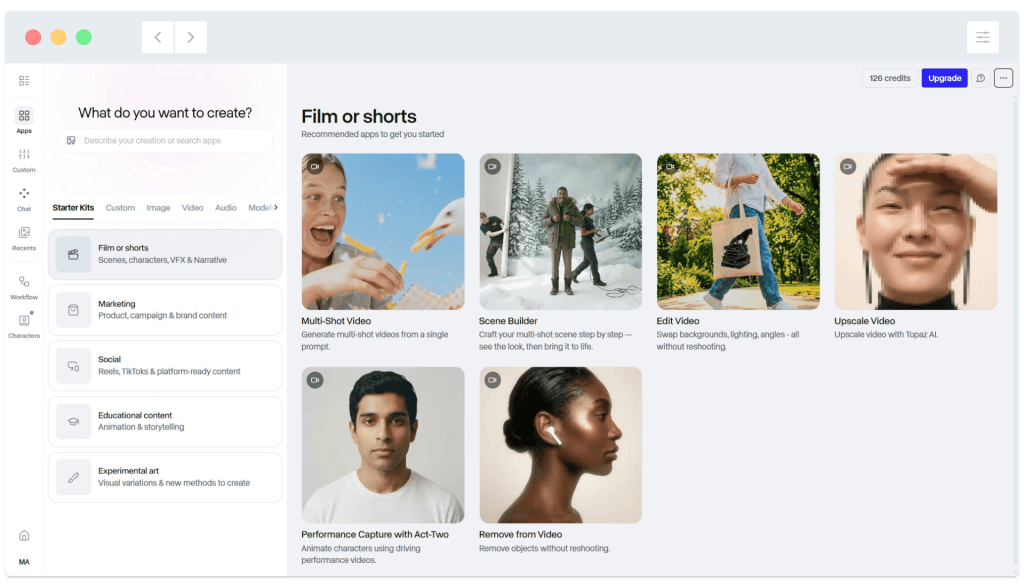

These newer models can use a prompt image AND prompt text to generate video clips:

Click on ‘create image’, then paste in the image prompt. Click ‘Generate’ to create four ‘candidate images’:

It’s worth reviewing the image generation settings. We raised the ‘aesthetic range’ slider to the maximum, hence the ‘diverse’ images it’s created:

A closer look at the four generated images:


Generating the four images has consumed 32 credits, which equates to around £0.60 or 75 cents at time of writing. This can add up very quickly if you don’t like the results.
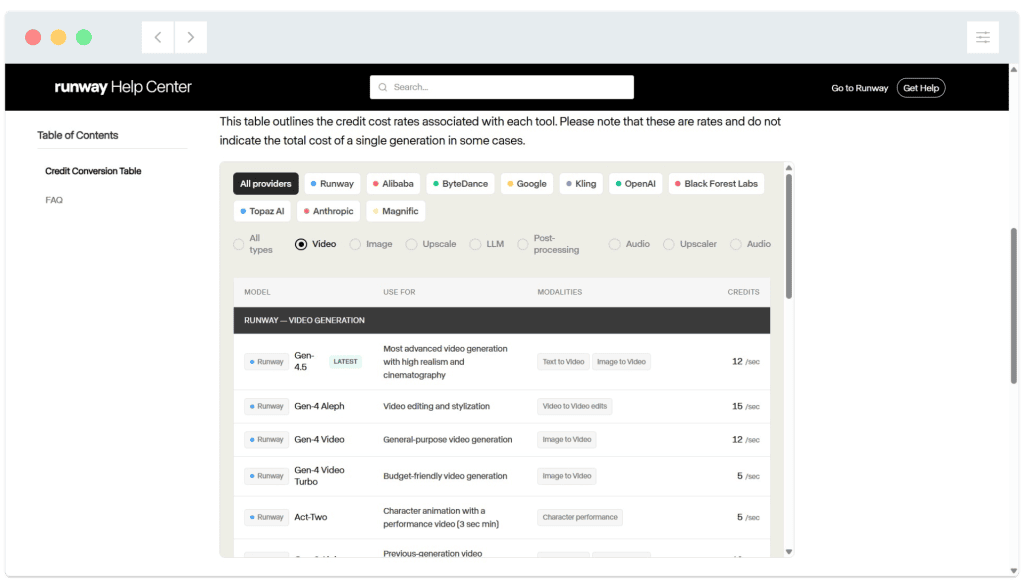
If you’re planning to use runway for a full project, it’s worth taking a look at how many credits you may need. (This is dependent on which image and video models you use, and of course how many times you end up iterating when a result isn’t quite what you’re looking for).
https://help.runwayml.com/hc/en-us/articles/32117491177619-Enterprise-Credits
Example credits usage in May 2026:
In part three of this series…
We’ll use a dedicated image generation model to generate additional still images.
