


All our workflow explainers are waffle-free and work-tested. That’s the pixels.cool guarantee!
‘Trace’ a 2d Space Invader in Kenney Shape to build and export a 3d object
Overview
Name of explainer: ‘Trace’ a Space Invader image in Kenney Shape to create a 3d object and export it in OBJ format
Creative theme: Beginning 3D Modelling
Software used (for this explainer): Kenney Shape
User level: BEGINNER
This is explainer 6 of 8 in this series
This series includes:
- Get tooled up for this explainer series
- Navigate the Tinkercad interface, add 3d objects to the workplane and rotate & scale them
- Create a coffee mug in Tinkercad
- Export a coffee mug from Tinkercad in OBJ format
- Navigate the Kenney Shape interface and edit built-in objects
- ‘Trace’ a 2d Space Invader image in Kenney Shape to create a 3d object and export it in OBJ format
- Create a new Unity project and import the objects created in Tinkercad and Kenney Shape
- Import a free coffee shop asset and place our 3D objects in the scene
The Software
This series of explainers uses three separate programs:
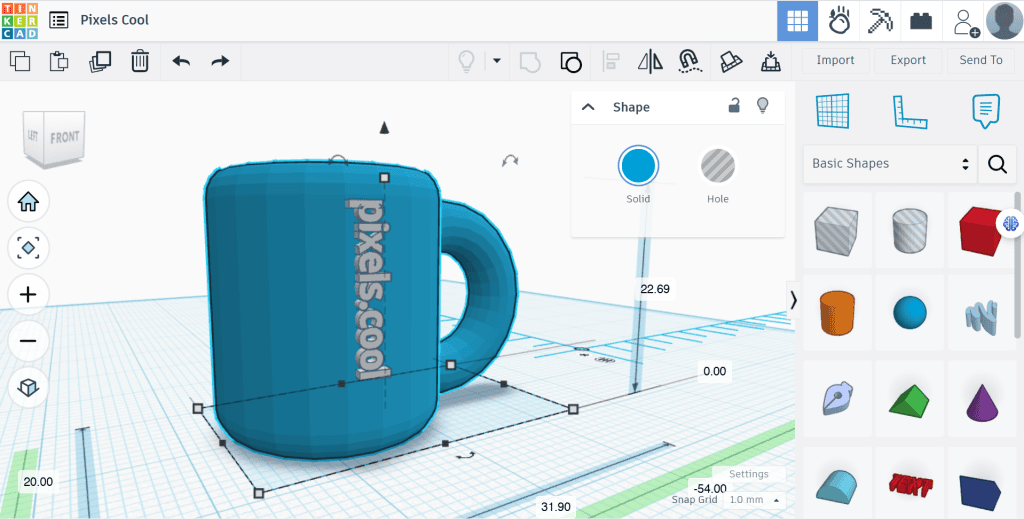
Tinkercad for introducing basic 3d navigation, scaling and rotating shapes, combining them and exporting 3d objects. Tinkercad is completely free and runs in a web browser. Get yourself a free account now!
Kenney Shape, for ‘tracing’ a 2d image to turn it into a 3d object and export it. At time of writing Kenney Shape costs less than £5 / $5. We’re creating and exporting a 3d Space Invader in the explainer below:

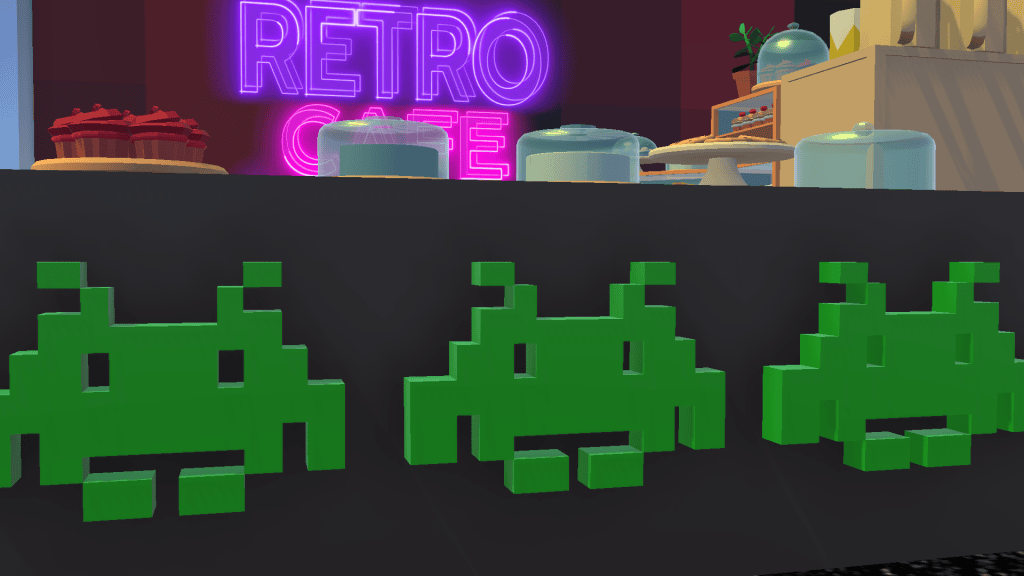
Unity for importing 3d objects, assembling them into a scene and applying simple textures and lighting. Unity is FREE for personal use. We’ll start assembling our Retro Cafe in explainers seven and eight:


3D Objects created in this series
Using a general theme of ‘Objects for a Retro Cafe’, we’ve already created and exported a coffee mug using Tinkercad:

In this explainer we ‘trace’ a 2d picture of a Space Invader in Kenney Shape to turn it into a 3d object, which can then be used in our retro cafe!
…We’ll also take a look at Kenney Shape’s built-in retro objects:

Finally, we’ll bring our saved objects into Unity and start blocking out a 3d cafe scene!

The pre-requisities
This is a BEGINNER explainer series, starting with beginner-friendly software. You need to have a basic knowledge of using Windows and downloading and installing software to follow this series. Tinkercad and Kenney Shape are beginner-friendly programs. Unity is a complex application and is not recommended for new computing users. For introductory courses and videos for Unity, check out Unity Learn
Why would I do this?
Using ‘reference images’ to work with helps to create 3D objects with accurate dimensions and detail. Kenney Shape lets you use a single, low resolution image to trace to help create a perfectly proportioned model – In this case a Space Invader!
Let’s do it!
Click the play icon to watch this explainer video. Subtitles are available – Click the settings cog at the bottom right for options. You can watch this video full-screen by clicking the full-screen icon at the bottom right.
Good to know
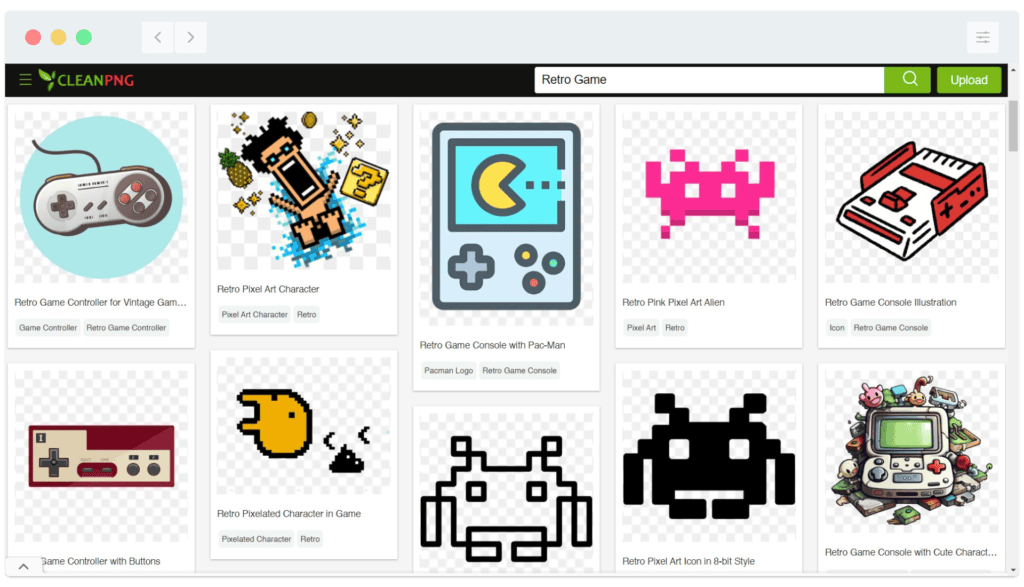
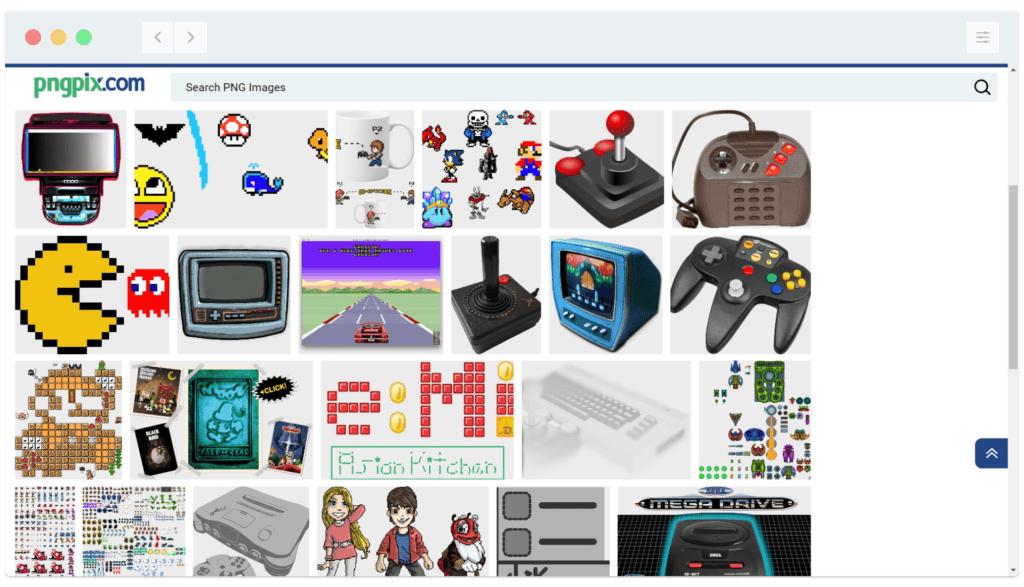
PNG (‘ping’) images are often used for icons and sprites as they support transparency (‘see through’ pixels). You can download FREE PNG images from lots of sites, including these:
You may need to resize PNG images to import them into Kenney Shape. You can use an image editing program for this (such as Photoshop or PaintShop Pro, as featured in image editing month), or resize images online using a site such as www.picresize.com
Where to next?
We’ve finished our work with Kenney Shape for this series. Remember that it includes lots of example models to edit and export! In the next explainer, we’ll open Unity and import our 3D objects, including the Space Invader.
Remember, this is part of a series of explainers – Join us again for the other explainers in the series 🙂
Notes and updates
There are no notes or advisories at this time. This video explainer was last updated in April 2023. This page was last updated in September 2025.
We at pixels.cool are not responsible for the content of any external webpages or software downloaded from third party sites. Any links are included in good faith at the time of writing. All explainer content is compiled in good faith using processes and methods used by the team. Modern software provides users with many ways to accomplish a task, and for reasons of clarity we choose not to refer to multiple options. All computer users must run up to date virus / security software at all times to minimise risks of data loss.
This is number 6 of 8 explainer videos in this series. Make sure you join us for the others!
