

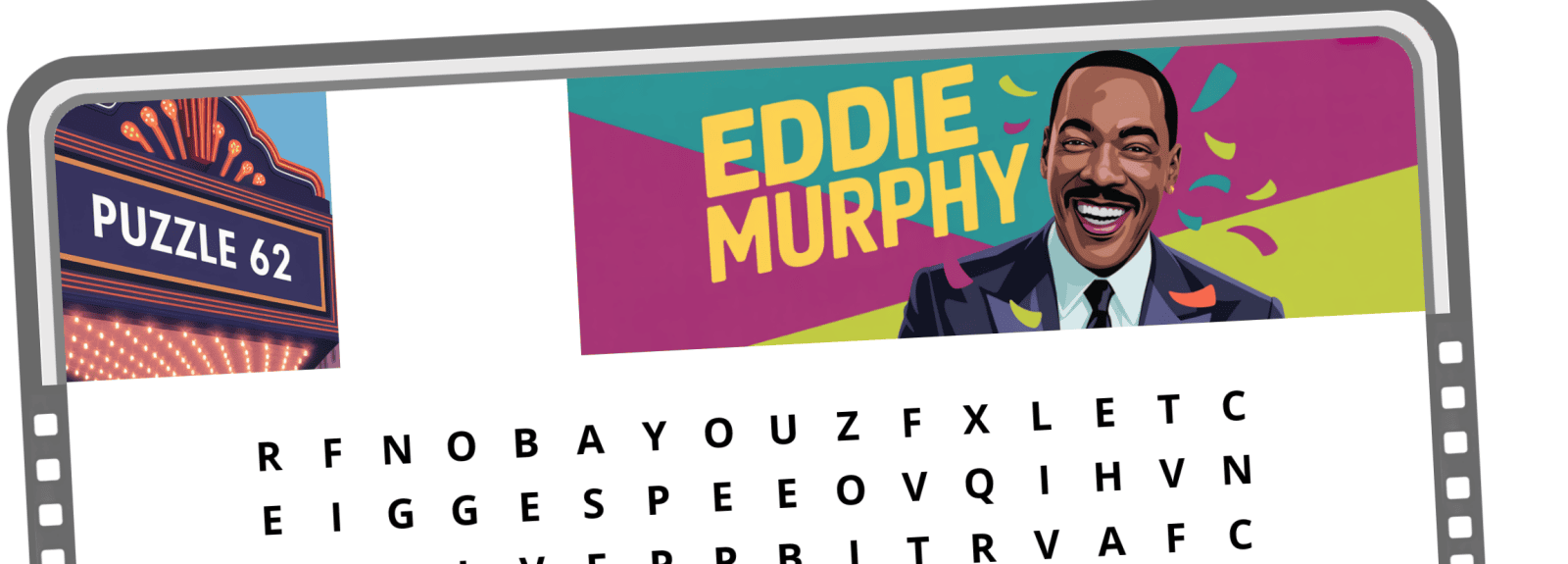
All our explainer series are waffle-free and work-tested. That’s the pixels.cool guarantee!
Create a Wordsearch puzzle in Book Bolt Studio
Overview
Name of part 2: Create a Wordsearch puzzle in Book Bolt Studio
Creative theme: Design and publish a puzzle book using Book Bolt Studio and Amazon KDP
Applications used: Book Bolt Studio, Amazon KDP, Image editing software (E.g. Photoshop or Paintshop Pro), Replicate AI (For AI image generation), MS Word
User level: BEGINNER
This is part 2 of 6 in this series
This series includes:
- Plan the book and overview the applications used
- Create a Wordsearch puzzle in Book Bolt Studio
- Generate puzzle number images and artwork using generative AI
- Design the book cover and assemble puzzle pages in Photoshop or Paintshop Pro
- Assemble the manuscript in Word
- Publish the book using Amazon KDP
The published book at the end of this series
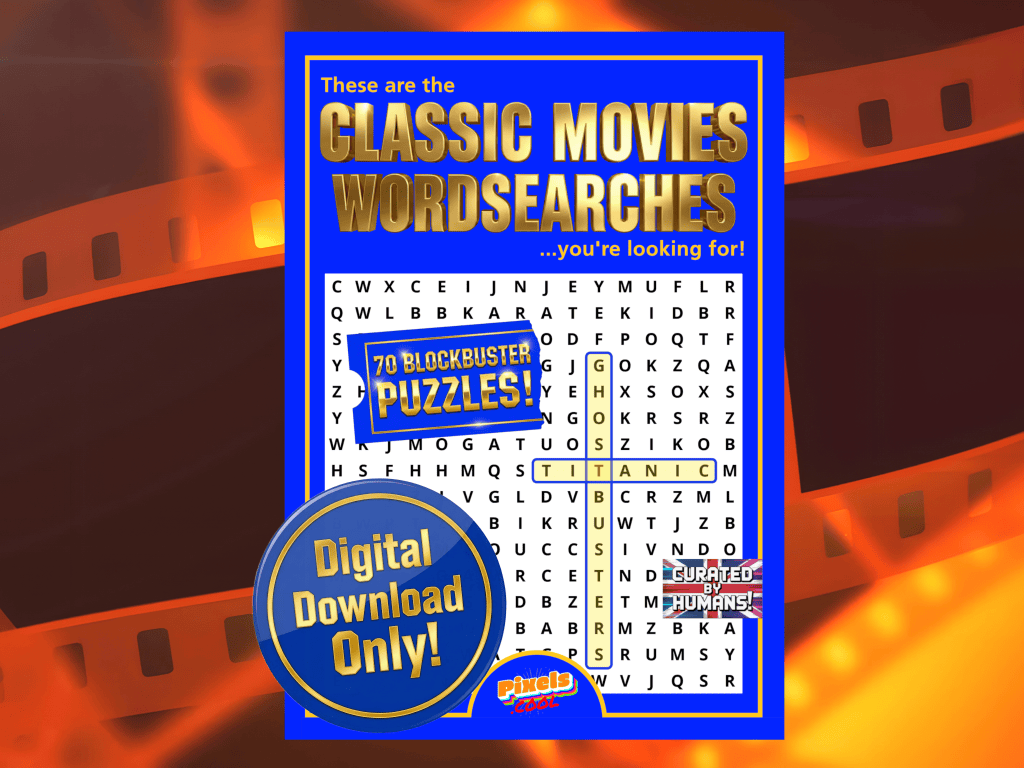
‘These are the Classic Movies wordsearches you’re looking for!’ is live on Amazon now:
The design, build and publish process in 2 minutes!
This creative design series is complete in six parts. Here’s the entire process from creating lists of movie-themed words through to publishing the book using Amazon KDP in two minutes 🙂
A brief introduction to Book Bolt Studio
It’s important to note that ‘Book Bolt’ is an online platform, and ‘Book Bolt Studio’ is a dedicated interface opened from inside Book Bolt, which is designed for creating and editing KDP books, including puzzle books. To obtain access to the ‘Puzzle creation tool’, you will need a ‘Pro’ Book Bolt subscription (The ‘Newbie’ subscription does NOT include it):
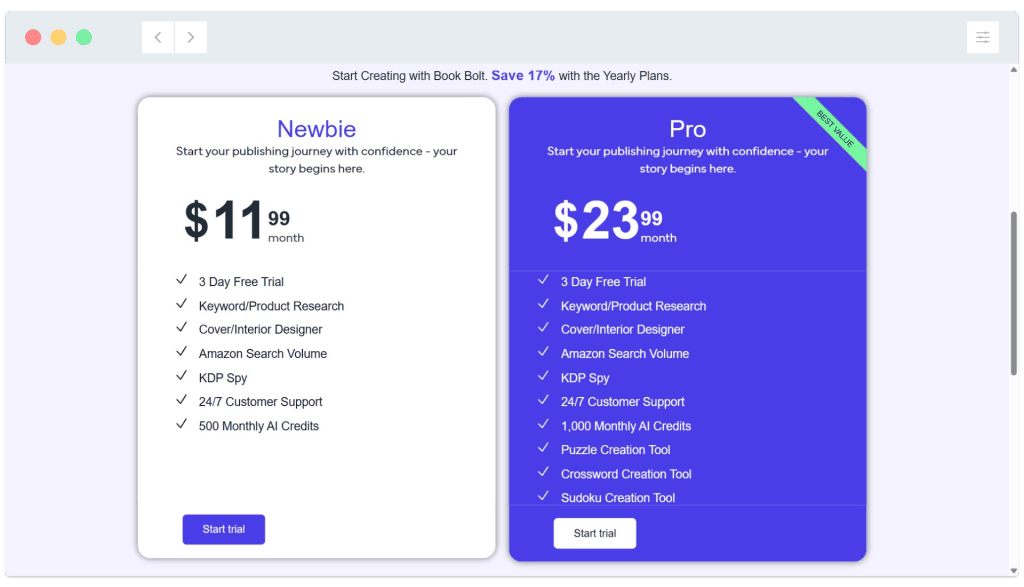
Note: Prices above are for a MONTHLY subscription and correct at May 2026. You may receive a discount for a ‘yearly’ or ‘lifetime’ subscription. We used a one-month PRO subscription to generate the 70 puzzles needed to compile our Classic Movies wordsearch book. Always check subscription information carefully before committing to a paid option, and remember to cancel your subscription in good time if you are no longer going to need it.
Let’s create a puzzle!
The main steps of the puzzle generation process are:
- Create wordsearch word lists in Microsoft Word (or any text editor)
- Copy a word list into Excel and save it as a .csv (comma separated values) file
- Import the .csv file into Book Bolt Studio and generate a wordsearch page and solution page
Below, we’re going to generate a wordsearch puzzle detailing some of Eddie Murphy’s most popular movies:
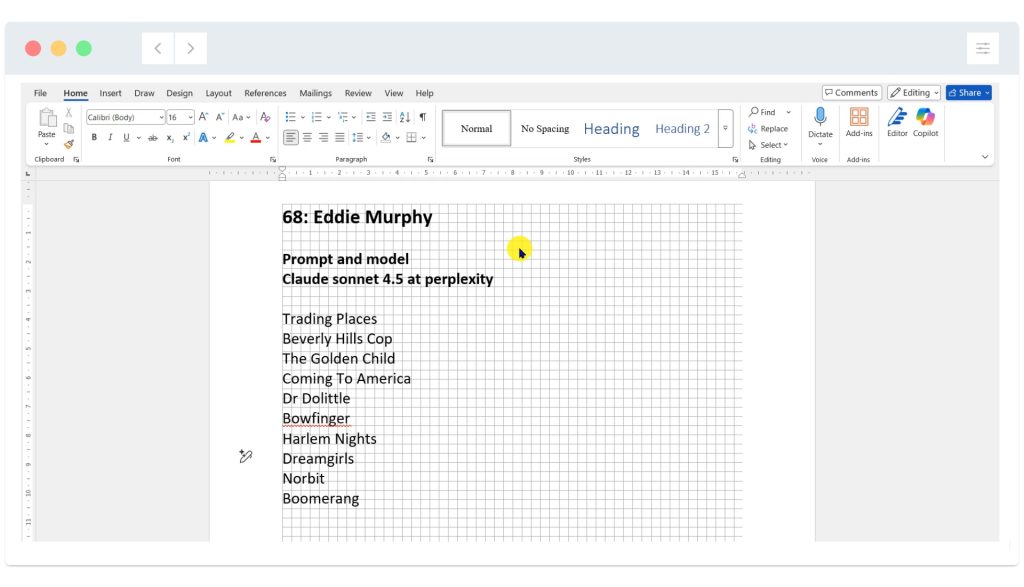
01: In Word, we created a list of Movie names for our readers to find:
TOP TIP
Our wordsearch grids will be 16 characters wide and 16 characters tall. The total number of letters in a movie name cannot exceed 16, or Book Bolt will highlight it as an error.
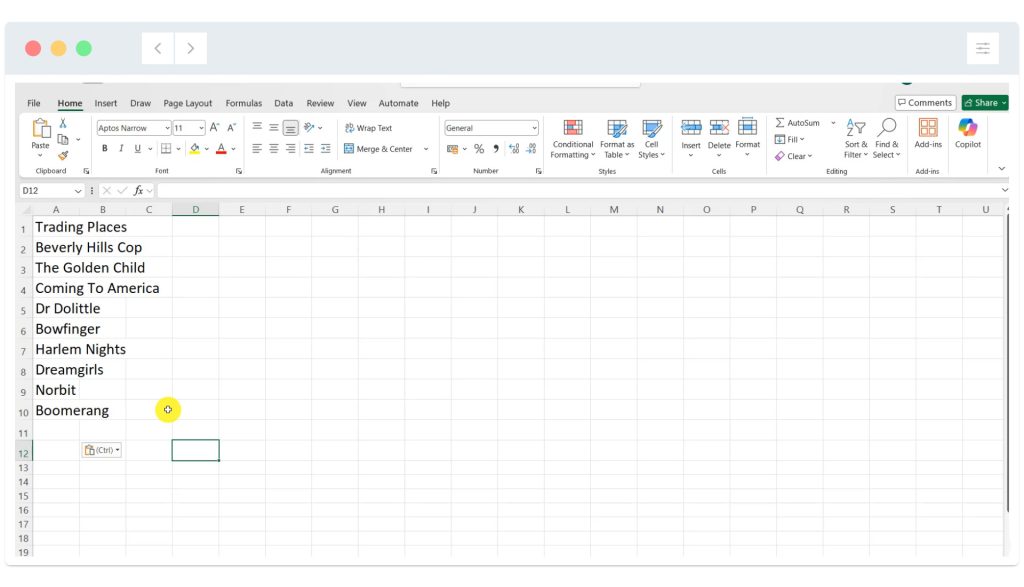
02: Copy and paste the list of words into a blank Excel spreadsheet, making sure to paste one movie title per cell. Any spreadsheet program that supports .csv export can be used for this, including Google sheets and the free spreadsheet application Libre Office Calc:
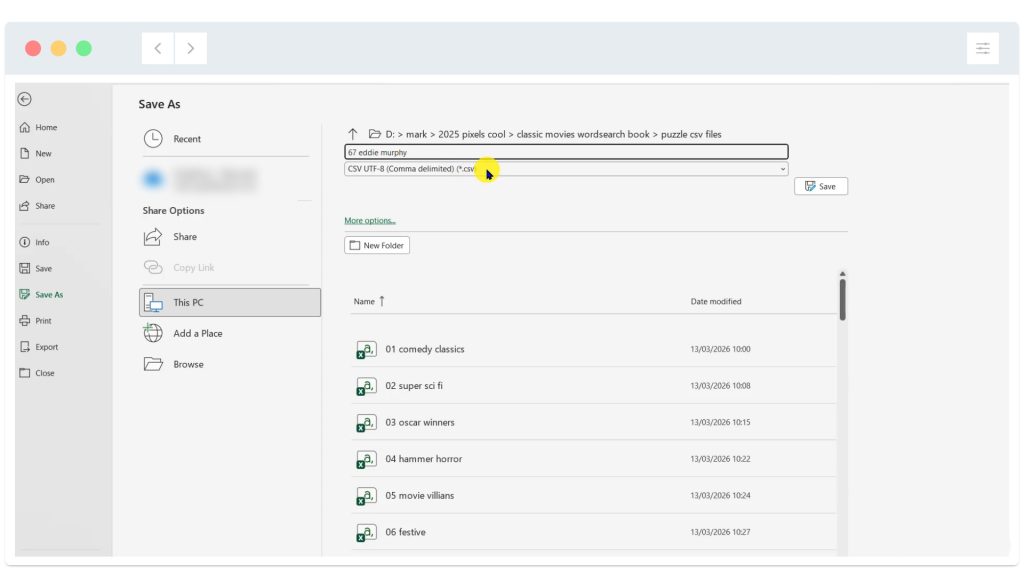
03: Save the spreadsheet as a .csv file. CSV is short for ‘comma separated values’, and is the format Book Bolt will require in order to upload words/phrases to add to a wordsearch grid:
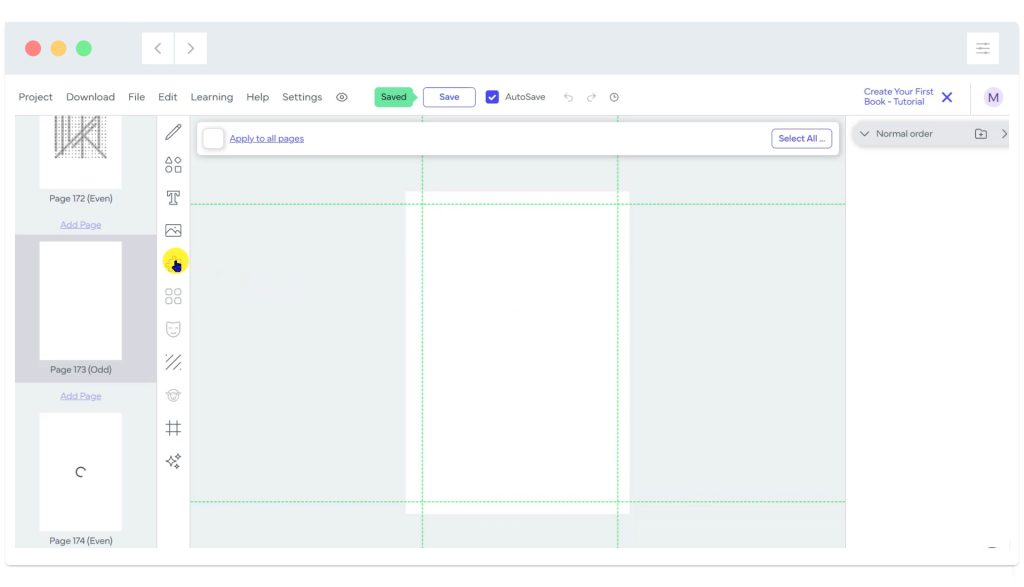
04: Log into your Book Bolt account and open Book Bolt studio. Select a new, blank page on the left, then select to create a puzzle by clicking the puzzle icon as highlighted in yellow:
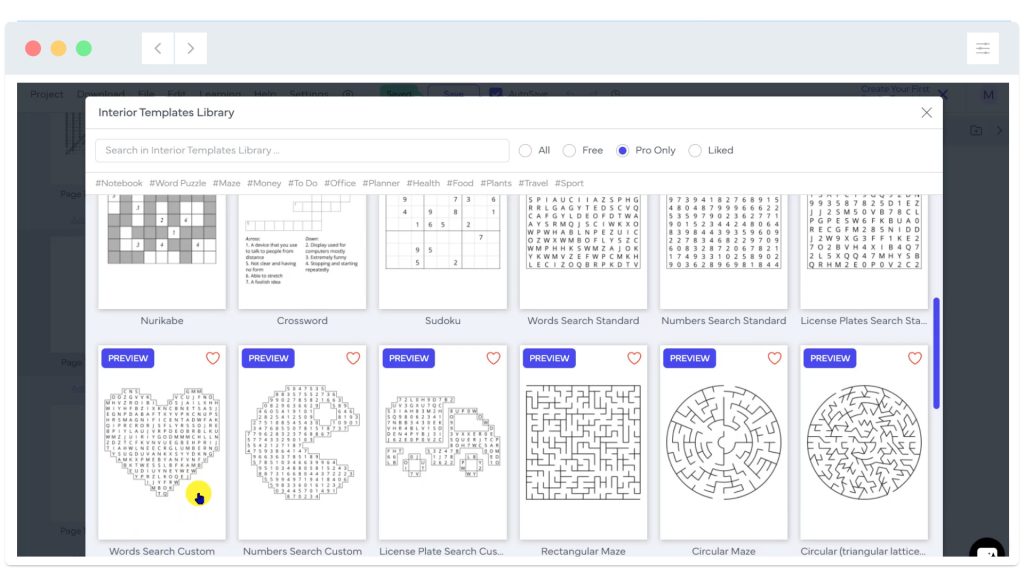
05: Explore the puzzle types, and select to create a ‘Word Search custom’. We used this type of puzzle throughout the book. ‘Word search standard’ is similar, but does not include an option to create ‘special shape’ grids or leave white ‘gaps’ in a grid to add images to later. We plan to include various images in specific puzzles (E.g. A galleon for ‘Pirates of the Caribbean’ and a Zombie for ‘Shaun of the Dead’).
06: Starting from the top, enter basic settings for the Word Search. We’ve set ‘page’ margins of 2cm on every side and set the number of words for the current puzzle to be 10 (as we have 10 movie titles to import shortly) and have selected to allow diagonal words but not reverse words. The choice is yours – Be sure to play with various settings before committing yourself to specific settings for lots of puzzles 🙂
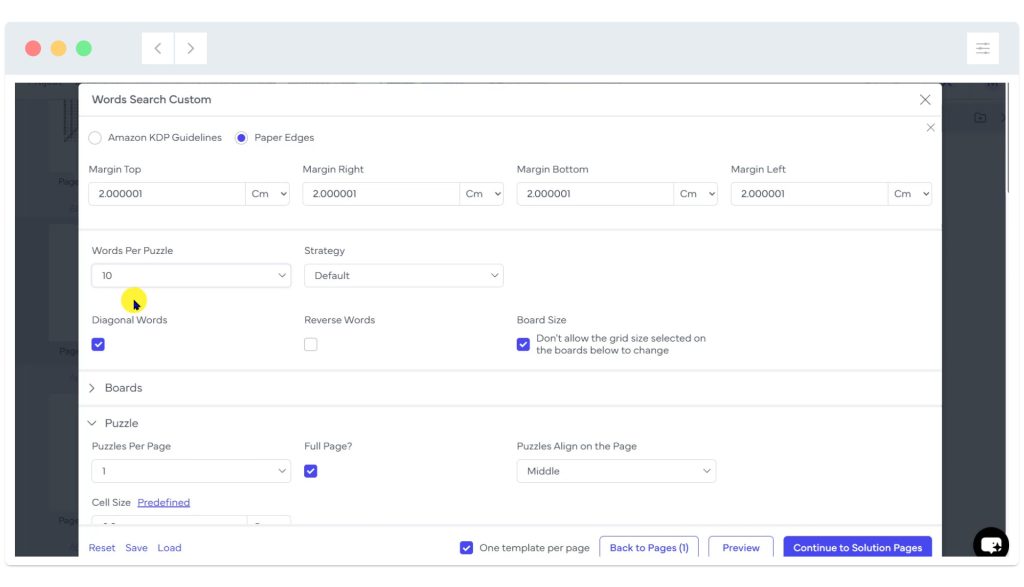
Note: We used a 16×16 grid for every puzzle. This prints at a ‘comfortable’ size on 7 inch by 10 inch paper. If you are planning to use a print size which is much smaller or larger, take time to try out different grid grids. Bear in mind the more rows and columns in your grid, the more words you’ll need to import to ‘fill’ the space! We’ve found that 10-12 movie names or phrases per puzzle works well.
Precise ‘page’ margins are not important for this workflow as we will export all the puzzles from Book Bolt as images then build the book manuscript in Microsoft Word. As long as the margins are consistent, their actual size is not going to matter. If you plan to build an entire puzzle book directly inside Book Bolt, we suggest researching appropriate / prefered page margins before continuing to follow this series.
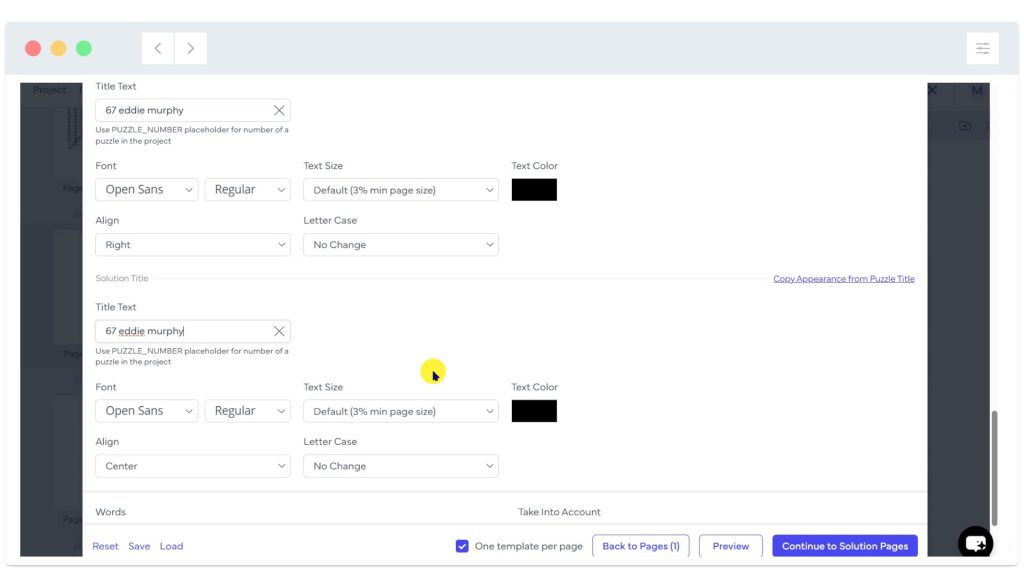
07: Continue down the settings and set the title for the puzzle page and the title text for the answers page. This will be important later to help stay organised as we’ll have 70 puzzles to juggle!
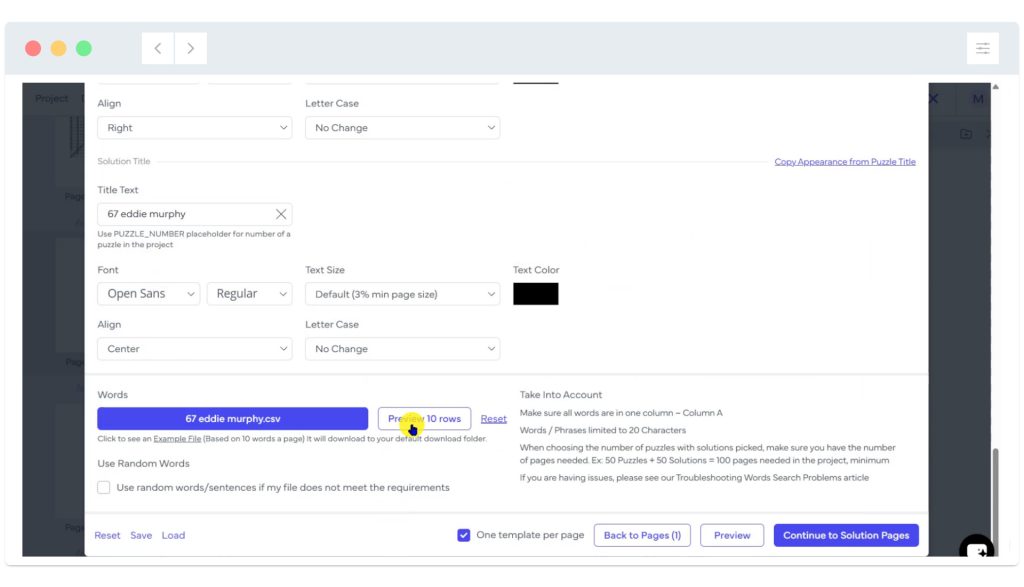
08: Continue to the bottom of the settings page. In the ‘Words’ section, click the large blue button then import the CSV file saved earlier in this process. You can ‘preview the rows’ by clicking on the preview button as highlighted below. That’s the puzzle set up! – Time to generate it! Click on the ‘Continue to solution pages’ button at the bottom right…
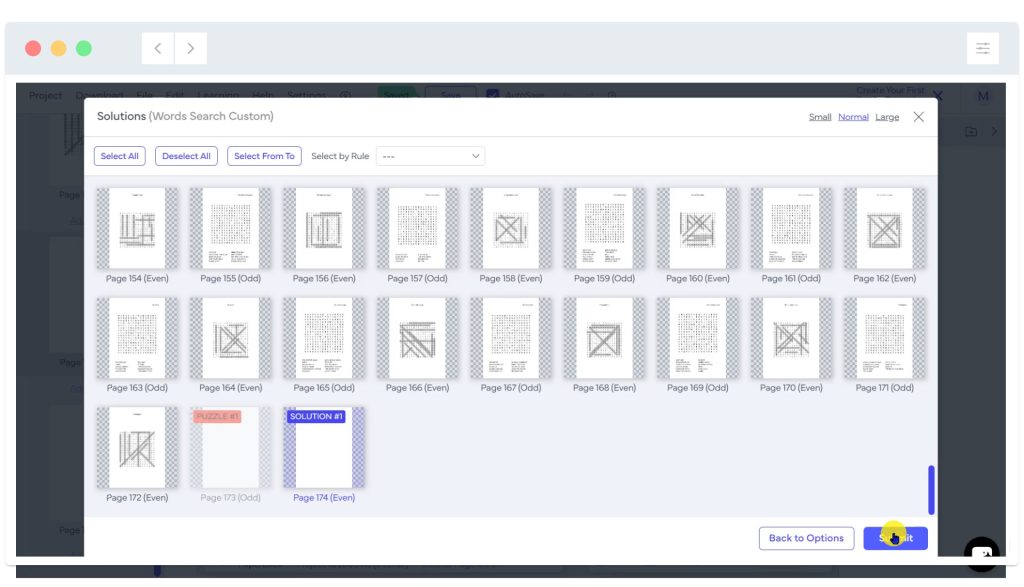
09: Select a blank page in the Book Bolt project to add the solution to. For us, this is always going to be the page immediately after the puzzle, as each page will be exported later then re-ordered as the book takes shape. Click ‘Submit’:
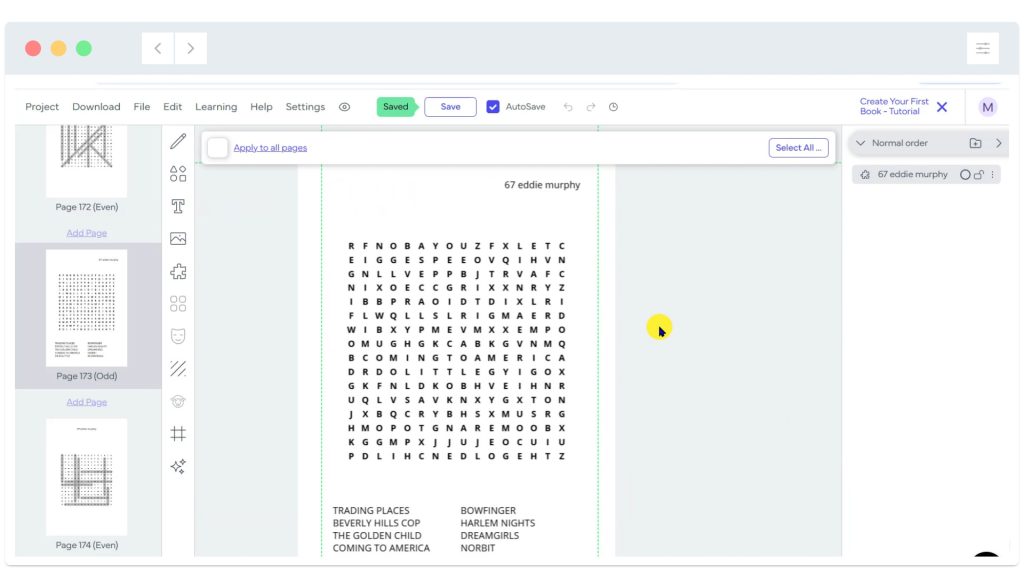
10: The puzzle generator works its magic! A few seconds later, the puzzle page and the solutions page are available for you to review. Here’s the ‘Eddie Murphy’ puzzle as generated:
And here’s the created solution page:
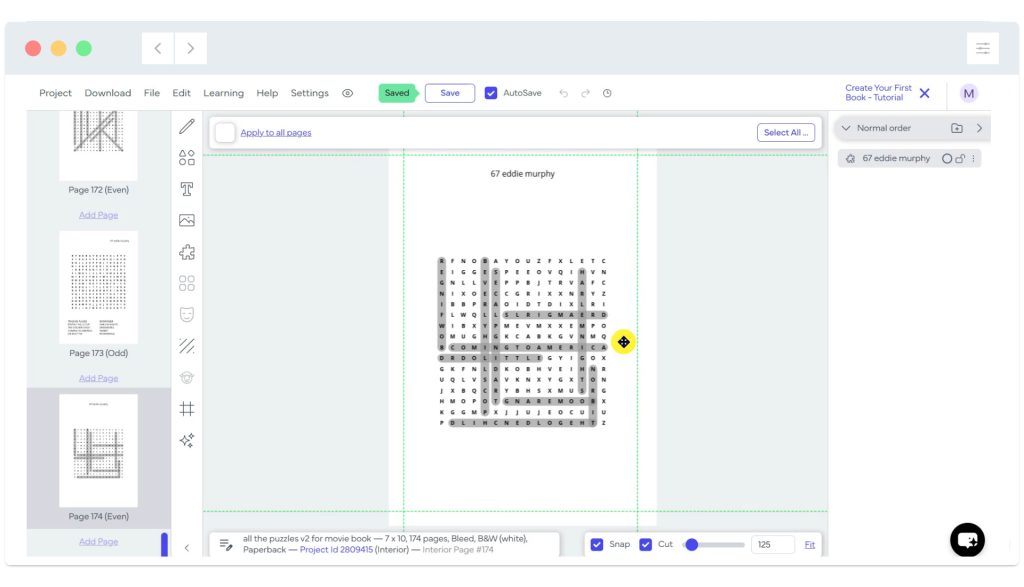
That’s one puzzle grid finished! Take a few moments to check every generated page. During the process of creating all 70 puzzles for our book, we ‘regenerated’ at least ten puzzles as the solution came back with lots of parallel vertical or horizontal words. To ‘regenerate’ a puzzle, simply delete the pages and start this process again.
Export completed puzzles from Book Bolt Studio as PNG images
To edit completed wordsearch grids in another application, they will need to be exported from Book Bolt. We’re going to export each puzzle grid (and solution grid) as individual PNG (image) files so they can then be opened in Photoshop or Paintshop Pro, where the grid can be combined with images and additional text.
01: Make sure you are viewing the puzzle page you want to export. Select File > Export as PNG
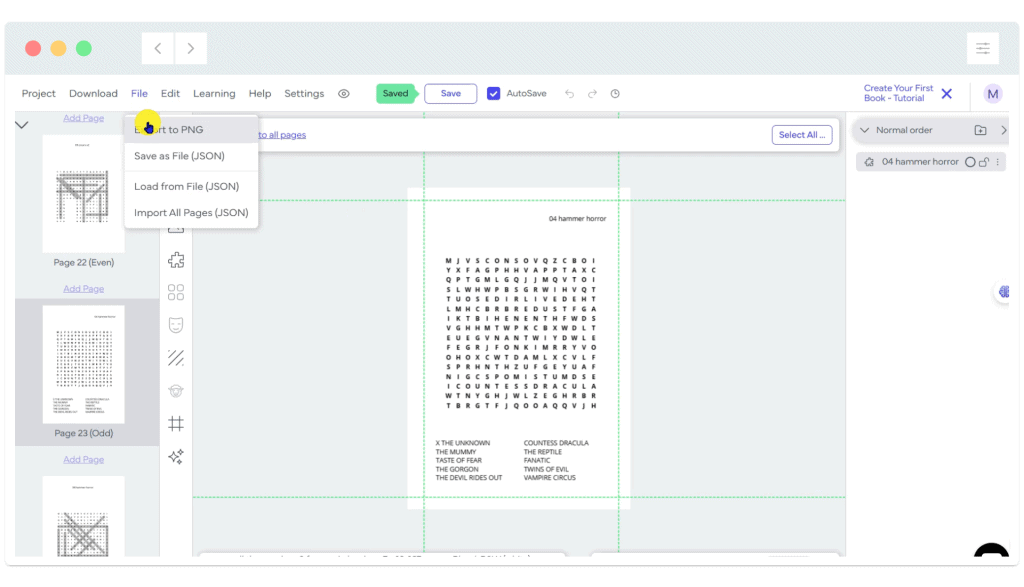
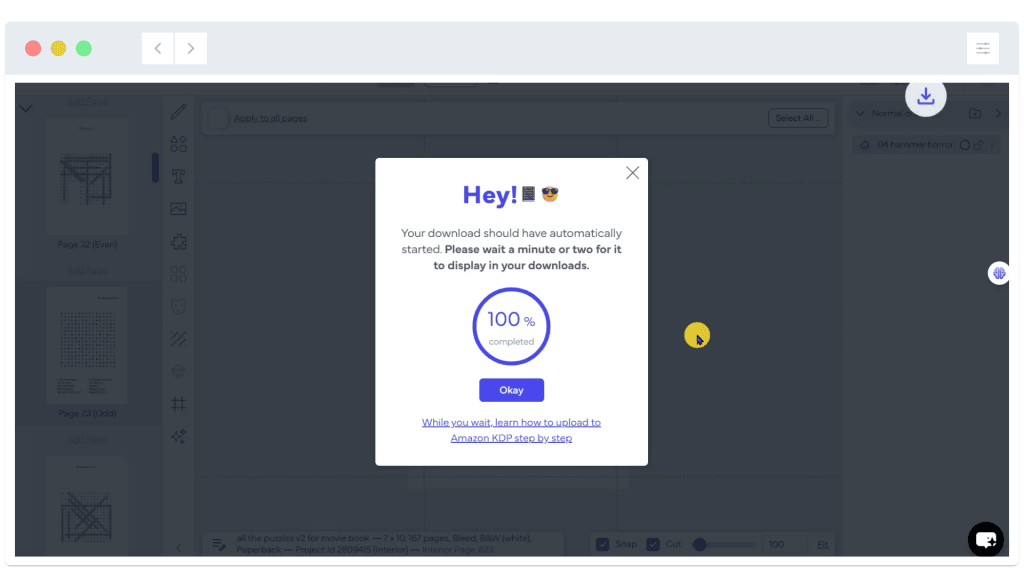
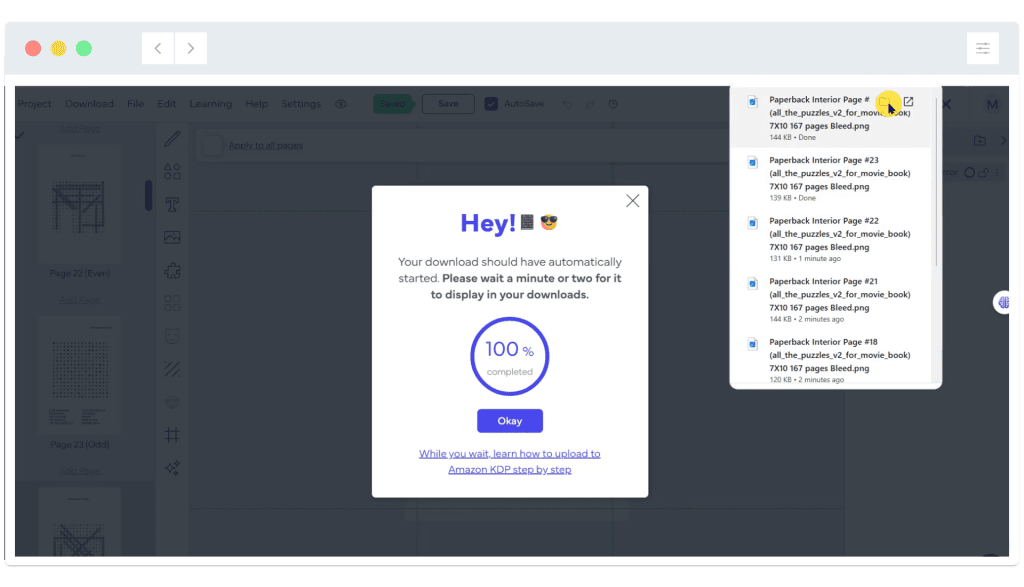
02: Wait for the download to complete (This will only take a few seconds for a single page):
03: View the corresponding solution page, and again select File > Export as PNG
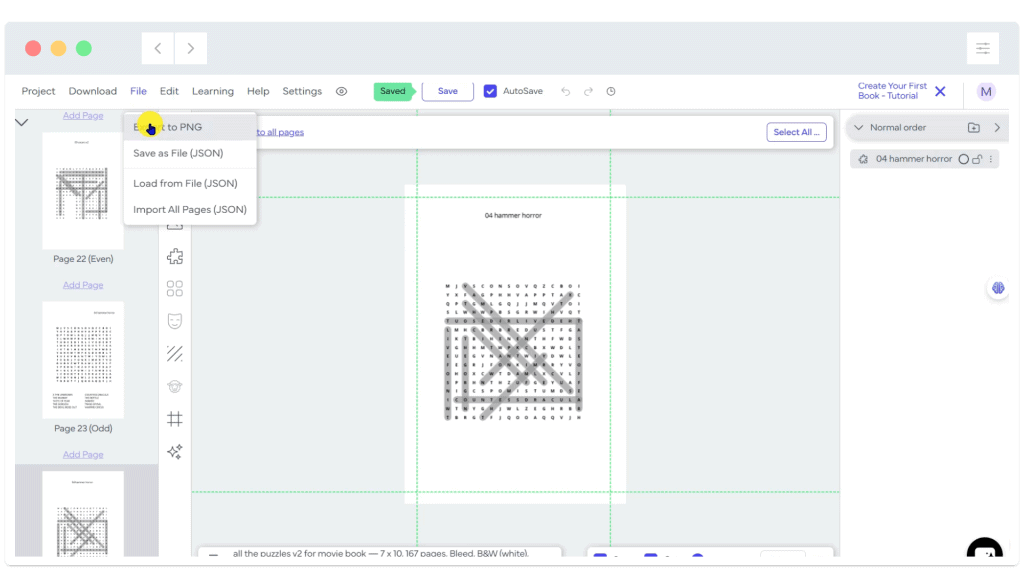
04: Wait for the download to complete before moving on to the next puzzle:
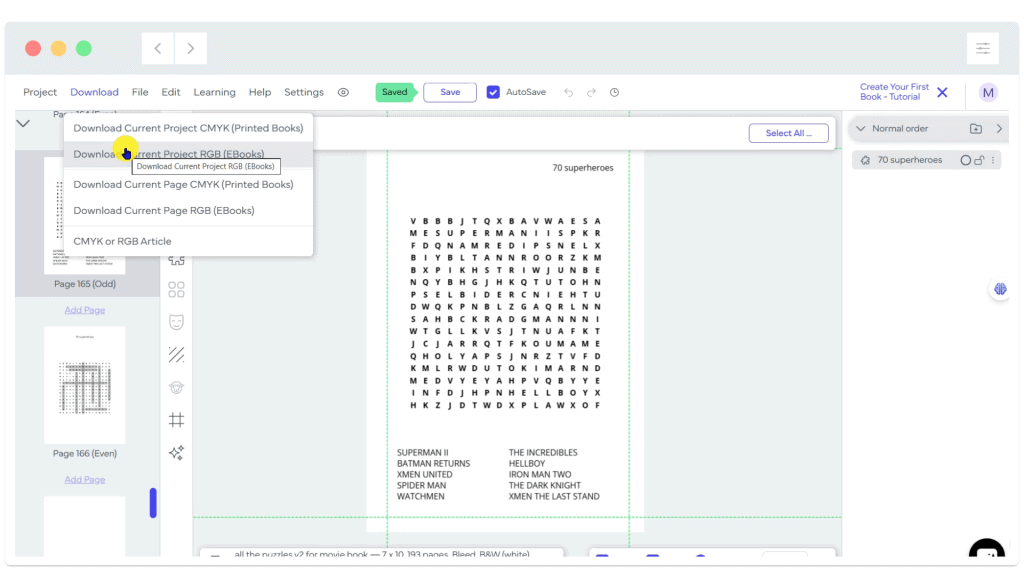
NOTE: It is also possible to download the entire project (I.e. ALL the puzzles) at any time as a single PDF file. To start this process, go to File > Download Current Project RGB
The downloaded file contains every puzzle and solution:
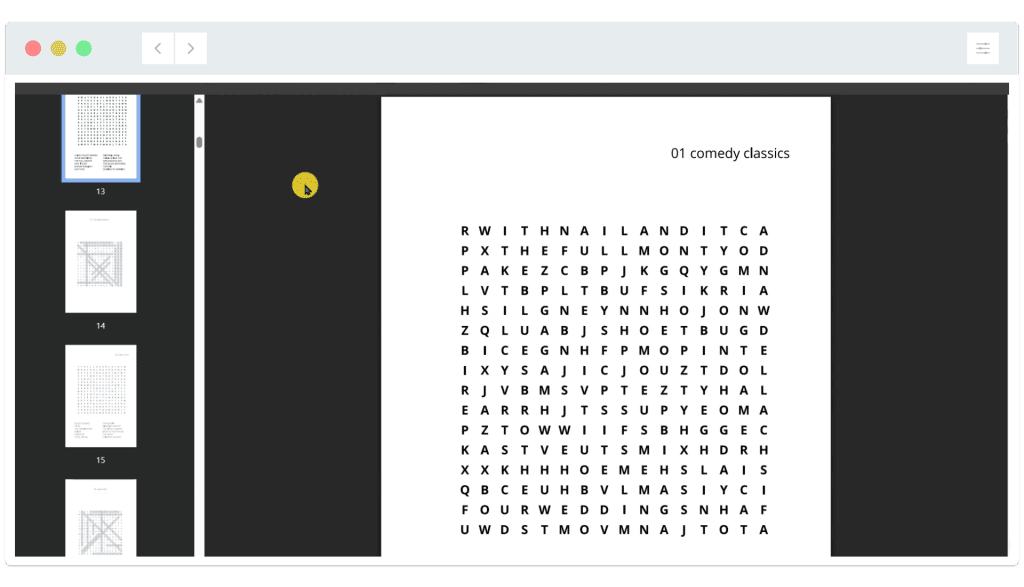
This full download can be useful for backup purposes (or if your Book Bolt subscription is about to expire), though each page in the PDF file may need to be converted to an image later if you’d like to add images / additional text etc.
The finished, published book
‘These are the Classic Movies Wordsearches you’re looking for’ is available now at Amazon!
…and as a digital download from Etsy!
Need help? We’ve got you!
We have a dedicated support email address to provide assistance for this series:

If you have a question about any of the processes shown, please get in touch! You can also request copies of the wordsearch / image assets we use so you can try them for yourself!
Note: This email is for help relating to this series only, until the end of September 2026. We aim to reply within 72 hours, weekdays only. We cannot respond to unrelated queries via this account.
What’s next?
In part three of this series we’ll be exploring AI image generation to create puzzle number images and banner images! Join us in a few days’ time!
Notes and updates
There are no notes or advisories at this time. This page was first published in June 2026.
pixels.cool is not responsible for the content of external webpages or for software downloaded from third party sites. Links are included in good faith at the time of writing. All explainer / walkthrough content is compiled using processes and methods used by the Team. Modern applications offer many ways to accomplish a task, and for reasons of clarity we choose not to refer to multiple options. All computer users should run up to date virus / security software at all times to minimise the risk of data loss.
This is part 2 of 6 of this creative series. Make sure you check out the others!
