


All our creative explainer series are waffle-free and work-tested. That’s the pixels.cool guarantee!
Publish the book using Amazon KDP
Overview
Name of part 6: Publish the book using Amazon KDP
Creative theme: Design and publish a puzzle book using Book Bolt Studio and Amazon KDP
Applications used: Book Bolt Studio, Amazon KDP, Image editing software (E.g. Photoshop or Paintshop Pro), Replicate AI (For AI image generation), MS Word
User level: BEGINNER
This is part 6 of 6 in this series
This series includes:
- Plan the book and overview the applications used
- Create a Wordsearch puzzle in Book Bolt Studio
- Generate puzzle number images and artwork using generative AI
- Design the book cover and assemble puzzle pages in Photoshop or Paintshop Pro
- Assemble the manuscript in Word
- Publish the book using Amazon KDP
The published book at the end of this series
‘These are the Classic Movies wordsearches you’re looking for!’ is live on Amazon now:
The design, build and publish process in 2 minutes!
This creative design series is complete in six parts. Here’s the entire process from creating lists of movie-themed words through to publishing the book using Amazon KDP in two minutes 🙂
Create the book listing in Amazon KDP
The design work is complete! Now it’s time to bring the book cover file and the manuscript file together to create and publish the puzzle book. This guide assumes you have created an account at kdp.amazon.com (This is the correct site for UK and US authors).
NOTE: The steps below focus on how to upload and check the cover image, upload and preview the manuscript and set the book to be published on a future date. This is not a marketing guide – For assistance with selecting keywords and categories and promoting your book, please see the many walkthrough guides available on YouTube.
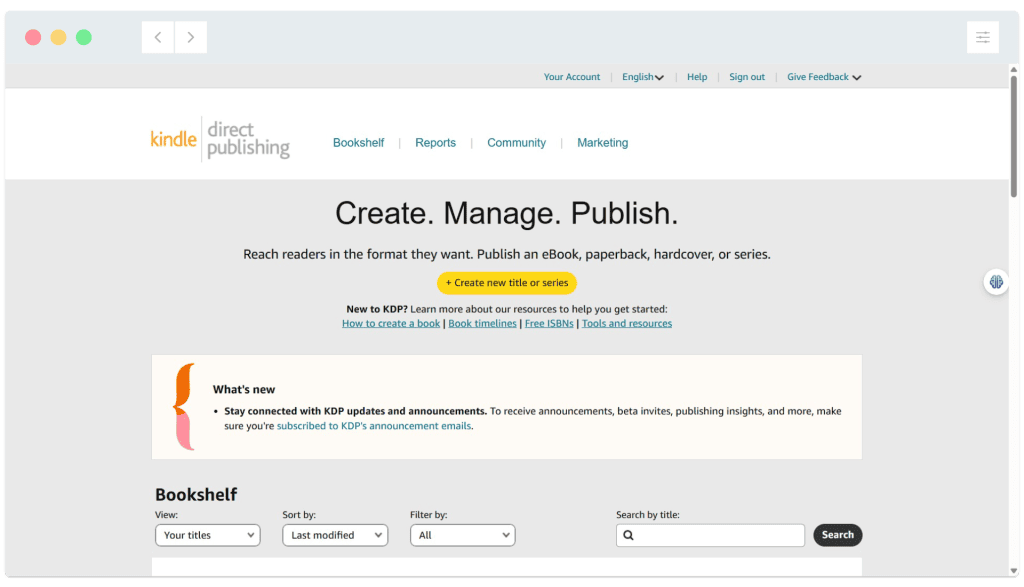
Once you’ve logged into your Amazon KDP account, click the ‘Create a new title or series’ yellow button:
Create a book title and description
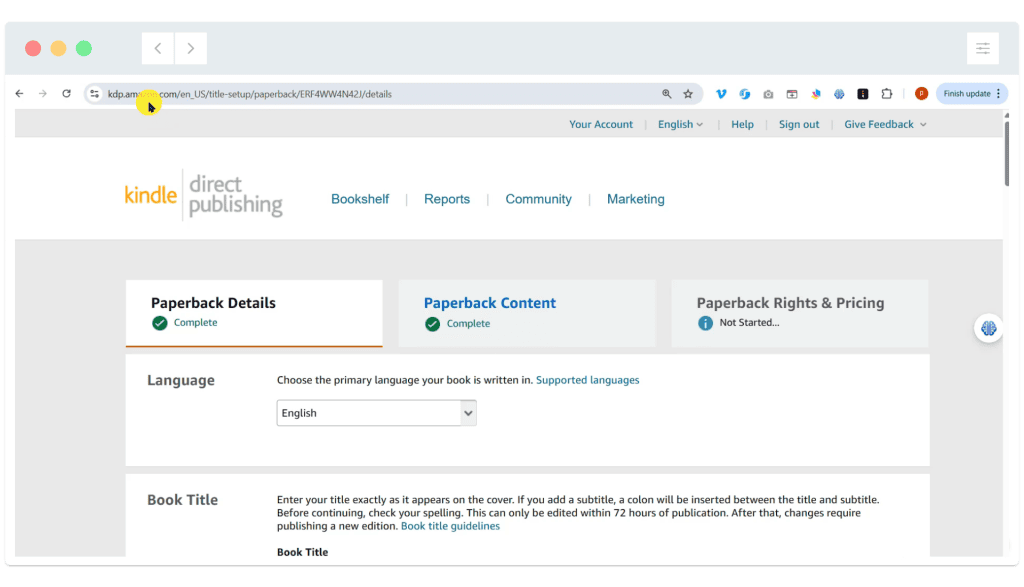
01: Start with the ‘Paperback Details’ tab. Set the book language and the title (You can change these later if needed):
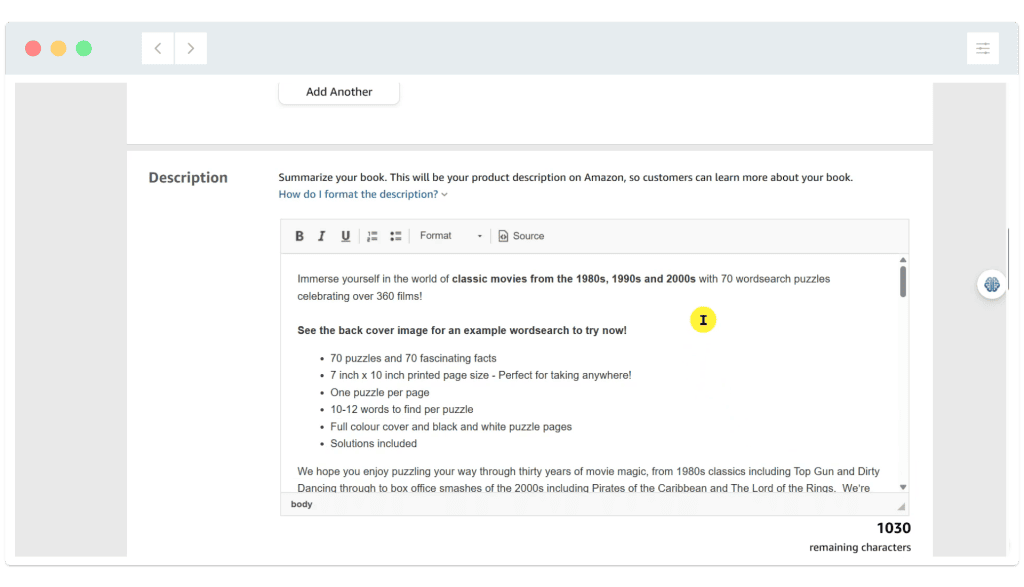
02: Add a description for the book. This will be published in full in the Amazon listing, so make it as detailed and helpful as you can. We’ve included a full list of the titles of every wordsearch. You can return to this later as needed – There is no need to enter a ‘perfect’ description before continuing below:
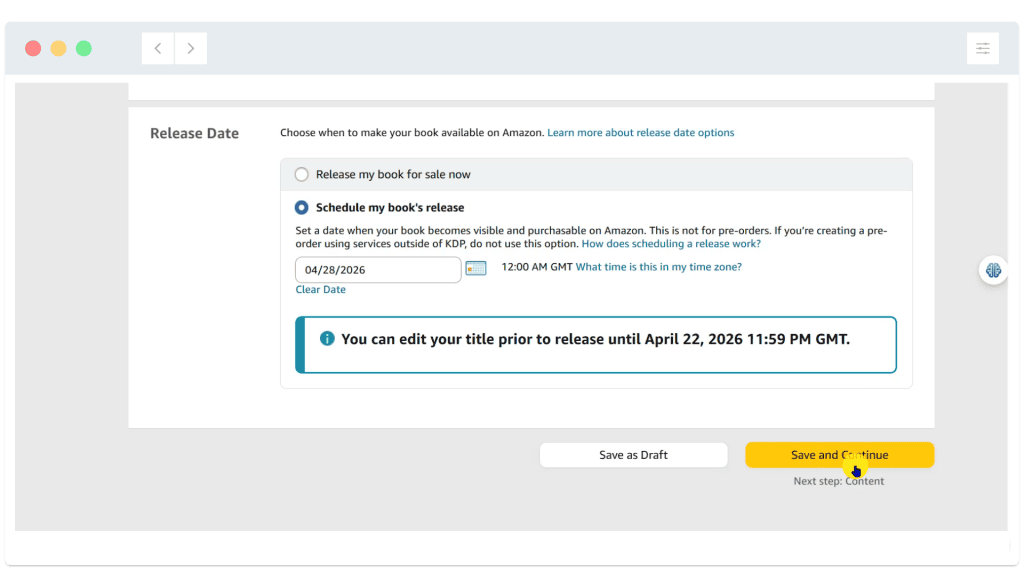
03: Determine when you’d like your book to go live on the site. We’ve selected 28 April 2026, and the system confirms we can continue to make changes until 22 April, after which it will be ‘locked down’ in advance of being published. Click ‘Save and Continue’:
Upload the cover image and manuscript and preview the book
01: Move on to the ‘Paperback Content‘ tab. Start by selecting ‘Get a free KDP ISBN’:
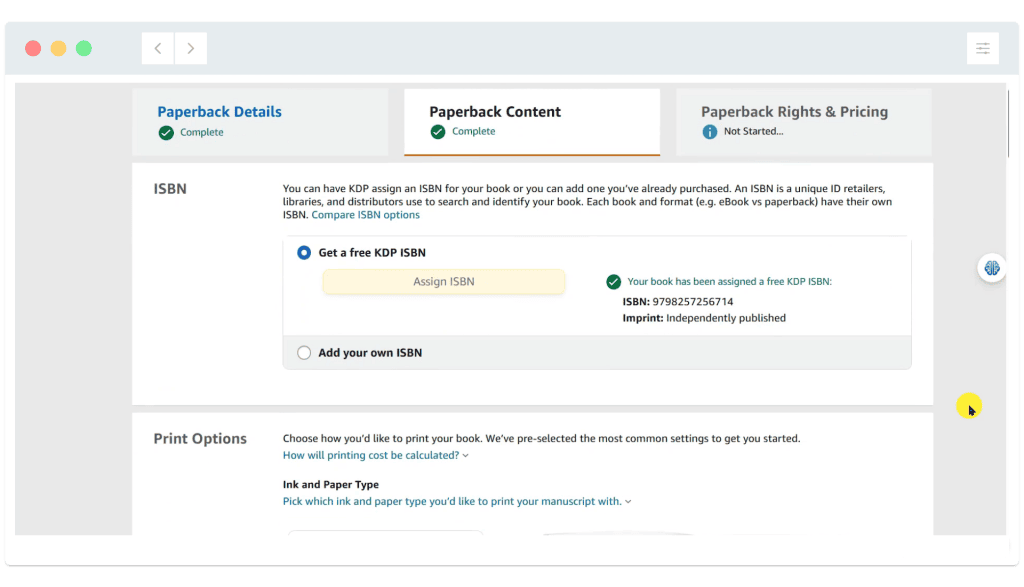
IMPORTANT NOTE: We will only be publishing the physical book on Amazon, so the ‘free ISBN’ option is all we need. If you plan to also sell the physical book on other platforms (E.g. Etsy), you will need to purchase a universal ISBN first. (You can sell it as a digital download elsewhere, but not as a physical book). In the UK, ISBNs should be purchased from https://www.nielsenisbnstore.com/Home/ISBN At the time of writing (June 2026), a single ISBN costs £93.
02: Click the‘Upload manuscript’ button and upload your manuscript PDF file. This file contains all the page content and was exported from Word as a PDF in part five of this series. The system runs various checks and if all is well displays the ‘Success’ message you can see in the screenshot below:
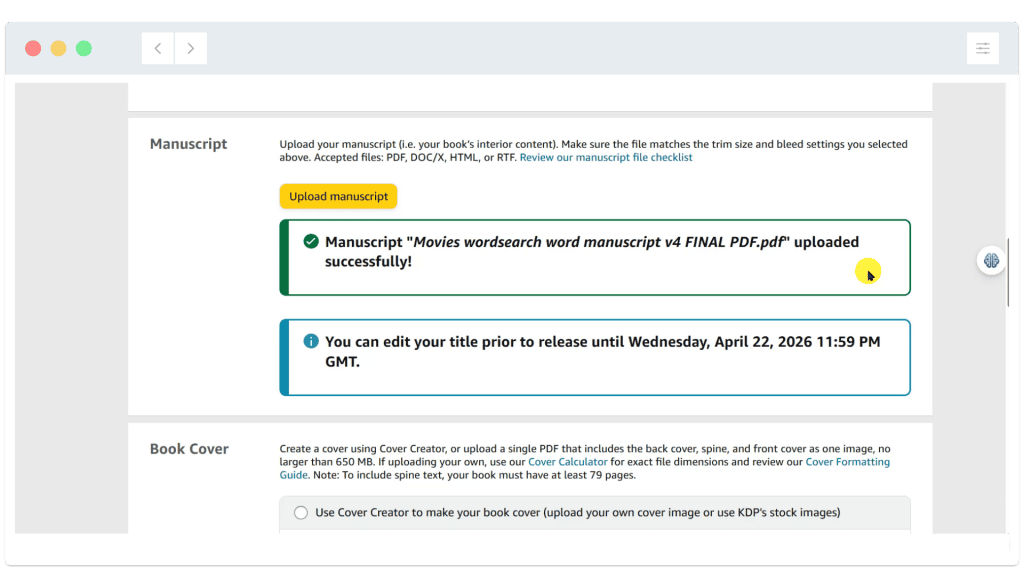
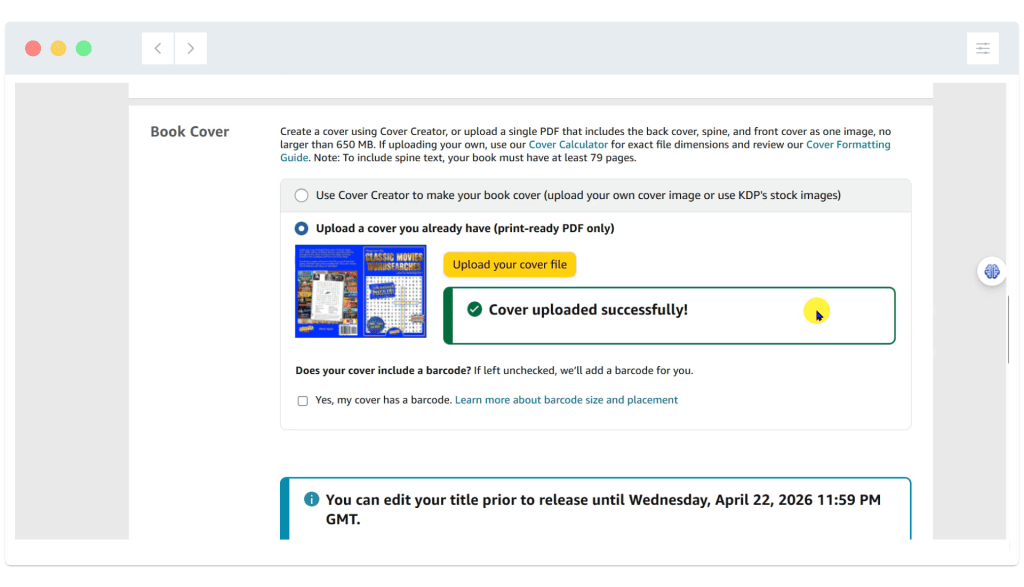
03: In the ‘Book Cover’ section, select to upload the cover image file. This is the PDF file exported from Photoshop, which started as a high resolution PNG image saved from PaintShop Pro. Remember that the cover file MUST be a PDF – You cannot upload a jpeg or PNG image file!
04: Scroll down and click ‘Launch Previewer’:
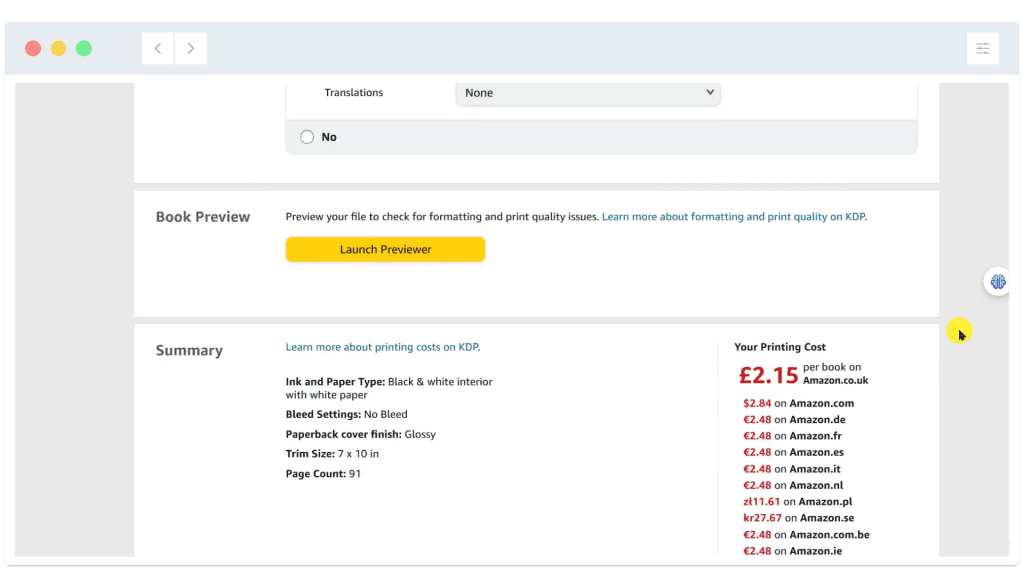
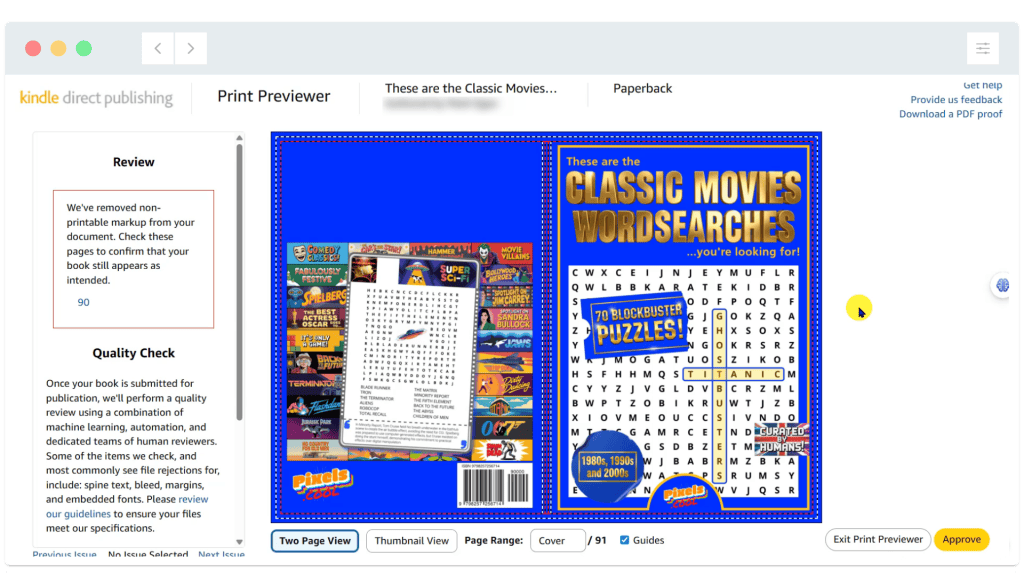
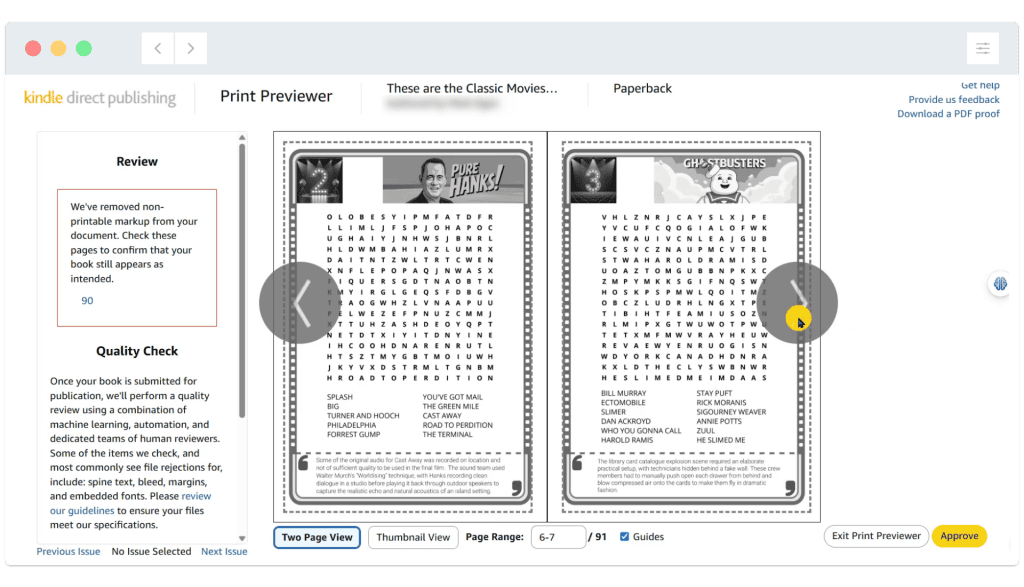
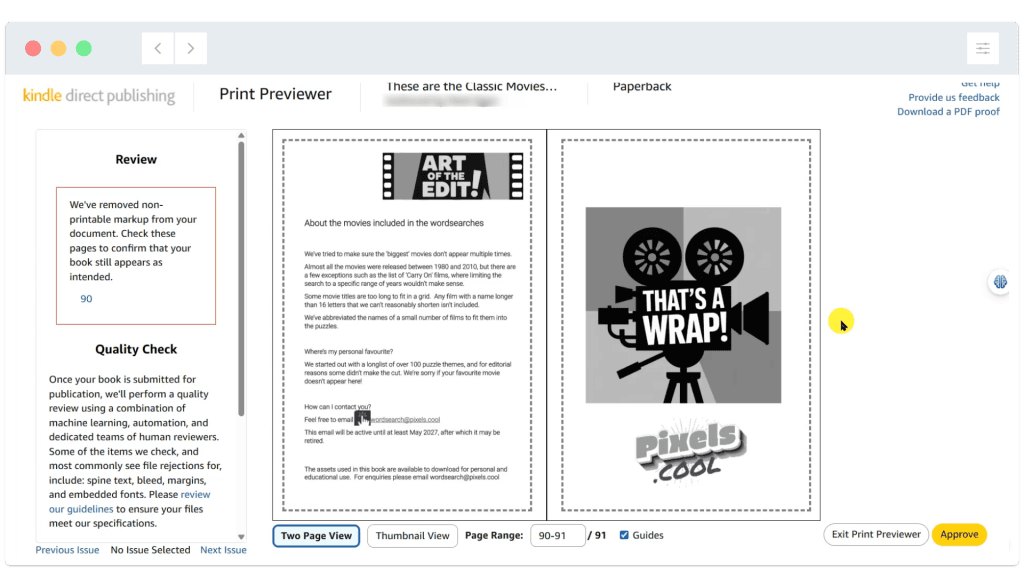
05: A visual preview of the book loads. This may be the first time you’ve seen the book as it will look when it’s printed! Use the large arrow icons to step through the book, and look carefullyfor any issues:
NOTES:
The previewer will highlight formatting issues but it does NOT run a spellcheck or look for alignment issues.
The KDP platform automatically adds a barcode on the back cover in the location as shown. If this obscures an important part of your back cover, go back to your cover image and adjust it to ensure the barcode area isn’t used.
We’ve chosen to print the book with a black and white interior. This is common for wordsearch and other puzzle books. Printing in colour will increase the print cost (and the price you will need to charge), and is rare unless you’re targeting a niche market who will be happy to pay significantly more for your colour puzzles!
06: If you’re happy with the book as previewed, click the APPROVE BUTTON at the bottom right of the preview window. You can also ‘Exit print previewer’ and return to the preview window at any time.
Set the book price(s) then submit it for review
We’re nearly there! It’s time to select how much to charge at the various Amazon sites.
01: Start by selecting a price for buyers in the local market (which is the UK for us). We’ve selected £4.99. You may also like to set ‘sensible’ pricing for other major markets such as Canada and the US:
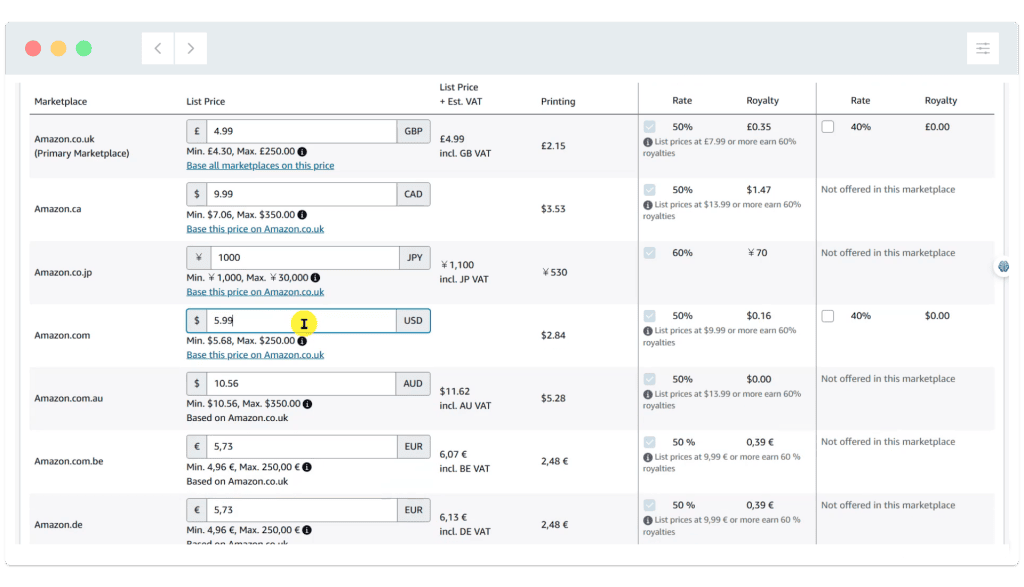
Note: As you can see above, there is a minimum price you can sell your book for. This includes the cost of printing and a minimum Amazon commission payment. For our 91 page puzzle book, the minimum sales price is £4.30, so we’ll only make around 35p ‘profit’ per book sold if we price it at £4.99.
02: When you’ve checked everything (at least twice!), it’s time to commit to publishing the book! When you click ‘Publish your paperback’, the book is submitted for HUMAN review before it will be made live on your chosen date:
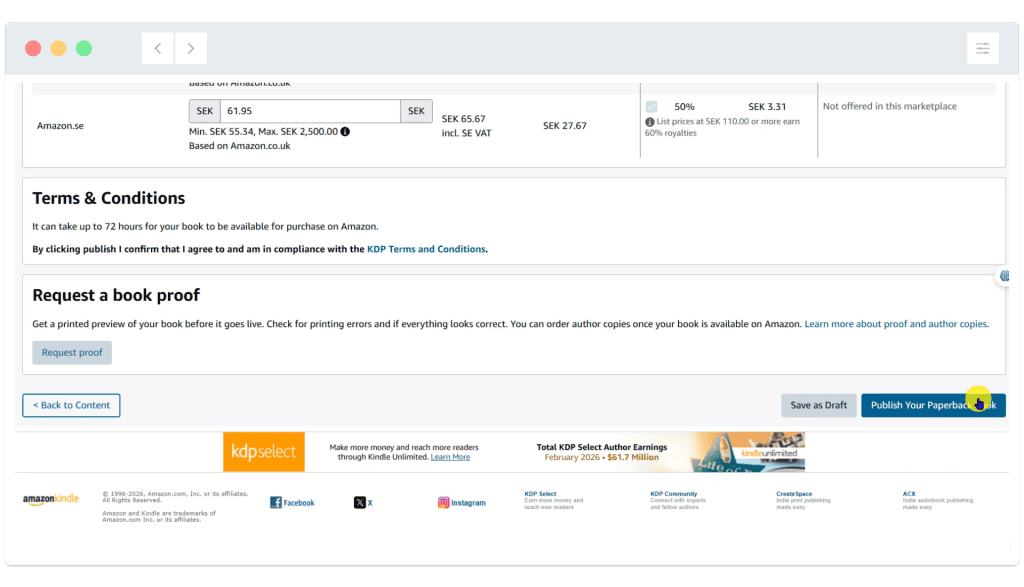
The review team may look for:
- Content policy:
- No hate speech, illegal content or glorified violence.
- No medical/legal claims presented as professional advice without proper disclaimers.
- Prohibited or sensitive topics:
- AI‑generated or “robotic” content:
- Some authors report that heavy AI‑only text with no obvious added value or curation can trigger extra scrutiny or rejection
Once checked by a human, you’ll receive an email confirming your book will be live on Amazon on your selected future date! (If there are any issues, you’ll receive an email outlining the problem(s), and you’ll be able to make edits to your book again).
Congratulations – You’ve published your first puzzle book!

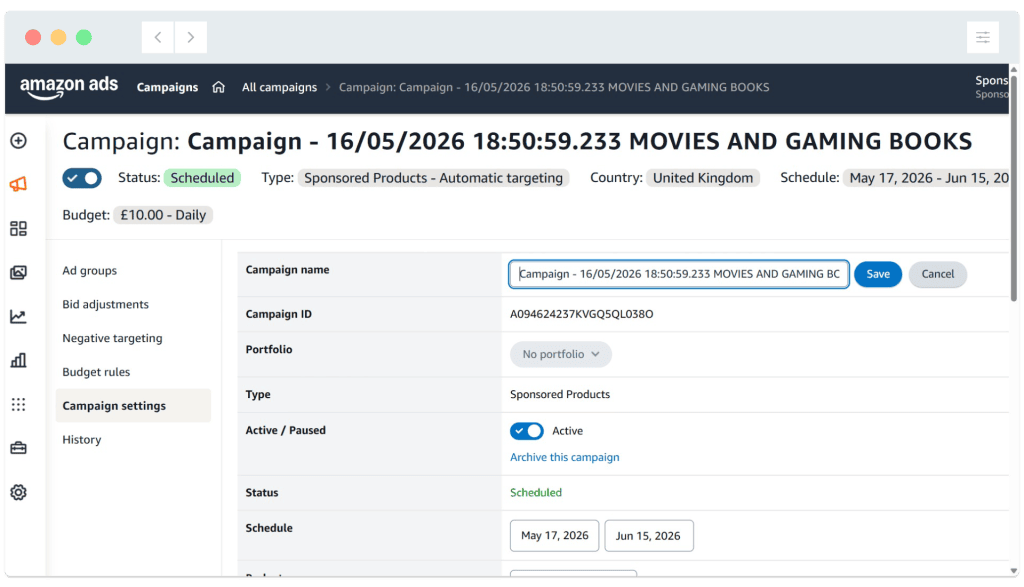
You may like to go on to PROMOTE your book using ‘Amazon Ads’. As you can see below, we set up a 1 month campaign with a maximum budget of $10 a day. You will only pay when someone clicks the presented ad to view the book details! (You can find lots of ‘How to promote…’ videos on YouTube!)
Why not also sell the puzzles as a digital download file?
In this series we’ve focused on publishing a physical book, but you can also sell it on Amazon as a Kindle book, or on other platforms as a digital file download!
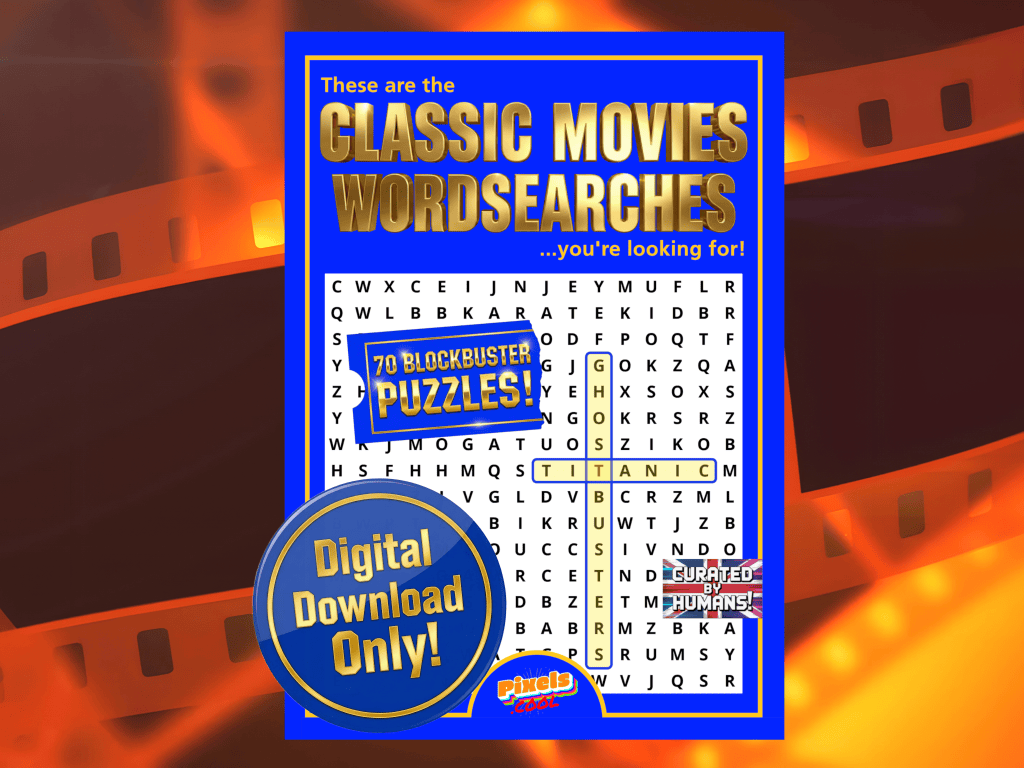
We’ve listed the puzzles on Etsy as a digital download! (The purchaser is given access to the uploaded PDF file once payment is complete).
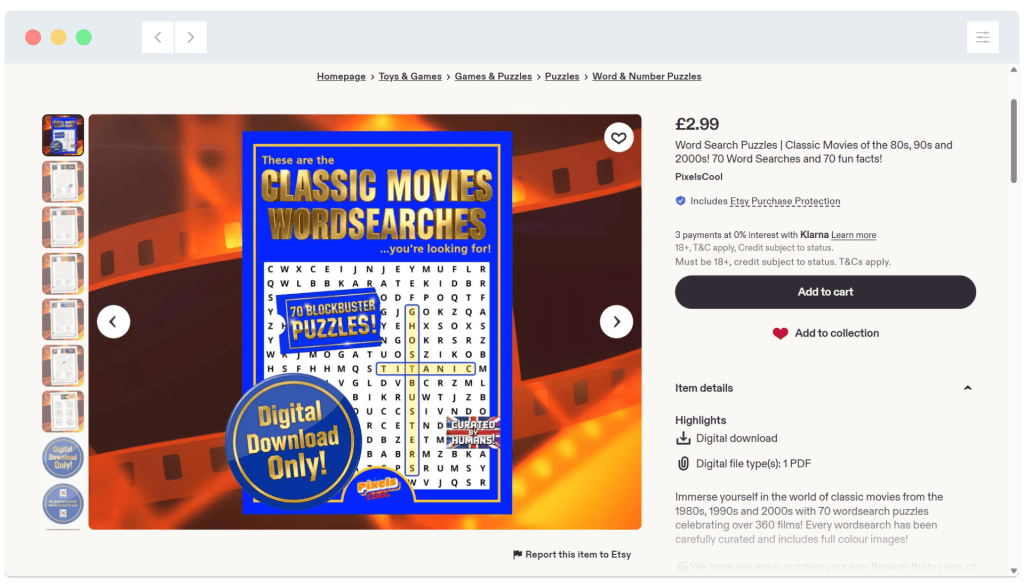
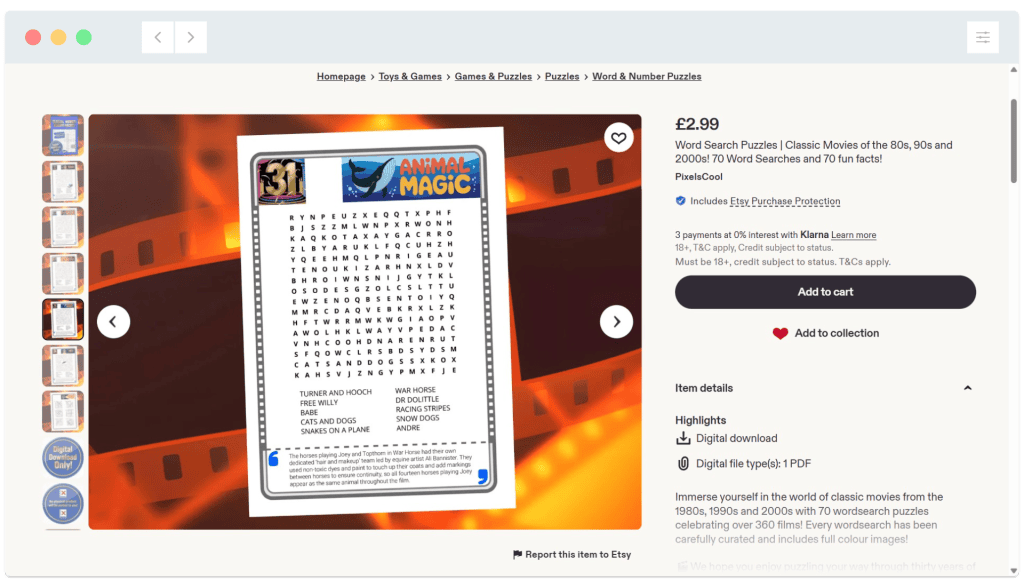
As the puzzles have already been saved as a PDF file, it’s quite easy to repurpose it to use as a digital download. Consider the following quick checks:
- Remove blank pages – Your buyer may be printing at home.
- Remove any content that does not need to be printed (Extra images, introductory text etc)
- Check how the pages will look when printed on A4 and LETTER size paper. Most users will be able to use a ‘Set to page size’ option on their printer to make sure puzzles fill a printed page. Most UK users will print on A4, while the US uses LETTER size.
- Check how the pages look in colour and black & white.
TIP: The maximum file size accepted by Etsy for a single downloadable file is 20mb. If your PDF file is larger than this, the Etsy upload process will reject it. We used this free compression tool from Adobe to reduce the final file size to make sure it was under 20mb:
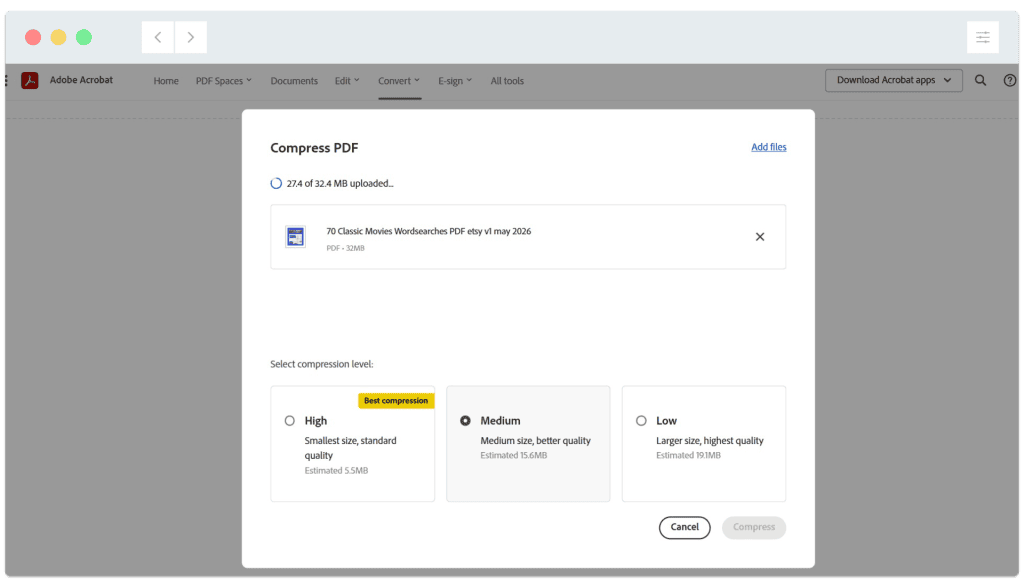
TIP: There are many ‘free’ PDF compression tools available online, but they may ‘over compress’ a file to make it even smaller than it needs to be, resulting in blocky images and slightly fuzzy text. Check you are happy with the quality of a compressed file before selling it!
The finished, published book
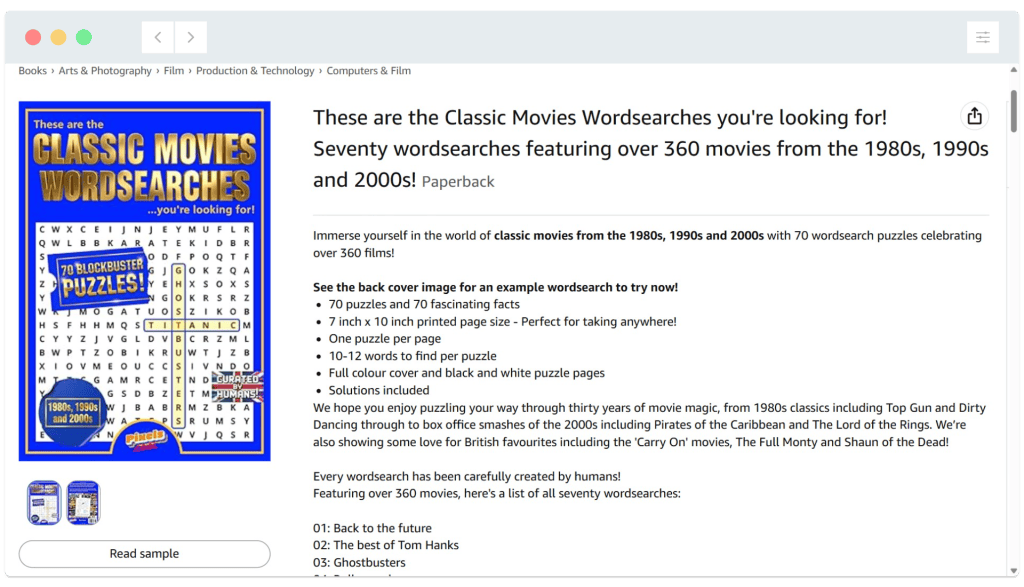
‘These are the Classic Movies Wordsearches you’re looking for’ is available now at Amazon!
…and as a digital download from Etsy!
Need help? We’ve got you!
We have a dedicated support email address to provide assistance for this series:

If you have a question about any of the processes shown, please get in touch! You can also request copies of the wordsearch / image assets we use so you can try them for yourself!
Note: This email is for help relating to this series only, until the end of September 2026. We aim to reply within 72 hours, weekdays only. We cannot respond to unrelated queries via this account.
What’s next?
That’s the end of this six-part series. We hope you’ve enjoyed producing and publishing your book, and look forward to seeing what you go on to create! Don’t forget you can email us with any questions about this process until the end of September 2026.
The design, build and publish process in 2 minutes!
Notes and updates
There are no notes or advisories at this time. This page was first published in June 2026.
pixels.cool is not responsible for the content of external webpages or for software downloaded from third party sites. Links are included in good faith at the time of writing. All explainer / walkthrough content is compiled using processes and methods used by the Team. Modern applications offer many ways to accomplish a task, and for reasons of clarity we choose not to refer to multiple options. All computer users should run up to date virus / security software at all times to minimise the risk of data loss.
This is part 6 of 6 of this creative series. Make sure you check out the others!
